When I first unboxed a brand‑new Windows machine back in the early 2020s, I never imagined that a decade later I’d be writing about a platform that feels both nostalgic and cutting‑edge at the same time. Fast‑forward to 2026, and Microsoft’s OS ecosystem has matured into a truly adaptive environment for power users who demand speed, security, and seamless AI integration. In my daily workflow, Windows is no longer just an operating system; it’s a living, breathing partner that anticipates my needs—whether I’m juggling multiple virtual desktops, automating repetitive tasks with Power Shell, or diving deep into the latest AI‑enhanced features. In this post, I’ll walk you through the most compelling trends, hidden pitfalls, and practical tweaks that can help you stay ahead of the curve while keeping your Windows rig humming like a well‑tuned engine.
Windows 12: The New Baseline for Power Users
Microsoft officially unveiled Windows 12 in early 2026, and the hype was justified. The new OS brings a modular kernel design that lets power users enable or disable subsystems on the fly—a game‑changer for anyone who likes to strip away bloat and keep only what they need. Dynamic Memory Allocation now works at the process level, allowing apps to request exactly the RAM they require without the traditional overhead. The revamped Windows Terminal integrates native support for Linux containers, making cross‑platform development smoother than ever. And for those of us who love to tinker, the Settings app finally exposes advanced GPU scheduling options and hardware‑level virtualization controls that were previously hidden in the Registry. The bottom line? Windows 12 feels less like a monolithic OS and more like a customizable platform built for the modern power user.
Fine‑Tuning the Windows Experience
Out‑of‑the‑box, Windows 12 ships with a solid set of defaults, but the real power lies in the granular tweaks you can apply. Start by disabling unnecessary background services through the Services.msc snap‑in—focus on telemetry that doesn’t serve a clear purpose for you. Next, explore the new “Performance Profiles” under Settings → System → Power & battery; you can create a “Creative Burst” mode that prioritizes CPU cores and GPU clock speeds for rendering tasks, then switch to an “Efficiency” profile for low‑power work. Don’t overlook the File Explorer’s “Compact View” toggle, which reduces UI animations and speeds up navigation on SSD‑driven systems. Lastly, leverage Power Shell scripts to automate repetitive registry tweaks—save them to a personal GitHub gist for version control. These adjustments collectively shave seconds off boot times and keep your system feeling responsive even under heavy multitasking loads.
Guarding Against the Invisible Threats
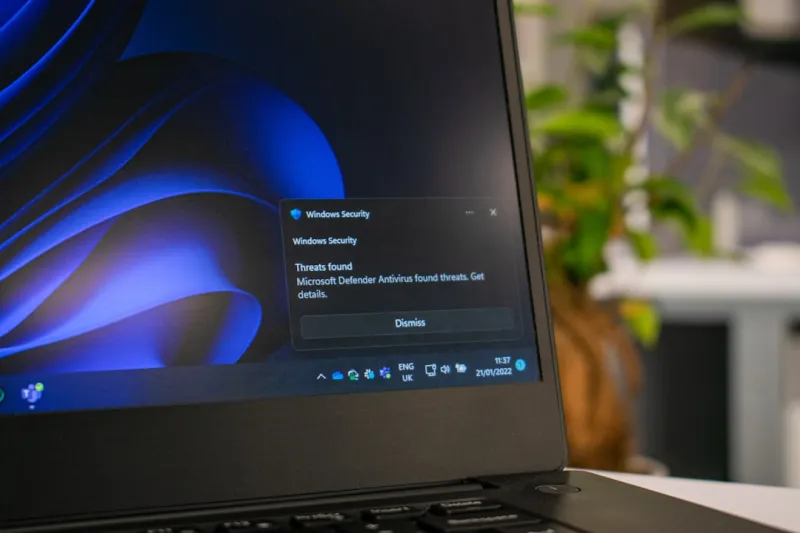
While Windows 12’s security architecture is robust, power users still need to stay vigilant. Modern malware has evolved to hide in legitimate system processes, making detection a moving target. The The Hidden Threats Power Users Must Outsmart guide outlines how attackers exploit obscure Windows APIs to bypass traditional AV scanners. As a best practice, enable Controlled Folder Access and leverage Windows Defender Application Guard for browsers and Office apps. Pair these with a layered approach: a reputable third‑party EDR for heuristic analysis, regular Windows Update cadence, and a disciplined habit of reviewing newly installed services. Remember, the strongest defense is a combination of built‑in protections and a proactive mindset that treats every new executable with a healthy dose of skepticism.
Storage Strategies That Keep Pace with AI Workloads
In 2026, AI workloads are no longer confined to data‑center GPUs; they’re running on local machines for rapid prototyping. This shift places unprecedented demands on storage subsystems. A tiered approach—combining NVMe SSDs for OS and active projects with high‑capacity SATA drives for archival data—delivers the sweet spot of speed and cost efficiency. Use Windows’ Storage Spaces Direct to pool these drives, creating a resilient volume that can automatically rebalance workloads based on I/O patterns. Don’t forget to enable “Fast Startup” in the power settings; it leverages the SSD cache to cut boot times dramatically. For those who crave deeper insight, the AI Computing Trends Every Power User Must Know article dives into how Windows 12’s built‑in AI acceleration APIs can offload inference tasks directly to the SSD controller, further reducing latency.
Taming a Misbehaving GPU on Windows
Even with the latest drivers, GPUs can act up—especially when you push them with AI training loops or high‑resolution rendering. When your screen flickers or you encounter unexpected crashes, the When Your GPU Misbehaves playbook is a lifesaver. Begin by checking the Event Viewer for driver error codes, then use the built‑in “GPU Diagnostics” tool in Windows 12 to benchmark and isolate the fault. If the issue persists, roll back to a known stable driver version via Device Manager, and consider disabling “Hardware‑Accelerated GPU Scheduling” temporarily to see if the problem resolves. For deep dives, capture a kernel memory dump and analyze it with WinDbg; the call stack often points directly to the offending driver or third‑party overlay that’s causing the instability.
Embracing the Blue Screen as a Diagnostic Ally
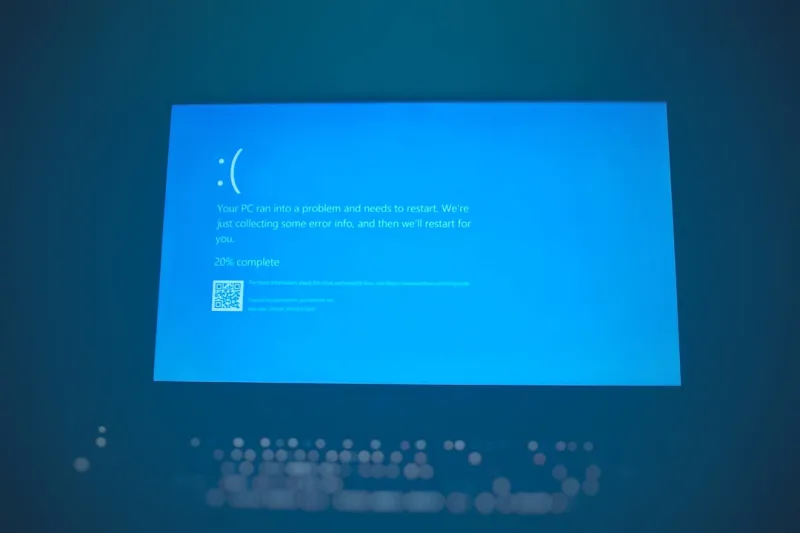
Most users dread the infamous Blue Screen of Death, but for a seasoned power user it’s a goldmine of diagnostic data. Windows 12 now logs BSOD details to a dedicated “BugCheck” folder, complete with a JSON dump that can be parsed by Power Shell scripts. By setting the registry key HKLM\System\CurrentControlSet\Control\CrashControl\CrashDumpEnabled to “2”, you ensure a full memory dump without sacrificing disk space. Tools like “WhoCrashed” can then translate the dump into readable driver names and faulting addresses. The key is to treat each crash as an opportunity to refine your system’s stability—whether that means updating a firmware, tweaking a BIOS setting, or adjusting a power profile. Over time, this proactive approach turns the dreaded blue screen into a roadmap for continuous improvement.
Integrating Microsoft Office with AI for Maximum Productivity
Office 2026 has finally caught up with the AI hype, embedding large‑language models directly into Word, Excel, and PowerPoint. These assistants can draft documents, generate complex formulas, and even design slide layouts based on a single prompt. To harness this power, enable “Copilot” in the Office options and pair it with Windows 12’s “Voice Activation” feature for hands‑free operation. For power users who need granular control, Power Shell scripts can automate the insertion of AI‑generated content across multiple files, saving hours of manual work. Keep an eye on the privacy settings, however—Microsoft offers granular consent controls that let you decide whether your data is used to improve the AI models. When configured correctly, this synergy between Windows and Office can elevate your productivity to a level that feels almost futuristic.
Looking Ahead: The Future of Windows for the Power User
As we settle into 2026, the trajectory of Windows points toward deeper AI integration, more modular architecture, and tighter security loops. Anticipate features like “Predictive Resource Allocation,” where the OS pre‑emptively reserves CPU and memory for tasks it predicts you’ll start next—a boon for developers and content creators alike. Keep experimenting with the new Windows Subsystem for Linux (WSL) 2.0, which now supports GPU pass‑through, allowing you to run CUDA workloads natively alongside Windows apps. Finally, stay engaged with the community: forums, GitHub repos, and the ever‑growing library of power‑user guides (including our own) will be essential as the platform evolves. By staying curious, proactive, and a bit daring, you’ll ensure your Windows machine remains not just a tool, but a relentless engine for innovation.