Why Windows Still Reigns Supreme for Power Users
When I first laid hands on a Windows machine back in the early 2000s, I never imagined that three decades later I’d still be championing the platform as a power‑user. Yet in 2026, Windows remains the most adaptable, developer‑friendly, and enterprise‑ready operating system on the planet. Its ability to evolve—thanks to a relentless cadence of feature drops, robust driver ecosystem, and deep integration with Microsoft’s cloud services—means that seasoned pros can push the envelope without abandoning the familiar workflow they’ve honed over years. What truly sets Windows apart today is its layered approach to customization: from the granular Group Policy editor to the new Windows Terminal that now supports multiple shells natively. This flexibility lets me script, automate, and monitor system health from a single pane, while still enjoying the polished UI that non‑technical colleagues appreciate. In this article, I’ll walk you through the latest hidden gems, AI‑driven enhancements, and security hardening techniques that make Windows the ultimate playground for any power user willing to dig a little deeper.
Unlocking Windows 11’s Hidden Power for the Modern Power User
If you’ve been using Windows 11 since its launch, you might think you’ve uncovered all its secrets. The truth is, the OS still hides a trove of under‑the‑radar features that can dramatically boost productivity and system performance. For instance, the new Focus Sessions in the Clock app now integrate with Microsoft To‑Do, allowing you to allocate CPU cycles to high‑priority tasks while throttling background processes. Another gem is the PowerToys Run shortcut (Alt Space), which has been supercharged with plugin support for custom scripts—perfect for launching PowerShell one‑liners on the fly. To see a deeper dive on these tricks, check out Unlocking Windows 11’s Hidden Power for 2026 Power Users. By configuring the Storage Sense policies to automatically clear temporary files after a set number of days, you can keep your SSD running at peak speed without manual intervention. The combination of these tweaks turns a standard workstation into a lean, mean, multitasking machine.
The Emerging Windows 12 Preview: What Power Users Should Anticipate
Microsoft’s internal roadmap leaked that a Windows 12 preview will hit developer channels later this year, and the buzz is already palpable. While the final feature list is still under wraps, the early builds hint at a tighter coupling with Azure Arc, enabling seamless hybrid cloud management directly from the OS. Imagine provisioning a virtual GPU instance on Azure and having it appear as a local device in Device Manager—that’s the kind of fluidity we’re heading toward. Additionally, the new “Dynamic UI Scaling” algorithm promises pixel‑perfect rendering across 4K and 8K displays without the lag we’ve traditionally seen. For power users who rely on multiple high‑resolution monitors, this could eliminate the need for third‑party scaling utilities. Another exciting prospect is the expanded support for Linux containers via WSL 3, which now includes GPU passthrough for AI workloads. As we experiment with these builds, it’s essential to keep a stable Windows 11 environment for daily work while sandboxing the preview in a separate partition—this way you stay productive and still get a taste of the future.
AI Integration: Windows Copilot Becomes a Real Assistant
One of the most talked‑about upgrades in Windows 11 has been the integration of Copilot, Microsoft’s AI‑driven desktop companion. In 2026, Copilot has matured from a novelty to a genuine workflow accelerator. By default, it can suggest context‑aware shortcuts, auto‑fill form fields, and even generate PowerShell scripts based on natural language prompts. I recently asked Copilot to “optimize my system for low‑latency video editing,” and it promptly disabled unnecessary services, reallocated priority to my GPU driver, and tweaked the power plan—all in under a minute. To truly harness this power, enable the “Advanced Command Mode” in Settings → Copilot → Features, which unlocks the ability to chain commands and embed variables. Pair this with the insights from AI Computing Strategies Every Power User Needs to Master, and you’ll have a self‑optimizing workstation that learns your habits and pre‑emptively adjusts resources before you even notice a slowdown.
Security First: Encryption and Zero‑Trust on Windows
Security isn’t a feature you can bolt on; it’s a mindset that must be woven into every layer of the OS. Windows 11’s built‑in BitLocker continues to be the gold standard for full‑disk encryption, but power users should also enable Hardware‑Based Isolation via Virtualization‑Based Security (VBS). This creates a secure kernel region that isolates critical processes from potential malware. Complement this with the latest Windows Hello for Business biometric policies, and you’ll have multi‑factor authentication that’s both seamless and robust. For those handling sensitive data, the new “Controlled Folder Access” policies now support per‑application whitelisting, letting you lock down directories while still allowing trusted development tools to write logs. I recommend reading Mastering Modern Operating Systems: A Power‑User Playbook for a comprehensive checklist that walks you through hardening steps, from secure boot configuration to regular audit of privileged groups.
Hardware Synergy: Choosing the Right Components for a Windows Power Machine
The software side of Windows shines brightest when paired with hardware that can keep up. In 2026, the sweet spot for power users is a Ryzen 9 9‑series CPU combined with an RTX 5080 GPU, but the motherboard you select can make or break that combo. A board that supports PCIe 5.0, dual M.2 NVMe slots, and robust VRM cooling ensures you can fully exploit the bandwidth of modern SSDs and GPUs. While I won’t dive into the minutiae of chipset selection here, the article Choosing the Perfect Motherboard for Power‑User Performance in 2026 provides an in‑depth look at BIOS tuning, memory overclocking, and power delivery best practices. Remember to enable “Fast Boot” and “Secure Boot” in the firmware, and allocate enough RAM for your virtual machines—64 GB is a comfortable baseline for developers who run multiple containers and Windows Subsystem for Linux (WSL) instances simultaneously.
Troubleshooting the Blue Screen: Proactive Measures for Zero Downtime
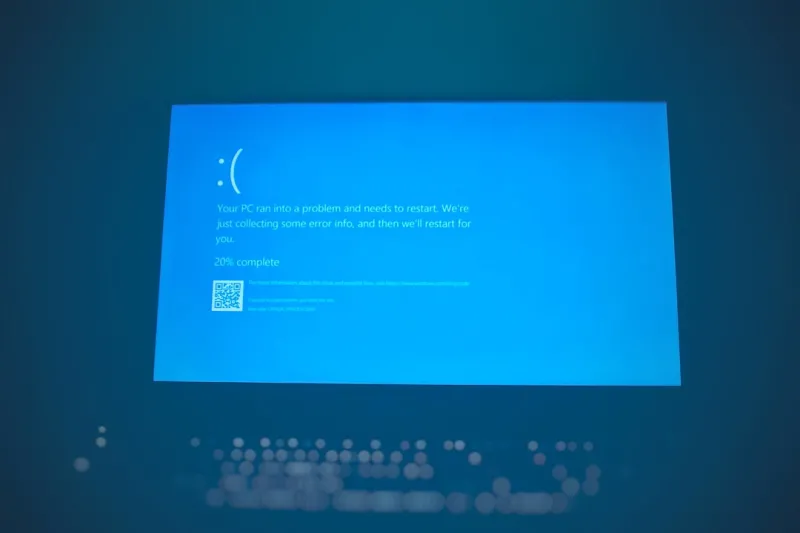
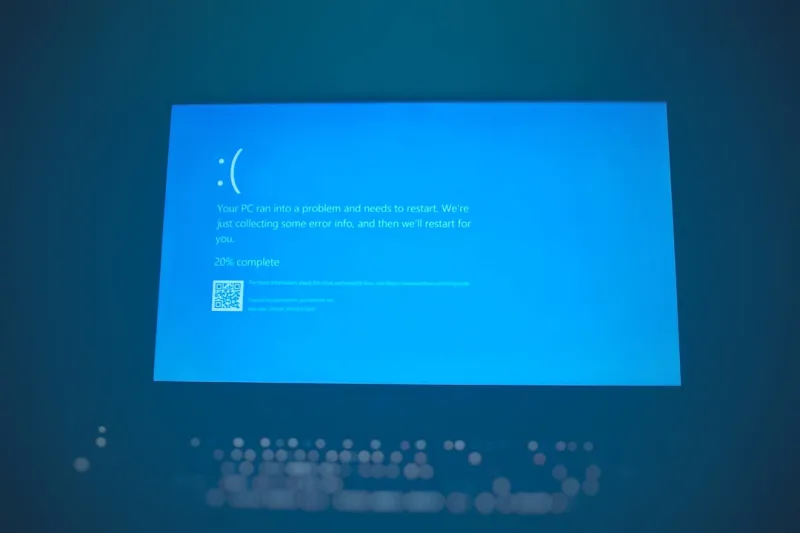
Even the most stable Windows builds can encounter the dreaded Blue Screen of Death (BSOD). The key to zero‑downtime is proactive monitoring and rapid rollback strategies. First, enable Memory Dump Analysis in the System Properties so that you capture detailed crash logs without overwhelming storage. Tools like WinDbg can parse these dumps, but for quick diagnostics, the built‑in “Windows Debugger” in the Settings → Update & Security → Windows Insider section can point you to the offending driver. Second, make use of Windows 11’s “Rollback Feature” which retains the previous OS image for up to 30 days, allowing a one‑click revert if a new driver causes instability. Finally, schedule regular system health checks using PowerShell scripts that query the Event Viewer for critical errors and automatically email you a summary. By integrating these routines into your daily workflow, you transform the BSOD from a catastrophic event into a manageable, data‑driven alert.
Future‑Proofing Your Windows Ecosystem
Looking ahead, the Windows ecosystem will continue to intertwine with cloud services, AI, and next‑gen hardware. To stay ahead, adopt a modular approach: keep your core OS lean, rely on containerized workloads for development, and leverage Azure Arc for cross‑platform management. Regularly audit your system with the built‑in “Windows Security Center” to catch emerging threats, and stay subscribed to the Microsoft Insider Program for early access to features like Dynamic UI Scaling and advanced Copilot commands. As power users, our edge comes from marrying deep technical knowledge with the willingness to experiment—so don’t shy away from testing new builds in a virtual environment before rolling them out company‑wide. By following the strategies outlined above, you’ll not only keep your Windows machine humming smoothly but also position yourself to capitalize on the innovations Microsoft will roll out over the next few years.