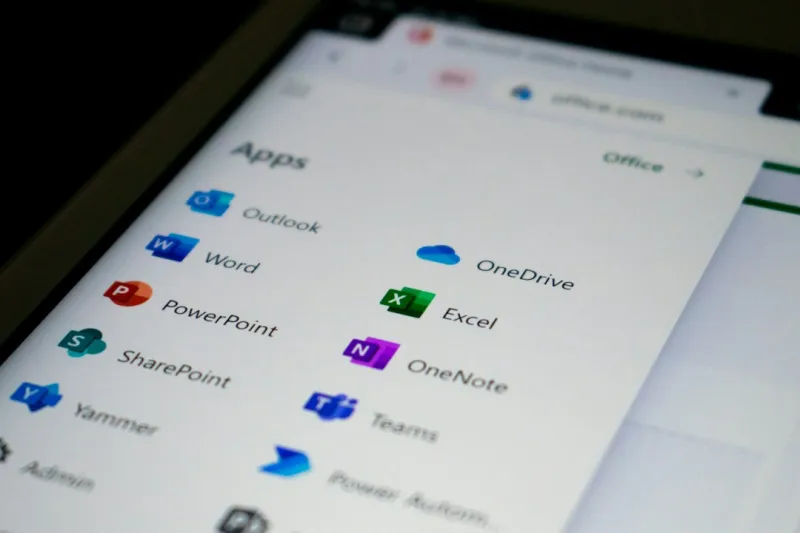

When I first opened a brand‑new copy of Microsoft Office back in the early 2010s, I never imagined it would still be the backbone of my daily workflow in 2026. Yet here we are, and the suite has morphed from a static collection of desktop apps into a living, breathing ecosystem that anticipates my needs before I even type a keystroke. In my experience, the secret sauce isn’t just the familiar ribbons and menus—it’s the relentless push to blend AI, cloud, and cross‑platform synergy into every click. This evolution means that even seasoned power users like myself can discover fresh ways to shave minutes off routine tasks, keep data secure, and collaborate across continents without breaking a sweat. Over the next several sections, I’ll walk you through the most compelling upgrades that have kept Office relevant, the shortcuts that feel like magic, and the strategic moves you can make today to stay ahead of the curve.
AI Is Your New Co‑Writer
One of the biggest game‑changers in the Office suite this year is the deep integration of AI assistants—what Microsoft brands as “Copilot.” Think of it as an ultra‑knowledgeable teammate who can draft a PowerPoint slide, suggest a data‑driven chart in Excel, or even rewrite a paragraph in Word to match a specific tone. What used to take an hour of research and polishing now happens in seconds, freeing you to focus on higher‑level strategy. The AI doesn’t just spit out generic text; it pulls from the context of your document, your organization’s style guide, and even recent meeting notes from Teams. I’ve started using Copilot to generate quarterly report outlines, and the result is a polished draft that only needs a final human touch. The key is to treat it as an augmenting tool rather than a replacement—use its suggestions as a springboard, then inject your expertise where it matters most.
Shortcut Mastery: The Hidden Power of Keyboard Commands
If you’re like me, you’ve spent countless hours hunting for that one obscure shortcut that could save you a few precious seconds. The truth is, mastering a handful of high‑impact shortcuts can transform your productivity curve dramatically. For instance, pressing Alt + Q in any Office app instantly opens the “Tell Me” search bar, letting you jump to any command without navigating the ribbon. In Excel, Ctrl + Shift + L toggles filters on the fly, while Ctrl + Shift + Enter still creates the classic array formula for those legacy sheets that refuse to modernize. Word’s Ctrl + Shift + N snaps you back to the default “Normal” style, a lifesaver after you’ve accidentally applied a heading. To deepen your shortcut arsenal, check out Unlocking the Hidden Power of Microsoft Office, where I break down lesser‑known commands that even veteran users often overlook.
Real‑Time Collaboration Gets Smarter
Collaboration in Office has gone from “send a file, wait for feedback” to “co‑author in real time, with AI‑driven suggestions.” When a teammate edits a shared Word doc, you can see their cursor, comment threads, and suggested changes live, all synced through OneDrive or SharePoint. The same fluidity exists in Excel, where multiple analysts can manipulate a complex model simultaneously, with version history ensuring no data is lost. Teams integration takes this a step further: you can launch a PowerPoint presentation directly from a Teams meeting, annotate slides on the fly, and let AI generate speaker notes based on the discussion. The result is a seamless loop between communication and creation, erasing the old barrier between “draft” and “final.” I’ve found that setting up a dedicated “Collab Hub” channel in Teams, paired with shared OneDrive folders, cuts meeting follow‑up time by nearly half.
Security and Compliance Built Into the Workflow
In today’s remote‑heavy environment, data leakage is a constant threat, and Microsoft has responded by embedding security directly into Office’s core. Sensitivity labels now propagate automatically based on content type—if you paste a credit‑card number into Excel, the file is instantly marked as confidential and encrypted at rest. Advanced Threat Protection (ATP) scans attachments in Outlook for malicious macros before they reach your inbox, while Information Rights Management (IRM) can restrict copy‑and‑paste or printing of a Word document. For compliance officers, the audit trail in SharePoint logs every edit, who made it, and when, satisfying regulations like GDPR without extra admin work. I routinely use the “Protect Document” feature in Word to enforce read‑only policies for contractual drafts, and the built‑in compliance manager dashboard gives me a quick health check before I share files with external partners. For a deeper dive into protecting your Office ecosystem, see Unlock the Full Potential of Microsoft Office with AI, Shortcuts, and Power Tips.
Power Platform: Extending Office Without Code
One of the most underrated aspects of modern Office is its seamless bridge to the Power Platform—Power Apps, Power Automate, and Power BI—all of which let you create custom solutions without writing a single line of code. Imagine a scenario where a sales rep fills out a simple form in Teams, and Power Automate instantly generates a personalized proposal in Word, pulls the latest pricing from Excel, and emails it to the client—all in under a minute. Power BI dashboards can be embedded directly into Excel sheets, offering live visual analytics without toggling between apps. The real magic is in the low‑code connectors: you can pull data from Azure, GitHub, or even your favorite CRM, and have it appear in a SharePoint list that updates in real time. As someone who dabbles in both tech and business, I appreciate how these tools democratize automation, letting non‑developers streamline repetitive tasks and focus on strategic decision‑making.
OneDrive and Offline Resilience
Cloud storage is no longer a nice‑to‑have; it’s the default expectation for any modern Office workflow. OneDrive for Business now offers “Files On‑Demand,” which shows every file in your Explorer view without actually downloading it, freeing up local disk space while keeping your documents instantly accessible. If you’re traveling on a train with spotty Wi‑Fi, the offline mode caches the files you’ve opened, letting you edit Word or PowerPoint without an internet connection. Once you reconnect, changes sync automatically, preserving version history and avoiding the dreaded “conflict copy” scenario. Additionally, the new “Personal Vault” feature adds a second layer of encryption for your most sensitive files, requiring biometric verification on supported devices. I’ve relied on OneDrive’s resilience during remote field work, knowing that my data stays safe, synced, and ready for the next stakeholder review.
Staying Future‑Ready: Training and Community
Even the most powerful tools become obsolete if you don’t invest in continuous learning. Microsoft’s Learn platform now offers bite‑sized, AI‑curated modules that adapt to your skill level, whether you’re a beginner mastering basic formulas or an advanced user exploring custom VBA scripts. Community forums, such as the Microsoft Tech Community, provide real‑world use cases and templates that can be imported directly into your Office apps. I schedule a quarterly “Office Deep Dive” session with my team, where we explore a new feature—last quarter it was the latest AI‑driven design ideas in PowerPoint, and this quarter it’s the improved data types in Excel. By turning learning into a regular habit, you not only boost individual productivity but also future‑proof your organization against rapid software updates.
Putting It All Together: Your Action Plan
So, where do you go from here? First, audit your current Office usage: note which apps you open daily and which shortcuts you already know. Next, enable Copilot across Word, Excel, and PowerPoint to start leveraging AI assistance immediately. Then, pick three new shortcuts from the list in the earlier paragraph and practice them for a week—muscle memory will turn them into second nature. Finally, explore a simple Power Automate flow that automates a repetitive task in your role; the time saved will quickly justify the effort. By following these steps, you’ll transform your Office suite from a static toolset into a dynamic productivity engine. Remember, the real power of Microsoft Office lies not just in its features but in how you weave them into your daily rhythm. Stay curious, experiment often, and let the suite work for you, not the other way around.