
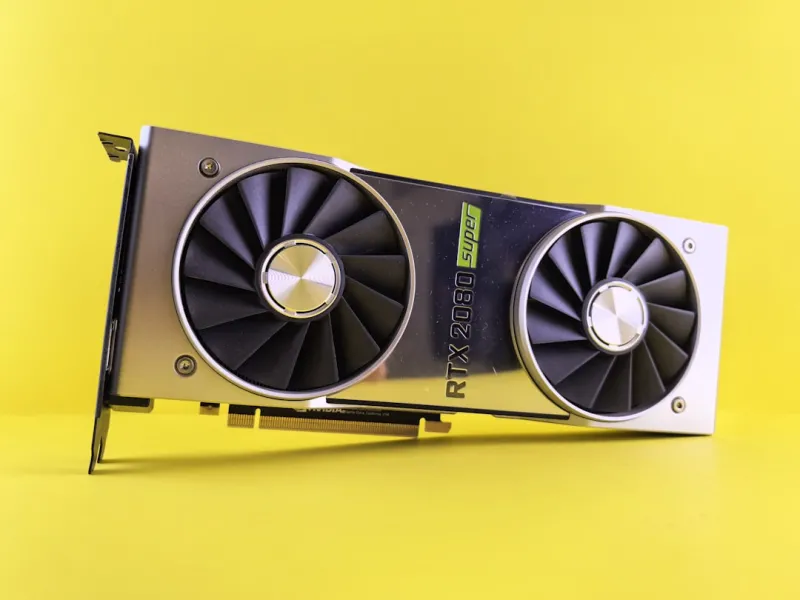
When a GPU decides to throw a hissy fit, it feels like the universe is conspiring against every deadline, render farm, or late‑night gaming session you have. I’ve spent more nights than I care to admit staring at a black screen, blinking cursors, or that dreaded “Display driver stopped responding and has recovered” toast. In 2026, the stakes are higher: AI‑accelerated workloads, 8K editing, and VR immersion demand flawless video card performance. My approach, honed from years of power‑user tinkering, starts with a clear mental map of symptoms—flickering frames, artifact speckles, sudden crashes, or even a silent, no‑signal state. By categorizing the issue early, you avoid the endless rabbit hole of random driver reinstallations and get straight to the root cause, whether it’s software, power, or hardware. Remember, a methodical diagnosis saves time, preserves warranty eligibility, and keeps your workflow humming.
Diagnosing the Obvious: Drivers, OS, and Firmware
The first place any serious troubleshooting expedition lands is the software stack. In 2026, driver packages are more feature‑rich than ever, but also more prone to conflicts after a major OS update. I always start by checking the common video card issues guide for the latest driver version compatibility matrix. Roll back to a known‑good driver if you recently upgraded, and verify that the OS’s display subsystem is fully patched—especially the kernel‑mode driver framework. A quick Device Manager audit can reveal hidden “code 43” errors that signal deeper communication breakdowns. Don’t overlook firmware; many manufacturers push BIOS‑level updates that resolve memory timing bugs and improve power‑state transitions. Flashing the latest VBIOS can be a game‑changer, but always back up the original firmware and follow the vendor’s safe‑mode flashing instructions to avoid bricking the card.
Power Delivery and Thermal Management
A GPU’s tantrums often trace back to insufficient power or overheating. Modern high‑end cards draw upwards of 450 W, and any dip in voltage can trigger throttling or sudden shutdowns. I start by confirming that the PSU is rated for the card’s TDP plus a comfortable 20 % headroom. Use a multimeter or a software tool like HWInfo to monitor the 12 V rail under load; droops below 11.8 V are a red flag. Next, scrutinize the cooling loop. Dust‑laden fans, clogged heatsinks, or a mis‑applied thermal paste can push temperatures past 90 °C, at which point the GPU will aggressively down‑clock to protect itself. Clean the fans with a soft brush, reapply high‑quality thermal compound, and ensure the case airflow follows a front‑to‑rear pattern. In 2026, many power‑users are adopting hybrid liquid cooling kits—if you’ve gone that route, verify pump RPM and check for air bubbles in the loop, as they can cause uneven heat removal.
Compatibility Checks and BIOS Settings
Even a perfectly healthy GPU can act up if the motherboard, BIOS, or PCIe lane configuration is out of sync. Modern motherboards often default to PCIe 4.0 or 5.0, but some GPUs still perform best on a stable 4.0 x16 link, especially when paired with older CPUs. Dive into the BIOS and lock the PCIe speed to the appropriate generation, disabling any auto‑negotiation quirks. Additionally, ensure that your system’s Secure Boot and CSM settings aren’t inadvertently blocking the GPU’s driver signature. For those building a future‑proof rig, the future‑proof PC upgrade strategies article outlines how to choose a motherboard that offers ample PCIe lanes and BIOS flashback capabilities, allowing you to update the firmware without a CPU installed—a lifesaver when a new GPU demands a newer BIOS revision.
Software Tools and Real‑Time Monitoring
Armed with the right diagnostics suite, you can catch GPU misbehaviors before they cripple a project. I swear by a combination of MSI Afterburner for real‑time clock and temperature graphs, and GPU‑specific stress tools like FurMark or 3DMark Time Spy to provoke the fault in a controlled environment. Run a short stress test while logging voltage, temperature, and power draw; any spikes or drops beyond the spec sheet’s tolerance windows point to a hardware issue. For AI‑heavy workloads, tools like NVIDIA’s Nsight Systems provide deeper insight into kernel execution and memory bandwidth utilization, helping you distinguish between a genuine hardware bottleneck and a software‑level inefficiency. Logging these metrics not only aids immediate troubleshooting but also builds a performance baseline you can reference after any driver or OS update.
When to RMA, Replace, or Refurbish
After exhausting driver rollbacks, power checks, and firmware flashes, you may still be staring at the same artifact‑filled screen. At this juncture, it’s time to weigh the cost of an RMA against the benefits of a fresh GPU. Most manufacturers in 2026 still honor a three‑year warranty, but the fine print often excludes “damage caused by overclocking” or “improper cooling.” Gather all your logs, stress‑test screenshots, and a clear description of the steps you’ve taken—this documentation streamlines the support ticket and increases the odds of a quick replacement. If your card is out of warranty but you’re comfortable with solder reflow or re‑balling, a reputable refurbisher can revive a dead GPU for a fraction of the price. However, for power‑users running continuous AI inference or 8K editing, the downtime cost usually justifies a brand‑new upgrade, especially when paired with the latest architecture that brings better power efficiency and ray‑tracing performance.
Preventive Maintenance: The Power‑User’s Routine
Prevention beats cure, and a disciplined maintenance schedule can extend a GPU’s life well beyond its nominal warranty. I schedule a monthly visual inspection: look for dust buildup, fan wobble, and capacitor bulging. Use compressed air bursts in short bursts to avoid spinning the fans too fast, which can generate voltage spikes. Apply a light coat of high‑temperature silicone thermal pad on VRM heatsinks if you notice temperature creep during prolonged rendering sessions. Firmware updates should be applied quarterly, but only after reviewing the changelog for relevant bug fixes—blindly installing every release can introduce new instability. Finally, keep your system’s power profile set to “Maximum Performance” when you’re in a professional workload, but switch to “Balanced” during casual use to reduce thermal stress and power draw.
Future Trends: GPUs as Compute Engines
In 2026, GPUs are no longer just graphics workhorses; they’re the primary compute engines for AI, data science, and real‑time simulation. This shift means that troubleshooting now often involves validating CUDA cores, Tensor cores, and driver-level compute libraries. If you’re running AI models locally, ensure that your CUDA toolkit version aligns with the driver and that the cuDNN library is the correct release. Mismatched versions can cause cryptic “illegal memory access” errors that masquerade as graphics glitches. For those building a workstation that doubles as an AI lab, the AI computing for power users guide dives deeper into balancing GPU compute loads with traditional rendering tasks, ensuring you don’t inadvertently starve one workload at the expense of another.
Wrapping Up: A Methodical Mindset Wins
Every GPU hiccup is a puzzle waiting for a systematic approach. By starting with driver and firmware checks, then moving through power, thermal, and compatibility layers, you’ll cut down on guesswork and preserve the longevity of your expensive hardware. Remember to log everything, keep your firmware current, and schedule regular maintenance—these habits turn a reactive troubleshoot into a proactive shield. When all else fails, don’t hesitate to leverage the community: forums, vendor support, and the wealth of internal resources at Comp Doc Computers can provide the final piece of the puzzle. With a clear, methodical mindset, you’ll keep your workstation humming, your AI models training, and your creative pipelines flowing without interruption.




