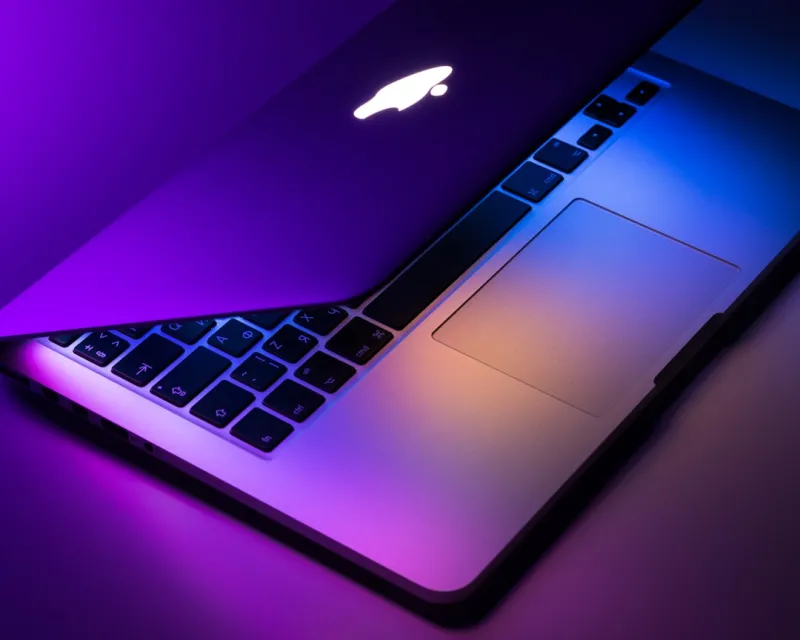
When I first swapped my aging Windows workstation for a sleek M2‑Max MacBook Pro in early 2026, I thought I was trading one set of quirks for another. Fast forward a few months, and the Mac has become my most reliable power‑user partner—provided I know the right shortcuts, hidden preferences, and automation tricks that most casual users overlook. In this deep‑dive, I’ll walk you through the most effective Mac tips that keep my workflow razor‑sharp, my data airtight, and my system humming like a finely tuned engine. Whether you’re a creative professional juggling Final Cut Pro timelines or a developer juggling Docker containers on macOS, the strategies below will help you extract every ounce of performance from Apple’s silicon. I’ll also weave in some cross‑platform insights from my recent posts, because a true power user never limits themselves to a single OS ecosystem.
Master the System Preferences Jungle with Keyboard Shortcuts
Apple’s System Preferences (now called System Settings) hide a treasure trove of tweaks that can shave seconds off everyday tasks—seconds that add up over a full workday. For instance, hitting ⌘ Space launches Spotlight, but pressing ⌥ ⌘ Space opens a focused search that excludes recent documents, instantly decluttering your results. Dive into the “Keyboard” pane and enable “Full Keyboard Access” so you can navigate every dialog box without ever touching the trackpad. In the “Dock & Menu Bar” section, turn off the “Show recent applications” toggle; this not only speeds up Dock rendering but also reduces visual noise, letting you focus on the apps that truly matter. Finally, explore the “Accessibility” settings under “Keyboard” and enable “Key Repeat” with a faster rate—this tiny adjustment dramatically improves code editing speed in editors like VS Code or JetBrains IDEs. These shortcuts are the low‑hanging fruit that any Mac power user should harvest daily.
Automate Repetitive Tasks with Shortcuts and Automator
macOS Monterey introduced the Shortcuts app, and by 2026 it has evolved into a full‑featured automation engine that rivals Windows PowerShell scripts. I use Shortcuts to batch‑rename files, convert image formats, and even generate PDF reports from my daily notes. Create a new shortcut that watches a specific folder—say, your “Incoming Scans” directory—and automatically runs an OCR action, saving searchable PDFs to a cloud‑synced folder. For legacy automation, Automator still shines with its drag‑and‑drop workflow builder; a classic example is a “Rename Files” workflow that prefixes dates in YYYY‑MM‑DD format, making chronological sorting effortless. Combine both tools by exporting an Automator workflow as a Quick Action and then invoking it from a Shortcut, achieving a seamless bridge between older and newer macOS automation paradigms. The result? Hours saved each month, and a cleaner, more deterministic file system.
Optimize Storage Without Sacrificing Speed
Apple’s “Optimized Storage” feature is a double‑edged sword: it automatically offloads rarely used files to iCloud, freeing up internal SSD space, but it can also introduce latency when you need those files back. My approach is to keep the internal SSD under 70 % capacity, then supplement it with a high‑speed external NVMe SSD connected via Thunderbolt 4. This hybrid setup preserves the buttery‑fast launch times for primary apps while still offering terabytes of cheap, expandable storage for media assets. To protect that external drive, enable FileVault encryption—yes, you can encrypt external volumes just as you do the internal disk. For a deeper dive into encryption best practices, see my Unlocking the Power of Encryption guide. Regularly audit your “About This Mac > Storage” view, and use the “Reduce Clutter” button to locate large, forgotten files that can be archived or deleted.
Fortify Your Mac with Built‑In Security Features
Security on macOS has become more robust in 2026, but the default settings still leave room for improvement. First, enable FileVault—Apple’s full‑disk encryption—right after setting up a new Mac; it safeguards your data even if the device is physically compromised. Pair FileVault with a strong, unique password and store the recovery key in a secure password manager. Next, turn on the “Require password after sleep or screen saver begins” option and set the timer to immediately, ensuring no unauthorized eyes can peek at your screen. Don’t forget the “Privacy” tab under System Settings, where you can audit which apps have microphone, camera, and location access; revoke any that you don’t actively use. For developers, enabling “Gatekeeper” with the “App Store and identified developers” setting adds an extra layer of protection against malicious binaries. If you want a broader perspective on why encryption is non‑negotiable for power users, check out the robust encryption strategy article.
Leverage the Terminal for Lightning‑Fast Tweaks
Even the most polished graphical interface can’t match the speed of a well‑crafted command line. macOS ships with Zsh as the default shell, and customizing your .zshrc file can dramatically improve productivity. Add aliases like alias ll='ls -alhG' for color‑coded, human‑readable directory listings, or alias gc='git commit -v' to streamline version control. Use brew to manage third‑party utilities; for example, brew install coreutils gives you GNU tools that are often more feature‑rich than the BSD versions bundled with macOS. If you need to monitor system health in real time, run top -o cpu to sort processes by CPU usage, or sudo powermetrics --samplers smc to get detailed thermal data. For deeper OS insights, my Operating Systems in 2026 guide offers a comprehensive look at macOS internals, from kernel extensions to memory management.
Integrate AI Tools Seamlessly Into Your Mac Workflow
Artificial intelligence is no longer a niche experiment; it’s a daily productivity booster on macOS. With the release of the M3 chip in 2026, on‑device machine learning has reached unprecedented levels of speed and efficiency. I routinely use the built‑in “Quick Note” AI assistant to summarize lengthy PDFs and generate bullet‑point outlines for client meetings. For developers, the new Xcode AI code‑completion feature predicts entire function bodies, cutting down boilerplate time by up to 40 %. If you prefer third‑party solutions, install the “ChatGPT for Mac” app and bind it to a global keyboard shortcut—this lets you ask context‑aware questions without leaving your current window. To understand how to harness this AI horsepower across platforms, read my AI Computing Power blueprint, which walks through setting up local LLM inference nodes on your Mac.
Future‑Proof Your Mac Ecosystem for the Years Ahead
Even the most powerful hardware can become obsolete if you don’t maintain a forward‑thinking workflow. Start by adopting universal file formats—like HEIC for images and MP4 with H.264 for video—to ensure compatibility across future macOS updates and third‑party apps. Keep your apps updated via the Mac App Store, but also subscribe to developer newsletters for beta releases; early access often includes performance optimizations for the latest silicon. Backup strategy is another cornerstone: combine Time Machine on an encrypted external drive with a cloud backup service that supports versioning, so you can roll back to any point in time. Finally, regularly review your security and privacy settings, especially after major OS releases, to re‑enable any protections that may have been reset. By treating your Mac as an evolving platform rather than a static tool, you’ll stay ahead of the curve and maintain the edge that power users thrive on.