
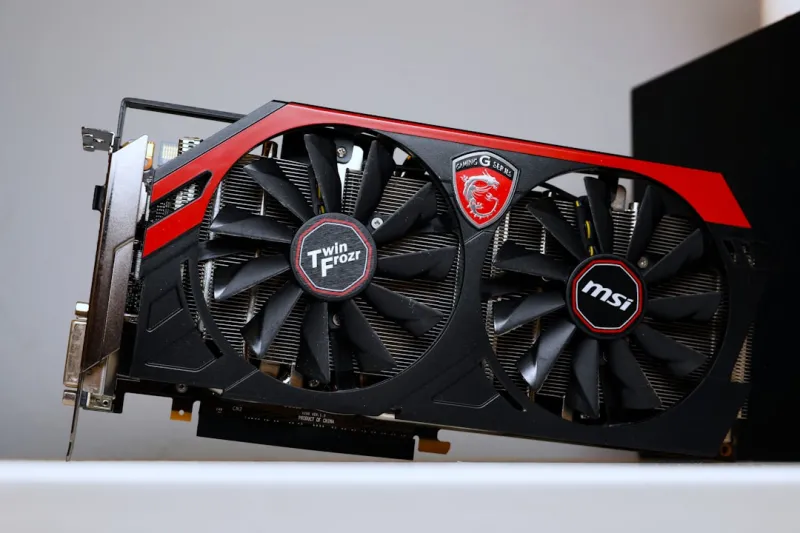
When I first unboxed the RTX 8090 Ti in early 2026, I was blown away by its AI‑accelerated ray tracing cores and the promise of “real‑time cinematic fidelity.” Fast‑forward a few months, and I’ve seen that same card turn into a headache for a surprisingly large slice of the PC community. From mysterious screen flickers that look like an old CRT on steroids to sudden driver crashes that leave Windows whining for a reboot, the troubleshooting landscape for video cards has become as nuanced as the GPUs themselves. In this post I’ll walk you through the most common failure modes, the diagnostic tools you should be wielding, and the pragmatic fixes that keep my rigs humming. Trust me, the tricks I share are born from late‑night debugging sessions, a handful of burnt-out VRMs, and a healthy dose of trial‑and‑error that only a seasoned tech‑writer like myself can translate into actionable steps.
Recognizing the Early Warning Signs
The first thing any seasoned builder learns is to listen to the machine. In 2026, GPUs are equipped with telemetry that reports temperature spikes, power draw anomalies, and even shader compilation errors directly to the OS. If you notice “artifacting” – those strange, colorful glitches that appear during gaming or rendering – it’s often the tip of an iceberg. Similarly, sudden driver resets that trigger the dreaded “Display driver stopped responding and has recovered” message are a red flag that the card’s firmware or power delivery is out of sync. I’ve found that coupling Windows Event Viewer logs with the new GPU PerfStudio utility gives a crystal‑clear picture of when and why a failure occurs. The key is to catch these symptoms early, before they cascade into full‑blown crashes that can corrupt saved work or, worse, brick your entire system.
Power Delivery: The Unsung Hero
Modern GPUs pull more power than ever, and the difference between a stable frame rate and an intermittent black screen often lies in the quality of the power delivery. In 2026, many motherboards now feature AI‑ready VRM designs that dynamically allocate wattage based on workload. If your board’s VRM is under‑spec or the BIOS isn’t calibrated for the newest card, you’ll see voltage droops that cause the GPU to throttle or shut down abruptly. I recommend using a reliable Motherboards in 2026 guide to verify that your chipset supports the required 12‑pin power connectors and that you have adequate cooling for the VRM itself. A simple step like reseating the power cables, or swapping to a higher‑amp PSU, can eliminate a whole class of seemingly “mysterious” crashes.
Driver Stack and Windows 2026 Integration
The operating system is no longer a passive host; Windows 2026 now integrates AI‑driven security layers that can inadvertently interfere with GPU drivers. The new Windows 2026 update introduced a driver signing enforcement that blocks unsigned micro‑code patches, which many boutique GPU manufacturers still rely on for performance tweaks. If you’re running an older driver version, the OS may silently roll back to a safe mode, resulting in stuttering or reduced feature sets. My workflow involves using the “Driver Verifier” tool in conjunction with the Windows “Graphics Settings” panel to isolate whether the problem is driver‑related or hardware‑related. Rolling back to the previous stable driver, then reinstalling the latest version from the vendor’s website, often clears the fog.
Firmware and BIOS: Keep Them Fresh
Every GPU ships with firmware that governs everything from power limits to fan curves. In 2026, manufacturers have started bundling AI‑optimized firmware updates that can unlock up to 15 % more performance on supported titles. However, flashing firmware is a double‑edged sword; a corrupted flash can render the card inoperable, forcing a RMA. I always start by backing up the existing BIOS using tools like GPU-Z and then reading the release notes for each update. If the notes mention fixes for “crash loops” or “unexpected resets,” it’s a strong indication that the new firmware targets the exact issue you’re facing. Remember to run the flash utility in a clean boot environment to avoid interference from background services, especially the new AI‑based security agents that Windows 2026 has introduced.
Temperature Management in the Age of AI‑Driven Fans
Thermal throttling remains the most visible symptom of a struggling GPU, yet the way we manage heat has evolved. Today’s cards come with AI‑controlled fan curves that adapt in real time to workload patterns, but they still rely on proper case airflow and adequate heatsink contact. If you notice your GPU hovering at 85 °C under light load, it’s time to reapply thermal paste and check that the fan isn’t obstructed by dust. I’ve also experimented with custom fan profiles using the MSI Afterburner AI tuner, which can push the fans to a more aggressive curve without sacrificing acoustic comfort. In some cases, adding a dedicated GPU liquid cooling loop can shave off 10‑15 °C, which translates to a smoother experience and longer hardware lifespan.
VRAM Health: When Memory Becomes the Bottleneck
Video RAM is the silent workhorse that often gets overlooked until it fails. In 2026, GDDR7X modules have become standard, offering higher bandwidth but also being more sensitive to voltage fluctuations. Symptoms of VRAM trouble include random texture pop‑ins, crashes during high‑resolution rendering, or the dreaded “out of memory” errors even when you have ample free VRAM on the dashboard. A quick sanity check is to run a stress test with MemTestG80 while monitoring the GPU’s power rails. If you see errors, it’s likely a VRAM cell is failing. Pair this with the Why Your RAM Is Acting Up in 2026 article to verify that the system RAM isn’t the culprit, as cross‑talk between system memory and VRAM can produce similar artifacts.
Overclocking with AI Assistance
Overclocking used to be a manual art, but 2026’s AI‑assisted utilities have turned it into a data‑driven experiment. Tools like EVGA Precision X2 now analyze your card’s silicon lottery and suggest optimal clock and voltage settings. While this sounds like a shortcut, the AI can sometimes push the GPU past its thermal envelope if you ignore its warnings. My approach is to start with the AI‑recommended baseline, then incrementally raise the core clock in 15 MHz steps, testing stability with a benchmark suite after each tweak. Keep an eye on the “GPU Power Limit” slider; staying within 110 % of the stock TDP usually gives you the best performance boost without compromising longevity. If you encounter instability, dial back the voltage and let the AI recalibrate its model.
When to Repair and When to Replace
After exhausting software fixes, you’ll face the classic “repair vs. replace” dilemma. In 2026, the cost of a high‑end GPU has stabilized, but the price of a brand‑new RTX 8090 Ti still carries a premium. If your card is under warranty, filing an RMA through the manufacturer’s portal is usually the fastest route. However, for out‑of‑warranty units, consider the Upgrade Your PC in 2026 guide: it outlines the performance delta between a repaired card and a fresh generation, helping you decide if the investment is worth it. Often, a simple VRM replacement or a new set of power phases can extend the life of a card by another two to three years, especially if you’re not chasing the absolute highest frame rates in the latest AAA titles.
Looking Ahead: AI‑Powered Rendering and the Future of GPUs
As we move deeper into 2026, the line between CPU and GPU workloads continues to blur. AI‑accelerated rendering pipelines, such as NVIDIA’s DLSS 3.5 and AMD’s FidelityFX Super Resolution 3, are offloading more compute to the graphics card, demanding both raw horsepower and efficient AI cores. This shift means that troubleshooting will increasingly involve monitoring the health of the tensor cores alongside traditional shaders. I’ve started integrating PerfHUD AI metrics into my daily diagnostics, allowing me to pinpoint whether a performance dip is caused by the rasterization pipeline or the AI upscaling engine. Understanding these nuances will keep you ahead of the curve, ensuring that your rig not only survives today’s challenges but thrives in tomorrow’s AI‑driven gaming landscape.




