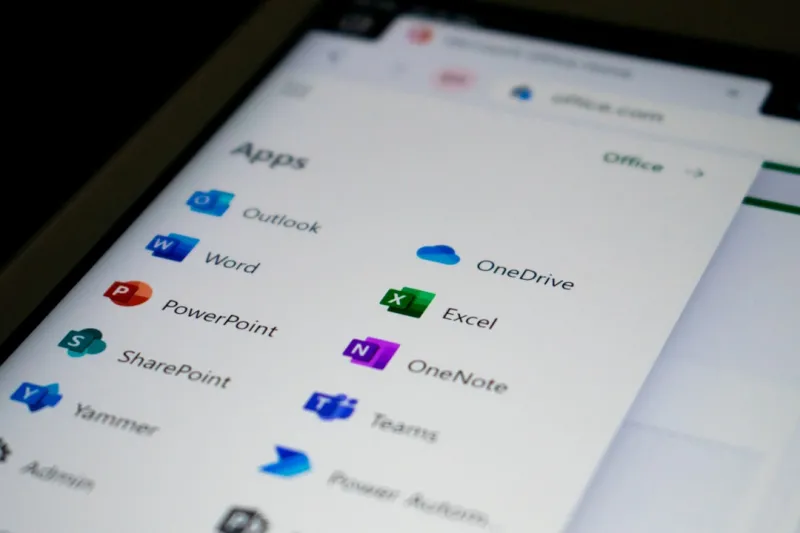
When I first started tinkering with Microsoft Office a decade ago, the suite felt like a solid, dependable toolbox for everyday tasks. Fast forward to 2026, and that toolbox has transformed into a high‑tech workshop powered by AI, cloud intelligence, and enterprise‑grade security—all while still keeping the familiar feel that power users love. As someone who lives at the intersection of hardware upgrades and software optimization, I’ve watched Office evolve from a static collection of apps into a dynamic, interconnected ecosystem that can adapt to the most demanding workflows. In this post, I’ll walk you through the latest shifts that are reshaping how we use Word, Excel, PowerPoint, and the rest of the Office family, and I’ll share the tactics I rely on to stay ahead of the curve.
AI‑Powered Creativity in Word, Excel, and PowerPoint
One of the most palpable changes in 2026 is the deep integration of generative AI across the Office suite. Microsoft’s Copilot isn’t just a sidebar assistant; it’s now woven into the fabric of each app, offering context‑aware suggestions that learn from your habits. In Word, you can draft entire sections of a report with a single prompt, and Copilot will automatically cite sources from your OneDrive library. Excel’s new “Data Insight Engine” can analyze a dataset, surface trends, and even generate predictive models without you writing a single formula. PowerPoint has become a storyboard wizard, turning bullet points into polished slides with suggested designs, animations, and speaker notes. For a power user, this AI boost means you can offload repetitive drafting and focus on strategic refinement—an efficiency gain that feels like adding a turbocharger to an already fast engine. If you want to explore how AI, security, and cloud are converging to redefine Office, check out How AI, Security, and Cloud Are Redefining Microsoft Office for Power Users for a deeper dive.
Security Features That Keep Your Data Fort Knox‑Level Safe
Security isn’t an afterthought in the modern Office suite; it’s a core pillar. Sensitivity labels now automatically apply encryption based on the content’s classification, and the integration with Microsoft Purview gives you granular visibility into who accessed a document and when. For power users managing confidential client data or proprietary research, this means you can enforce policies that travel with the file, whether it’s stored on OneDrive, SharePoint, or even an external USB drive. Multi‑factor authentication (MFA) is now baked directly into the Office login flow, and conditional access policies can restrict document editing to devices that meet your hardware security standards. I’ve personally layered these safeguards with the guidance from Elevating Power‑User Security: Practical Steps for a Safer 2026 Rig, ensuring that every Office session runs on a hardened system without sacrificing performance.
Cloud Collaboration That Moves at Light Speed
The shift to cloud‑first collaboration has reached a new level of fluidity. OneDrive for Business now offers real‑time differential syncing, so even large multimedia projects update in seconds across all collaborators. Teams integration within Office apps means you can launch a Teams call directly from a Word document or launch a live Excel co‑authoring session without leaving the file. The new “Shared Workspace” view in PowerPoint gives you a bird’s‑eye view of every contributor’s changes, complete with version history that’s searchable by keyword. For power users juggling multiple projects, the ability to toggle between local and cloud copies seamlessly eliminates the old “file version” nightmare. I’ve found that structuring my work folders using the same naming conventions I apply to my local drives—thanks to the advice in The Power‑User’s Blueprint for a Lightning‑Fast, Secure Home Network—keeps my cloud workspace as organized as my on‑prem hardware.
Automation: From Macros to Office Scripts
Automation in Office has moved beyond the classic VBA macro. With Office Scripts, you can write JavaScript‑based automations that run across the web version of Excel and Word, enabling cross‑platform consistency. Power Automate connectors now include triggers for every major Office event, from “When a new file is added to a SharePoint library” to “When a PowerPoint slide is published to the web.” I’ve built a workflow that pulls sales data from a SQL database, updates a master Excel workbook, and then drafts a PowerPoint deck with the latest figures—all without lifting a finger. These automations are stored in the cloud, so they’re accessible from any device, and they benefit from built‑in security checks that prevent data leakage. For power users, mastering Office Scripts is akin to learning a new programming language that speaks directly to the tools you use daily.
Excel’s Data Engine Is Now a Data Science Playground
Excel in 2026 feels less like a spreadsheet and more like a lightweight data science platform. Dynamic arrays have matured into “spill ranges” that can handle multi‑dimensional data without cumbersome nested formulas. The new “Data Types” feature pulls live information—stock prices, geographic data, even AI‑generated sentiment scores—directly into cells, updating in real time. Power Query now supports AI‑driven data cleaning, automatically detecting and correcting anomalies based on historical patterns. I’ve leveraged these capabilities to turn a raw CSV dump of IoT sensor data into a live dashboard that updates every five minutes, all within a single workbook. The integration with Power BI is seamless: a single click pushes your Excel model into a full‑fledged BI report, preserving all the calculated measures you built. For anyone who thinks Excel is just for numbers, this evolution should change the conversation entirely.
Customizable UI and Keyboard Shortcuts for the Elite User
Power users thrive on speed, and Microsoft has responded by making the Office UI more modular than ever. You can now pin your most used commands to a custom ribbon tab, hide the clutter you never use, and even assign context‑sensitive shortcuts that change based on the document type you’re editing. The “Quick Access Toolbar” now supports drag‑and‑drop of AI suggestions, letting you execute a Copilot command with a single keystroke. I spend a few minutes each month revisiting my toolbar layout, swapping out commands that have become obsolete for new AI‑driven actions. Additionally, the new “Voice Command” integration works across all Office apps, allowing you to dictate formatting changes or trigger a macro hands‑free—a feature that’s particularly handy when I’m juggling a laptop on a cramped desk while monitoring a network console.
Seamless Integration With Power‑User Infrastructure
Office doesn’t exist in a vacuum; it interacts constantly with the rest of your tech stack. Whether you’re running a high‑performance workstation with the latest SSDs or a distributed network of thin clients, Office’s performance can be tuned to match. Using the guidelines from the Power‑User’s Blueprint, I’ve aligned my network’s Quality of Service (QoS) settings to prioritize Office traffic, eliminating lag during large file syncs. I also configure my DNS to resolve Microsoft’s cloud endpoints to the nearest edge location, cutting down latency for Teams calls embedded in Word documents. The result is a fluid experience where the Office suite feels as responsive as a native app, even when you’re pulling data from a remote SharePoint site. This synergy between software and hardware is the hallmark of a truly optimized power‑user environment.
Staying Future‑Ready With Continuous Learning
One of the biggest challenges for power users is keeping up with the relentless pace of updates. Microsoft now rolls out feature previews every quarter, and many of these can be toggled on via the “Insider” channel. I recommend dedicating a sandbox environment—perhaps a virtual machine on your secondary drive—where you can test new features before they hit production. The “Office Insider” program also provides early access to AI model improvements that can dramatically enhance Copilot’s relevance to your specific industry. Pair this with regular webinars from the Microsoft 365 Learning Path, and you’ll stay ahead of the curve without feeling overwhelmed. Remember, the goal isn’t just to adopt new tools, but to integrate them into your workflow in a way that amplifies productivity without adding complexity.
Conclusion: Embrace the Evolution and Own Your Office Experience
Microsoft Office in 2026 is a living, breathing platform that rewards the curious and the bold. By harnessing AI assistants, tightening security, leveraging cloud collaboration, and automating repetitive tasks, power users can unlock efficiencies that were once the domain of specialized software. The key is to approach each new feature with a mindset of experimentation—test it, tailor it, and then embed it into your daily routine. If you’re ready to dive deeper, explore the linked resources that have shaped my own workflow, and let the suite’s evolving capabilities become the catalyst for your next big project. The future of Office is already here; it’s up to you to make it work for you.