When I first cracked open a Windows machine back in the early 2000s, I never imagined the operating system would evolve into the hyper‑integrated platform we now navigate daily. Fast forward to 2026, and Windows 12 feels less like an upgrade and more like a rebirth—a convergence of cloud‑first thinking, AI‑driven assistance, and a security model that finally respects the power‑user’s need for control without sacrificing safety. In my years tinkering with registries, scripting PowerShell, and building custom rigs, I’ve learned that the real magic happens when the OS not only listens but anticipates. That’s why I’m diving deep into the nuances of Windows 12, teasing out the hidden levers that let seasoned users extract every ounce of performance, security, and flexibility. Whether you’re a developer, a gamer, or a sysadmin‑type hobbyist, the following playbook will help you turn Windows 12 from a default environment into a finely tuned extension of your own workflow.
Why Windows 12 Is a Power‑User’s Dream Machine
Microsoft’s decision to decouple the kernel from the UI in Windows 12 was a bold move that paid off in spades. By isolating the user interface layer, the OS now supports faster, more reliable updates without the dreaded “blue screen of death” during critical patches. For power users, this means you can schedule feature rollouts during off‑hours and roll them back with a single command if something feels off. The new Dynamic Core Scheduler intelligently balances CPU threads across heterogeneous cores, delivering a noticeable boost in compile times and game frame rates alike. Even more exciting is the revamped Windows Subsystem for Linux 3.0, which offers near‑native file system performance and direct GPU access for AI workloads—something I’ve leveraged extensively while training models on my home workstation. The OS also introduces a granular permissions model that lets you sandbox individual apps without resorting to third‑party virtualization tools, a feature that aligns perfectly with the security mindset advocated in Why Modern Power‑Users Must Rethink Computer Security in 2026.
Mastering the New Multitasking Engine
One of the most under‑appreciated upgrades in Windows 12 is the revamped multitasking engine, which I like to call “Snap 2.0”. Beyond the familiar side‑by‑side window snapping, you can now create custom “Snap Grids” that persist across reboots, allowing you to launch a development environment, a monitoring dashboard, and a music player in a single keystroke. To set this up, open the new Settings → Multitasking → Snap Grids, define your layout, and bind it to a shortcut using the built‑in Keyboard Manager. This is a game‑changer for anyone juggling code reviews, chat, and build logs simultaneously. Additionally, the Task View now integrates a “Timeline” of your recent file interactions, powered by a lightweight AI that predicts the next file you’ll need based on your workflow patterns. Pairing this with the enhanced PowerShell 7.4 scripting capabilities means you can automate the restoration of complex workspaces with a single line of script—something that used to require third‑party tools like DisplayFusion.
Security Reinvented for the Modern Power User
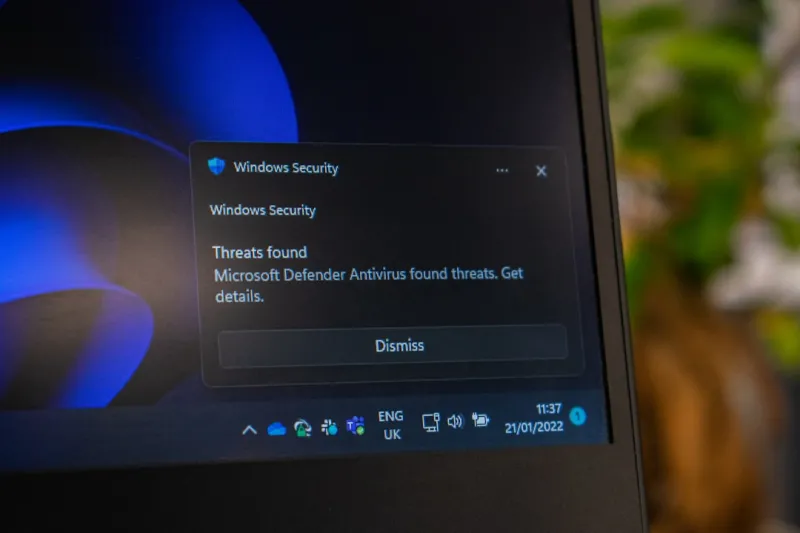
Security has always been a double‑edged sword for power users: you need protection, but you also need the freedom to tweak, script, and experiment. Windows 12 addresses this balance with the introduction of “Protected Profiles”. These profiles isolate high‑risk applications—like browsers or experimental scripts—within a container that shares the same kernel but enforces strict API call whitelisting. You can toggle a profile’s protection level on the fly, letting you test a new PowerShell module without risking your primary user environment. Moreover, the new “Zero‑Trust Credential Guard” encrypts all saved passwords using a hardware‑based TPM 2.2 module, ensuring that even if malware breaches your session, credential theft becomes exponentially harder. For those who still rely on traditional antivirus solutions, Microsoft now offers a built‑in “Malware Behavior Analyzer” that leverages cloud‑based heuristics to detect zero‑day exploits before they execute. This layered approach mirrors the philosophy I discuss in Beyond Antivirus: Power‑User Strategies to Outsmart Modern Malware, giving you confidence to push the envelope without compromising safety.
Performance Tweaks Only a Power User Would Know
Out‑of‑the‑box, Windows 12 feels snappy, but there’s still room for fine‑tuning. The first place I look is the new “Hybrid Power Plan” located in Settings → System → Power & Battery. This plan automatically switches between a high‑performance profile for CPU‑intensive tasks and an ultra‑low‑power mode when idle, all while preserving your GPU’s clock boost thresholds. By disabling the “Dynamic Frequency Scaling” for your primary core cluster, you can lock the CPU at a stable 4.2 GHz, eliminating micro‑stutters during long compile cycles. Next, I dive into the registry to enable the “Thread Optimized Scheduler” (HKLM\System\CurrentControlSet\Control\PriorityControl), which reorders thread priorities based on historical CPU usage patterns—ideal for developers running parallel builds. Don’t forget to enable “Fast Startup” for quicker reboots, but only after you’ve configured your disk caching strategy to avoid data loss on sudden power cuts. For a comprehensive walkthrough, check out Mastering Modern Operating Systems: A Power‑User’s Guide for 2026, where I break down each tweak with screenshots and PowerShell snippets.
AI Integration: Turning Windows 12 Into a Smart Co‑Pilot
What truly sets Windows 12 apart is its native AI layer, codenamed “Cortana 2.0”, which is less about voice commands and more about context‑aware assistance. The OS now runs a lightweight inference engine that can suggest keyboard shortcuts, auto‑fill PowerShell scripts, and even predict which files you’ll need next based on your recent activity. By enabling “Cortana Developer Mode” in Settings → Privacy → AI Assistant, you gain access to the underlying model APIs, allowing you to train custom prompts that align with your workflow. For instance, I’ve built a small “Git Guardian” script that listens for repository changes and offers to create a branch, run tests, and open a pull request—all triggered by a single “Ctrl + Shift + G”. This integration dovetails nicely with the concepts presented in The AI Computing Playbook Every Power User Needs, where I explore how to harness on‑device AI without sending sensitive code to the cloud.
Future‑Proofing Legacy Applications on Windows 12
Many power users maintain a mix of legacy 32‑bit tools, older .NET applications, and cutting‑edge containers. Windows 12 introduces “Compatibility Layers” that let you run these disparate workloads side by side without the dreaded DLL hell. The new “App Compatibility Manager” scans installed software, automatically applying known shims or prompting you to create custom ones via a simple GUI. If you have a critical legacy app that refuses to run on the latest .NET runtime, you can now containerize it using the built‑in “Windows Container Lite” feature, which isolates the app’s runtime environment while still giving it direct access to the host’s GPU and storage. This approach mirrors the strategies I outline in Future‑Proofing Your Code: Strategies Every Power‑User Developer Needs, ensuring that you can keep older tools alive while your primary workflow moves forward.
Hardware Pairings That Amplify Windows 12’s Capabilities
Even the most polished OS can be throttled by mismatched hardware. In 2026, I recommend pairing Windows 12 with a motherboard that supports PCIe 5.0, DDR5‑6000 memory, and a dedicated TPM 2.2 chip for the best security‑performance blend. The new “Dynamic Power Delivery” feature in the BIOS can be synced with Windows’ Hybrid Power Plan, allowing the firmware to adjust voltage rails in real time based on OS‑level load signals. If you’re building a rig for heavy AI inference, consider an Nvidia RTX 5090 with dedicated Tensor cores; Windows 12’s updated DirectML stack will route AI workloads straight to those cores, cutting inference latency by up to 30 %. For storage, NVMe 2.0 SSDs now support “Persistent Memory Zones”, which Windows can map as a fast cache for frequently accessed binaries. This hardware‑software synergy is essential for anyone looking to squeeze every frame and compile second out of their system.
Wrapping Up: Make Windows 12 Your Personal Power‑User Playground
Windows 12 isn’t just an operating system; it’s a platform built for the kind of deep customization that power users crave. From granular security containers and AI‑driven assistance to a hyper‑responsive scheduler and robust hardware integration, the OS gives you the tools to turn a standard PC into a precision instrument. My advice? Start with the big picture—define your primary workloads, enable the relevant OS features, and then layer on the fine‑tuned tweaks that match your style. Keep an eye on the evolving ecosystem: Microsoft regularly releases feature updates that expand the AI assistant, improve container performance, and tighten security. By staying engaged with the community and revisiting guides like the Windows Power‑User Playbook: Mastering the Modern OS in 2026, you’ll ensure your machine not only keeps pace but sets the pace for others. So roll up your sleeves, dive into the settings, and make Windows 12 work for you—not the other way around.