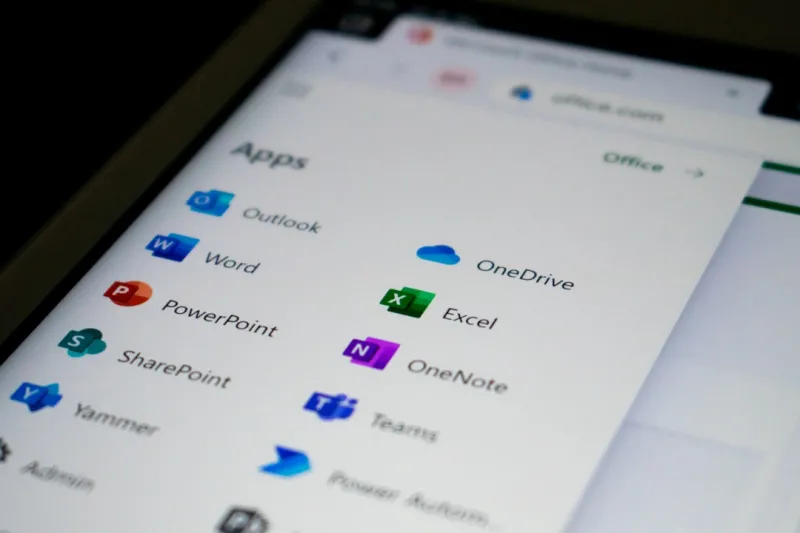
When I first opened Microsoft Office back in the early 2000s, the suite felt like a digital Swiss Army knife—versatile, reliable, and endlessly adaptable. Fast‑forward to 2026, and Office has morphed into an AI‑infused ecosystem that not only anticipates our workflow but actively streamlines it. As a power user who juggles data analysis, content creation, and cross‑team collaboration, I’ve learned to treat Office not just as a set of apps but as a strategic partner. The real magic lies in how tools like Word, Excel, and Teams now talk to each other, leveraging the cloud to keep every document, spreadsheet, and conversation perfectly synchronized across devices. This inter‑app harmony means I can draft a client proposal in Word, embed a live Excel chart that updates in real time, and then drop the entire package into a Teams channel—all without a single manual export. It’s a workflow evolution that feels almost prescient, and understanding its nuances can make the difference between merely surviving a busy day and truly thriving.
Why AI Integration Is a Game‑Changer for Everyday Tasks
Office’s AI capabilities have moved beyond simple spell‑check to context‑aware assistants that rewrite sentences, generate data insights, and even suggest design tweaks. In Excel, the “Analyze Data” feature can scan a messy dataset, spot trends, and recommend pivot tables—all in seconds. In PowerPoint, Designer now suggests slide layouts that match your brand’s visual language, while Copilot can draft an entire presentation from a few bullet points you provide. I’ve found the most transformative use case to be the ability to ask natural‑language questions directly within a document. For example, typing “What was our quarterly revenue growth?” into a Word table instantly pulls the relevant numbers from an embedded Excel sheet. This eliminates the back‑and‑forth between apps and frees up mental bandwidth for higher‑level strategy. As AI continues to learn from our habits, the suite becomes more personalized, turning routine tasks into almost effortless actions.
Collaborative Real‑Time Editing: The New Normal
Real‑time co‑authoring used to be a novelty; today it’s the baseline expectation for any professional document. Whether I’m working with a remote marketing team in Teams or brainstorming with a product group in OneNote, the seamless sync ensures that everyone sees the same version instantly. The built‑in version history lets us roll back changes without fearing data loss, and the @mentions feature surfaces comments directly to the relevant stakeholders. I’ve also leveraged the “Focus Mode” in Word to minimize distractions while still keeping the collaborative edge—team members can view my changes without interrupting my flow. This blend of individual concentration and collective input has dramatically cut down meeting times, allowing us to spend more minutes on decision‑making rather than on catching up on updates.
Streamlining Data Management with Excel’s Advanced Features
Excel remains the heavyweight champion for data manipulation, but its power is now amplified by AI‑driven automation. The new “Data Types” can pull live stock prices, geographic data, or even custom business metrics directly into cells, turning static spreadsheets into living dashboards. I frequently use the “Smart Fill” tool, which predicts patterns and completes rows faster than any macro I’ve ever written. Combined with Power Query’s ability to mash up data from disparate sources—SQL databases, SharePoint lists, or even web APIs—Excel becomes a one‑stop shop for analytics. The integration with Power BI further extends this capability, allowing me to push a refined dataset directly into a visual report with a single click. This fluid pipeline from raw numbers to actionable insight is what keeps my workflow razor‑sharp in a fast‑paced environment.
PowerPoint’s Design Evolution: From Templates to Intelligent Slides
Creating compelling presentations used to involve endless hours tweaking layouts, aligning graphics, and hunting for the perfect font. Today, PowerPoint’s AI engine handles the heavy lifting. The “Design Ideas” pane automatically suggests clean, modern slide compositions based on the content you paste, while “QuickStarter” can generate a structured outline for any topic, complete with suggested talking points and images. I’ve also embraced the new “Presenter Coach,” which listens to rehearsals and provides feedback on pacing, filler words, and even inclusive language. These tools have turned what was once a tedious chore into a rapid prototyping process, letting me focus on storytelling rather than technical formatting. The result is a deck that feels polished, professional, and—most importantly—tailored to the audience’s expectations.
Teams as the Central Hub for Communication and Project Management
Microsoft Teams has evolved from a chat app into an all‑in‑one collaboration platform that rivals traditional project management tools. Channels act as dedicated workspaces for each initiative, while the integration of Planner and To‑Do lets us assign tasks, set deadlines, and track progress without leaving the interface. I rely on the “ChatGPT‑powered” meeting notes that automatically summarize discussions and highlight action items—a feature that saves me from the post‑meeting scramble to capture everything. The ability to embed Office documents directly into a Teams tab means that the latest version of a proposal or budget is always just a click away. Moreover, the new “Live Reactions” feature lets participants convey quick feedback during presentations, keeping meetings interactive and focused. This centralization reduces context‑switching, allowing me to stay in the flow longer and get more done.
Security and Compliance: Keeping Sensitive Data Safe in a Cloud‑First World
With the shift to cloud‑based Office, security concerns are front‑and‑center. Microsoft’s Zero‑Trust model now underpins every layer of the suite, from multi‑factor authentication to conditional access policies that adapt based on device health and location. I’ve configured sensitivity labels that automatically encrypt documents containing confidential client data, and the “Information Protection” alerts notify me if a file is being shared outside the organization. The integration with Azure Active Directory also means I can enforce granular permissions, ensuring that only the right eyes see the right content. These safeguards not only protect against external threats but also help maintain compliance with industry regulations like GDPR and HIPAA—critical for any power user handling regulated information.
Leveraging the Cloud: OneDrive and SharePoint Synergy
OneDrive for Business and SharePoint together form the backbone of Office’s cloud storage strategy. OneDrive serves as my personal file vault, auto‑syncing changes across my laptop, tablet, and phone, while SharePoint operates as the team’s shared repository. I’ve set up document libraries with version control, metadata tagging, and automated retention policies that keep our knowledge base organized and searchable. The “Sync” button allows me to work offline, and once I’m back online, all changes flow seamlessly to the cloud. This hybrid approach ensures that I always have the latest files at my fingertips, whether I’m in the office, on a client site, or traveling. The combination of personal and team storage also simplifies the handoff of projects, reducing the risk of orphaned files and duplicated effort.
Future‑Proofing Your Office Suite: Tips for Power Users
Staying ahead of the curve means embracing continuous learning and adopting new features as they roll out. I recommend setting aside a quarterly “Office Lab” session where you experiment with beta functionalities—like the new AI‑driven “Data Insights” in Excel or the upcoming “Voice‑Driven” commands in Teams. Subscribing to the Microsoft 365 roadmap newsletter keeps you informed about upcoming releases, and participating in the Insider program grants early access to cutting‑edge tools. Additionally, integrate Office with other productivity ecosystems—such as linking Power Automate flows to trigger actions across your favorite apps. By treating Office as a living platform rather than a static suite, you ensure that your workflow remains agile, efficient, and ready for whatever challenges arise in 2026 and beyond.
Connecting the Dots: How Office Fits Into the Wider Power‑User Landscape
While Office is a powerhouse on its own, its true strength shines when paired with the right hardware and broader tech strategy. For instance, the Motherboard Playbook outlines how a high‑performance motherboard can accelerate AI‑driven Office tasks, while the AI Computing Trends article highlights emerging processors that boost Copilot’s responsiveness. By aligning your workstation’s specs with Office’s evolving demands, you create a synergistic environment where software and hardware propel each other forward. This holistic approach ensures that whether you’re drafting a multi‑language report, crunching massive datasets, or collaborating across continents, your entire tech stack works in concert, delivering speed, reliability, and the creative freedom that power users crave.