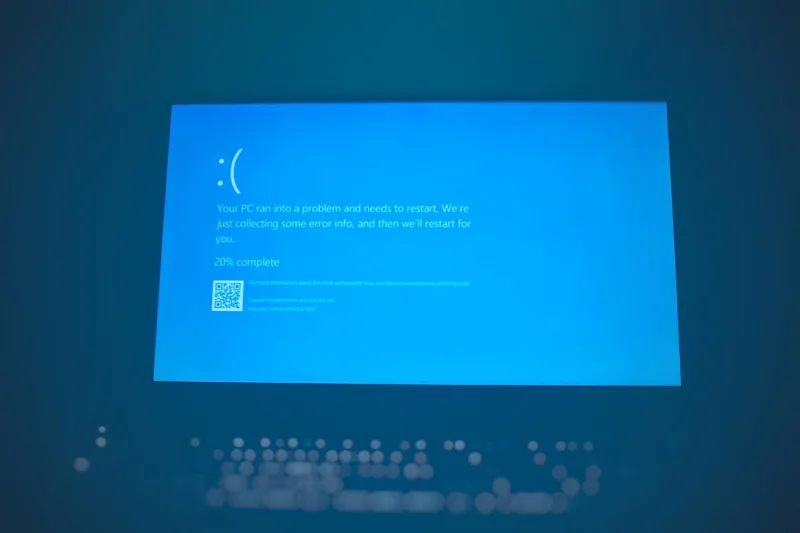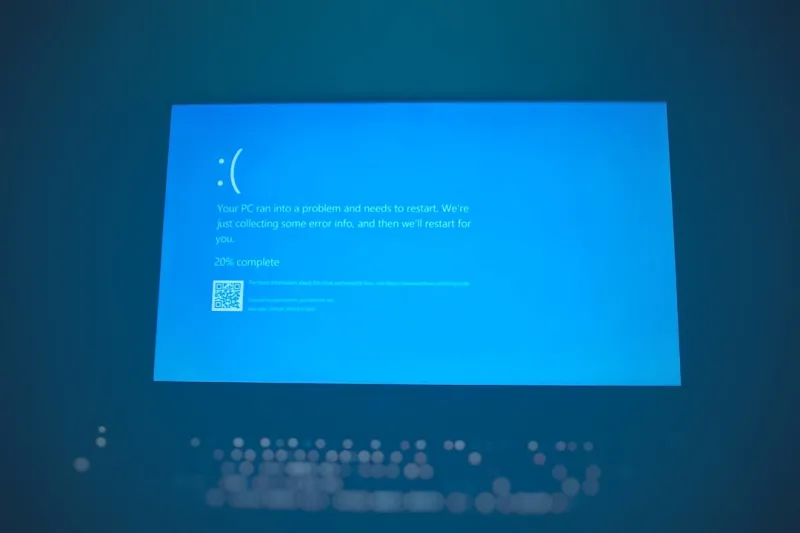
When I first saw the dreaded cobalt‑blue curtain drop over my desktop in the middle of a critical deadline, I felt a familiar mix of panic and curiosity. It’s the kind of moment that makes every PC enthusiast in 2026 remember why they fell in love with building machines in the first place—nothing beats the adrenaline rush of hunting down an invisible bug that turns your screen into a digital graveyard. Over the past decade, blue screens have evolved from cryptic, hardware‑only errors to complex dialogues between firmware, drivers, and AI‑enhanced operating systems. In this post, I’ll walk you through the modern landscape of BSODs, explain why they still happen despite advances in AI, and give you a step‑by‑step playbook to keep your rig running smoothly. You’ll learn how to differentiate a memory hiccup from a GPU tantrum, when to let Windows auto‑repair and when to intervene manually, and which tools in 2026 actually deliver actionable insights instead of vague error codes.
Understanding the Blue Screen Phenomenon in 2026
At its core, a blue screen—officially known as a Stop Error—occurs when the Windows kernel encounters a condition it cannot safely recover from. The system halts, dumps diagnostic data, and displays a cryptic error code that historically read like a secret language for engineers. Today, Microsoft embeds more context, offering a brief description and a QR code that leads to an online knowledge base. However, the fundamental truth remains: the OS is protecting your hardware from potential damage by shutting down before catastrophic failure. Modern PCs now incorporate AI‑driven monitoring agents that pre‑emptively flag risky patterns—like thermal spikes or abnormal voltage fluctuations—but these agents can sometimes misinterpret a benign event as fatal, triggering an unnecessary BSOD. Understanding the balance between AI prediction and actual hardware limits is crucial. A blue screen is not just a software glitch; it’s a symptom of deeper interactions between the CPU, RAM, GPU, and the ever‑evolving driver ecosystem that powers them.
Hardware Culprits: Memory, GPU, and Beyond
While software misconfigurations still play a role, hardware failures are now the primary instigators of BSODs. Faulty DRAM modules, for instance, can corrupt the memory pool that the kernel relies on for critical operations, leading to the infamous “MEMORY_MANAGEMENT” stop code. Similarly, a GPU that overheats or receives a corrupted driver update may cause “VIDEO_TDR_FAILURE,” a blue screen that points directly at graphics processing. Even seemingly peripheral components—like a power supply that sags under load or a BIOS setting misaligned with the new AI‑optimized power management profile—can introduce instability. In 2026, many motherboards ship with AI‑enabled voltage regulators that adapt on the fly, but if the algorithm receives inaccurate sensor data, it may push the system beyond safe thresholds. The takeaway? When you see a blue screen, start by asking whether any recent hardware changes, upgrades, or environmental factors could have tipped the balance. A systematic hardware audit often reveals the root cause faster than digging through endless Windows logs.
When Memory Is the Mystery
If you’ve ever run the Windows Memory Diagnostic and stared at the endless scrolling of green text, you know how opaque memory troubleshooting can feel. In 2026, however, the process has become more intuitive thanks to AI‑assisted diagnostic tools that correlate error patterns with specific memory banks. Still, the fundamentals haven’t changed: corrupted or mismatched RAM will cause the kernel to stumble. My own experience with a high‑frequency DDR5 kit reminded me that even “validated” modules can misbehave under aggressive overclocking profiles. I recommend starting with a single‑stick test, swapping slots, and checking BIOS timings before moving on to more invasive fixes. For a deeper dive into memory failure symptoms and remedial steps, check out Why Your PC’s Memory Is Failing and How to Fix It. That guide walks you through the exact diagnostic commands, stress‑test utilities, and firmware tweaks that can turn a flaky memory module into a reliable workhorse, or at least confirm that it’s the source of your blue screen woes.
GPU Glitches: The Visual Culprit
The graphics card, with its own dedicated processor and memory, is another frequent suspect when a blue screen appears during gaming or intensive rendering tasks. Modern GPUs are powered by AI‑enhanced drivers that attempt to balance performance with power efficiency, but when a driver update goes awry or a GPU’s VRAM begins to fail, the result is often a “VIDEO_TDR_FAILURE” stop code that forces an immediate shutdown. My own rig once suffered a BSOD after a seemingly innocuous driver roll‑out from the manufacturer’s AI‑based update service. The solution involved rolling back to a stable driver version and running a series of GPU stress tests to confirm the hardware’s integrity. If you suspect your graphics card, the article Mastering GPU Troubleshooting in an AI‑Powered PC Era provides a comprehensive checklist, from checking power delivery on the PCIe slot to using built‑in firmware diagnostics that can isolate the exact shader unit causing trouble.
Software and Driver Interplay: When Updates Bite
Even with pristine hardware, software layers can still betray you. In 2026, Windows updates are increasingly delivered through AI‑curated bundles that prioritize security patches and performance tweaks based on your usage patterns. While this sounds ideal, the AI can sometimes prioritize an update that conflicts with a legacy driver or a niche application you rely on. The result? An unexpected blue screen after what seemed like a routine reboot. My own experience with a third‑party anti‑malware suite that integrated an AI engine for real‑time threat analysis taught me to monitor the “Update History” and cross‑reference any new stop codes with recent driver installations. When a BSOD follows an update, use the “View installed updates” panel to pinpoint the culprit, then either roll back the update or seek a compatibility patch from the vendor. Keeping a backup of stable driver versions—especially for critical components like the chipset and network adapters—can save you hours of frustration.
A Systematic Troubleshooting Playbook
When the blue screen strikes, chaos can set in, but a disciplined approach can cut resolution time dramatically. First, note the stop code and any accompanying file name—these are your breadcrumbs. Next, run a quick hardware sanity check: reseat RAM sticks, verify GPU seating, and ensure all power connectors are secure. If the issue persists, launch the built‑in “Windows Debugger” (WinDbg) or the newer AI‑enhanced “Event Viewer Insights” that automatically correlates error logs with known issues. From there, isolate the variable: disable overclocking profiles, revert recent driver updates, and run stress tests on CPU, RAM, and GPU individually. If the system remains stable, the problem likely lies in software—perhaps a rogue service or a corrupted system file. Running “sfc /scannow” and “DISM /Online /Cleanup‑Image /RestoreHealth” can repair many such issues. Document each step in a simple log; this habit not only speeds up future debugging but also builds a knowledge base you can reference when new hardware arrives.
Looking Ahead: AI‑Driven Predictive Maintenance
What does the future hold for blue screens in an AI‑centric world? Already, manufacturers are embedding predictive algorithms into firmware that can warn you days before a component fails, based on subtle shifts in voltage, temperature, and error rates. In 2026, these AI agents can automatically schedule maintenance windows, apply safe driver rollbacks, and even order replacement parts through integrated supply‑chain APIs. For the savvy user, tapping into these tools means you can shift from reactive troubleshooting to proactive health management. Enable the “Adaptive Defense” features in Windows Security to let AI monitor your system’s integrity in real time, and consider using third‑party AI health dashboards that aggregate data across all your devices. By embracing these predictive capabilities, you’ll spend less time staring at a blue screen and more time enjoying the seamless performance that modern PCs promise.