
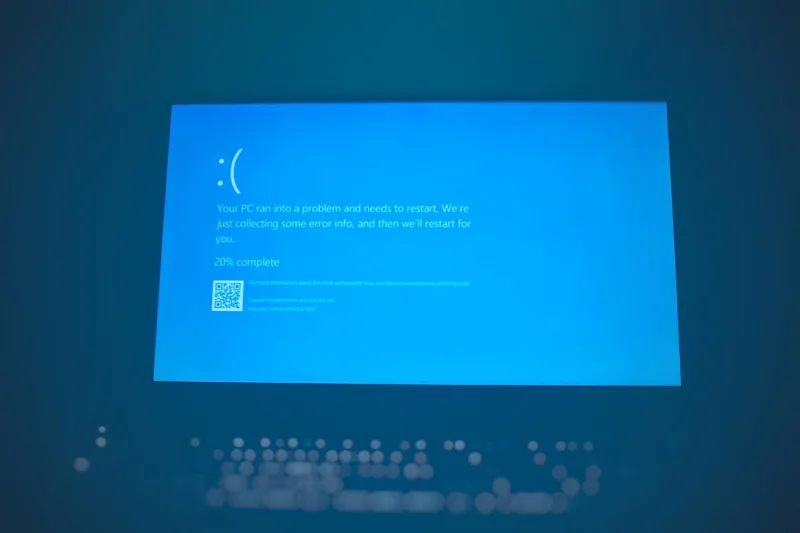
Every tech enthusiast knows the dread of watching a once‑reliable machine suddenly flash that ominous blue screen. In 2026, the “Blue Screen of Death” (BSOD) has evolved from a rare nuisance into a trending symptom that reflects deeper shifts in hardware, software, and even AI‑driven threats. I’ve spent countless late‑night debugging sessions watching the screen pulse, and each crash tells a story about what’s really happening under the hood. The modern BSOD isn’t just a Windows quirk; it’s a diagnostic beacon pointing to driver mismatches, memory corruption, firmware glitches, or malicious code that’s learned to hide in plain sight. As someone who lives at the intersection of IT support and hands‑on tinkering, I’ve learned to read those cryptic error codes like a seasoned detective. This post walks you through the most common culprits, the newest 2026‑specific twists, and a step‑by‑step plan to get your system back to stable, productive life.
AI‑Powered Drivers and the New BSOD Landscape
One of the biggest changes in 2026 is the rise of AI‑augmented drivers that promise smarter performance but can also introduce instability. Manufacturers are embedding machine‑learning models directly into GPU, network, and storage drivers to optimize workloads on the fly. While the benefits are real—higher frame rates, adaptive power management—the code paths become far more complex, and a tiny regression in the AI model can trigger a cascade of memory violations that the OS translates into a BSOD. The error messages now often reference “ai_driver.sys” or “ml_helper.dll,” clues that the culprit isn’t a traditional hardware fault but a software layer that’s learning and adapting in real time. When you see a blue screen citing these modules, start by rolling back to a known‑good driver version, then monitor for updates that specifically address AI integration bugs. The key is to treat AI‑driven drivers like any other third‑party software: keep them updated, but don’t rush to adopt the latest beta release without thorough testing.
When RAM Misbehaves: Memory Errors That Trigger Crashes
Memory issues remain a top cause of blue screens, and in 2026 they’ve taken on a new dimension thanks to higher‑density DDR5 modules and on‑board AI error‑correction. Faulty RAM can corrupt system tables, leading to the dreaded “PAGE_FAULT_IN_NONPAGED_AREA” error. If you’ve noticed random freezes or apps crashing before the BSOD appears, it’s time to investigate your memory. Start with the Windows Memory Diagnostic tool, but for a deeper dive, use third‑party utilities that can stress‑test each module at its rated speed. If errors surface, reseat the sticks, check for BIOS‑level memory training options, and consider swapping out the modules. For a comprehensive guide on diagnosing RAM problems in 2026, see Why Your RAM Is Acting Up in 2026 and How to Fix It. Remember, even a single bad chip can bring down an otherwise healthy system, so don’t overlook this step when the blue screen shows memory‑related codes.
Operating System Updates: Blessing or Curse?
Windows 2026 introduced a slew of AI‑driven security features, from predictive patching to real‑time behavior monitoring. While these advancements make the OS smarter, they also add layers of complexity that can clash with legacy drivers or custom configurations. A recent update, for instance, tightened driver signing requirements, causing older peripherals to fail validation and trigger a BSOD with “DRIVER_IRQL_NOT_LESS_OR_EQUAL.” If you’ve just applied a major feature update and the blue screen follows, consider rolling back the update via the recovery environment and reviewing the update notes for known incompatibilities. Additionally, enable the new “Compatibility Mode” for older hardware, which can shim the driver calls to match the new security expectations. For a broader look at how operating systems are evolving in 2026, check out Operating Systems in 2026: AI, Security, and the Future of Everyday Computing. Staying informed about these changes is essential to avoid the surprise blue screen that can halt productivity.
AI‑Driven Malware: The Silent BSOD Instigator
Cyber threats have become more sophisticated in 2026, with AI‑driven malware capable of mimicking legitimate system processes. Some of the newest strains deliberately corrupt kernel memory to force a BSOD, using the crash as a smokescreen while they exfiltrate data in the background. These malicious actors exploit zero‑day vulnerabilities in the OS’s memory manager, causing errors that look identical to hardware faults. If your BSODs appear after installing a new program or after a suspicious network event, run a full system scan with an AI‑enhanced antivirus that can detect behavior anomalies, not just signatures. Keep your threat intelligence feeds updated, and consider employing endpoint detection and response (EDR) tools that can isolate compromised processes before they cause a crash. For deeper insights into how AI is reshaping malware in 2026, read AI‑Driven Malware in 2026: How to Stay One Step Ahead. Proactive defense is the best antidote to a blue screen that’s actually a security alarm.
Step‑by‑Step: Immediate Actions When the Blue Screen Appears
The moment a blue screen flashes, don’t panic—record the error code and any file names displayed. These details are the breadcrumbs you’ll need later. First, note the STOP code (e.g., 0x0000007B) and any referenced driver. Then, reboot into Safe Mode by pressing F8 or holding Shift while selecting Restart, which loads a minimal driver set. In Safe Mode, uninstall any recently added drivers or software, and run System File Checker (sfc /scannow) to repair corrupted system files. Next, clear the CMOS by unplugging the power and using the motherboard’s reset jumper; this can resolve BIOS‑level conflicts that sometimes cause BSODs after firmware updates. After these steps, perform a clean boot to isolate any startup services that might be the cause. Document each change you make; if the blue screen returns, you’ll have a clear trail of what’s been tried, making it easier to seek professional help or post detailed logs on tech forums.
Leveraging Built‑In Diagnostics and Third‑Party Tools
Windows 2026 ships with an expanded “Windows Debugger” (WinDbg) that can automatically capture crash dumps and suggest probable causes. Enable “Automatic Memory Dump” in System Settings, then navigate to the Event Viewer after a crash to locate the dump file. Open it in WinDbg, and look for the “!analyze -v” output, which highlights the faulting driver and stack trace. For non‑Microsoft hardware, manufacturers now provide proprietary diagnostics that can be launched from the BIOS or via a bootable USB utility. Tools like MemTest86 and HWInfo Pro have been updated to recognize AI‑optimized components, offering granular temperature and voltage readings that can pinpoint overheating or power spikes—a common trigger for GPU‑related BSODs. Regularly schedule these diagnostics as part of your maintenance routine; catching a failing component early can spare you from the frustration of repeated blue screens.
Firmware, BIOS, and Motherboard Considerations
The motherboard is the nervous system of your PC, and in 2026 its firmware has become an AI‑powered gatekeeper that validates every device’s behavior before the OS boots. Outdated BIOS versions can misinterpret the newer signaling methods used by AI‑enhanced peripherals, leading to early‑stage crashes that manifest as a BSOD before you even reach the login screen. Always check the manufacturer’s website for the latest firmware, especially if you’ve upgraded RAM, added a new SSD, or installed a cutting‑edge GPU. When applying a BIOS update, follow the vendor’s “safe flash” procedure: use a USB drive formatted to FAT32, ensure the system is on a UPS, and avoid power interruptions. After flashing, re‑enable any custom settings like XMP profiles for memory, but test stability with a stress‑test suite before returning to normal workloads. A stable firmware foundation dramatically reduces the likelihood of cryptic blue screens caused by low‑level mismatches.
When to Call in the Pros and How to Safeguard Your Data
If you’ve exhausted driver rollbacks, memory tests, and firmware updates, yet the BSOD persists, it’s time to consult a professional. Persistent crashes can indicate deeper issues like a failing CPU, corrupted motherboard traces, or entrenched malware that has taken root in the UEFI. Before handing over your machine, back up critical data using a live Linux USB or a cloud sync solution; the blue screen can sometimes corrupt the file system, making recovery more difficult later. Ask the technician to provide a detailed report, including crash dump analysis and hardware diagnostics, so you can learn from the experience. Also, consider investing in a hardware‑based ransomware‑resistant backup appliance that can create immutable snapshots—this extra layer ensures that even if a future BSOD is triggered by a security breach, your data remains intact.
Looking Ahead: Preventing the Next Blue Screen
As we move further into 2026, the blue screen will continue to serve as both a warning sign and a diagnostic tool in an increasingly AI‑driven ecosystem. Proactive measures—regular driver audits, timely BIOS updates, and robust malware defenses—will keep most users out of the dreaded blue. Embrace the new Windows 2026 “Predictive Stability” feature, which uses telemetry to forecast potential crashes before they happen and offers one‑click remedial actions. Additionally, maintain a habit of quarterly system health checks, combining built‑in diagnostics with third‑party stress tests. By treating each BSOD as a learning opportunity rather than a dead end, you’ll not only extend the lifespan of your hardware but also stay ahead of the evolving landscape where software, hardware, and AI intertwine. Keep your tools sharp, stay informed, and the blue screen will become a rare, manageable footnote in your computing story.




