
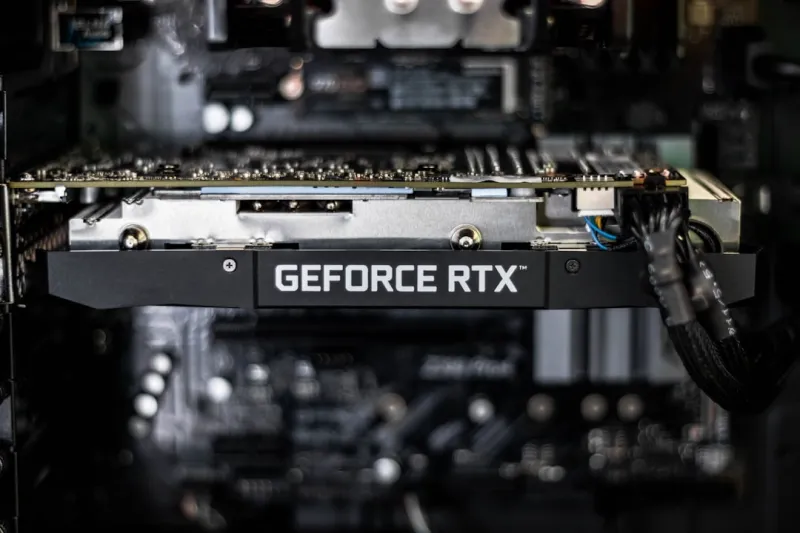
When a video card sputters, flickers, or flat‑out quits on you mid‑game, it feels like the universe conspired against your 2026 rig. I’ve spent countless nights debugging GPU woes, and I’ve learned that the symptoms we see on the screen often point to deeper, systemic issues—especially now that hardware is becoming smarter, faster, and more intertwined with AI. The first thing I tell anyone is to stop panicking and start gathering data; a methodical approach saves both time and sanity. In 2026, GPUs are no longer just bricks of silicon; they’re collaborative partners with the OS, drivers, and even the network stack. If you want a broader view on how this ecosystem has evolved, check out Why 2026 Is the Year Hardware Gets Smarter, Faster, and Safer. Understanding that context makes every troubleshooting step feel less like guesswork and more like a logical progression.
First, recognize the classic signs of a faltering GPU. Visual artifacts—those rainbow streaks, blocky squares, or ghosting—usually indicate memory errors or overheating. Random crashes, especially when a demanding game or rendering task is running, often stem from power delivery hiccups or driver incompatibilities. A black screen after a Windows update, or a sudden “Display driver stopped responding and has recovered” message, points to software‑level friction. In 2026, the line between hardware failure and software sabotage is blurrier, thanks to AI‑driven optimizations that can backfire. Keep a mental checklist: artifacts, crashes, driver errors, and unusual noises. By categorizing what you see, you can target the right diagnostic lane—whether it’s a thermal issue, a firmware glitch, or a malicious interference.
Start your investigation with the operating system’s own tools. Open Device Manager and confirm the GPU is listed without a warning triangle; if it isn’t, the driver may have failed to load. Next, launch a monitoring utility like GPU‑Z or MSI Afterburner to track clock speeds, temperature, and power draw in real time. Look for spikes—temperatures cruising above 85 °C or power draw exceeding the card’s TDP can trigger throttling or shutdowns. Don’t forget to check Windows’ Event Viewer for critical errors under “System” and “Application” logs; a recurring “Display driver stopped responding” entry is a red flag. Recording these data points creates a baseline you can compare after each tweak, ensuring you’re moving forward, not in circles.
Software conflicts are the silent culprits that often slip under the radar. In 2026, driver packages are bundled with AI‑enhanced features that auto‑tune performance, but they can clash with third‑party overlays, recording software, or even the latest Windows patches. If you’ve recently installed a new game or a streaming tool, consider rolling it back temporarily. Additionally, the rise of AI‑powered malware has introduced a new threat vector: malicious scripts that hijack GPU resources for crypto‑mining or covert inference tasks. To see how this trend is affecting everyday PCs, read The AI‑Powered Malware Surge of 2026. Running a full scan with a reputable, AI‑enabled antivirus can rule out malicious interference before you dive deeper into hardware checks.
Physical inspection remains a cornerstone of GPU troubleshooting. Power delivery is paramount; ensure your PSU can comfortably supply the card’s peak wattage—most modern 600 W units are safe for a single high‑end GPU, but multi‑GPU rigs may need more headroom. Verify the PCIe power connectors are fully seated; a loose 8‑pin cable can cause intermittent drops. Reseating the card itself can clear dust‑induced contact resistance—remove it, gently clean the contacts with a lint‑free cloth, and reinstall. While you have the case open, inspect the cooling solution: replace thermal paste if it’s dry, and confirm the fans spin freely. A clean, well‑ventilated chassis not only reduces temperature spikes but also minimizes the chance of hardware‑induced artifacts.
Firmware and BIOS settings have become as critical as the physical hardware. Many 2026 GPUs ship with Resizable BAR, DirectX 12 Ultimate, and AI‑offload features that require matching BIOS support. Check your motherboard’s UEFI for the latest firmware update and enable options like “Above 4G Decoding” and “Re‑size BAR Support.” Updating the GPU’s BIOS—while more advanced—can resolve compatibility bugs, especially on newer platforms that leverage PCIe 5.0. For a broader view on preparing your system for these upgrades, see Upgrade Your 2026 PC: Smart Paths to Faster, Safer, and Future‑Ready Performance. A synchronized firmware stack ensures the GPU and motherboard speak the same language, eliminating a whole class of obscure errors.
Driver management is a delicate dance between staying current and staying stable. When a new game launches, the vendor’s “Game Ready” driver often promises optimal performance, but it can also introduce regressions. If you’re experiencing crashes after a driver update, roll back to the previous stable version using Device Manager’s “Roll Back Driver” option, or perform a clean install with Display Driver Uninstaller (DDU) in safe mode. Conversely, if your driver is several versions behind, you may miss critical patches that address security or stability issues introduced by Windows 2026 updates. The key is to keep a repository of known‑good driver versions—many enthusiasts store these on an external drive for quick restoration.
Windows provides built‑in diagnostics that can pinpoint the moment a GPU failure occurs. The Reliability Monitor offers a timeline of system events, highlighting when a “Video driver” error coincides with a specific application or update. Pair this with the Event Viewer’s detailed error codes to identify patterns—perhaps a particular DirectX call is causing a fault. You can also enable the “Graphics Debugging” feature in Windows 10/11’s Settings, which logs GPU resets and driver crashes. Analyzing these logs with tools like WinDbg can reveal low‑level driver exceptions, giving you a data‑driven path to a fix or a solid case when filing an RMA with the manufacturer.
If all software and hardware avenues have been exhausted, it’s time to consider replacement. Modern GPUs in 2026—like the RTX 6000 Series or AMD’s Radeon 7900 XT—offer higher efficiency, built‑in AI cores, and more robust driver support. When selecting a new card, verify that the manufacturer provides a clear warranty and an easy RMA process. Keep your purchase receipts and document the troubleshooting steps you’ve taken; this speeds up the replacement claim. Remember, a new GPU isn’t just a performance upgrade—it’s often a fresh start free from legacy firmware quirks that can haunt older models.
At the end of the day, troubleshooting a video card is part art, part science, and a lot of patience. I’ve turned countless frustrated gamers into confident DIY technicians by sharing a playbook that blends systematic checks with the latest 2026 tech insights. If you’re still stuck after trying the steps above, don’t hesitate to dive into the community‑driven guide Cracking the GPU Mystery: Real‑World Fixes for 2026 Video Card Nightmares. The collective knowledge there can often surface a niche fix that isn’t covered in mainstream manuals. Stay proactive, keep your system clean, and remember that each troubleshooting session is a step toward mastering the ever‑evolving world of GPU hardware.




