
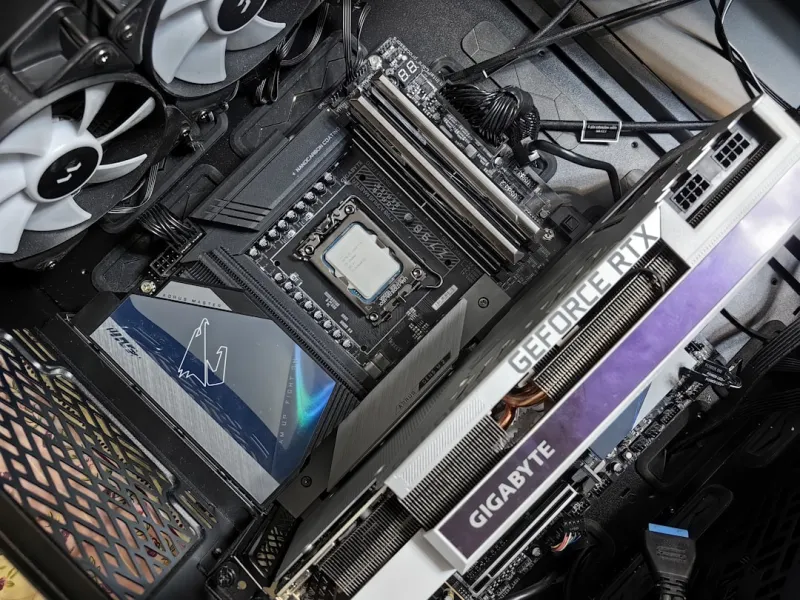
When I first opened my 2026 RTX 4090 and saw a flicker that looked like a bad TV signal, I knew the era of “plug‑and‑play” GPUs was over. The surge of AI‑accelerated workloads, real‑time ray tracing, and ever‑higher frame‑rate expectations have turned graphics cards into sophisticated, temperature‑sensitive ecosystems. In my years of tinkering, I’ve learned that every stutter, freeze, or crash is a symptom of a deeper imbalance—whether it’s a power delivery hiccup, driver conflict, or even a subtle firmware bug that only surfaces under sustained AI inference loads. That’s why I start every troubleshooting session by asking: “What changed in the system’s environment this week?” A new game patch, a Windows 2026 update, or a recently installed AI‑enhanced video editor can tip the scales. By treating the GPU not as a static component but as a dynamic participant in a constantly evolving hardware‑software dance, you can pinpoint the root cause before you waste hours swapping cards.
Understanding the New GPU Landscape
Modern GPUs in 2026 are more than just graphics processors; they’re hybrid compute engines that juggle rasterization, AI tensor cores, and hardware‑accelerated video encoding simultaneously. This convergence means that drivers now have to manage multiple pipelines, each with its own scheduling quirks. When a driver update tries to optimize AI workloads for a newer game, it might inadvertently de‑prioritize legacy DirectX calls, leading to occasional frame drops in older titles. Additionally, the rise of AI‑first development has introduced new APIs that push GPUs into uncharted performance territories, often without thorough testing on every silicon revision. This is why you’ll see the same hardware behave flawlessly in one benchmark and then stutter in a real‑world gaming session. Keeping an eye on the modern GPU issues article helps you stay aware of the systemic patterns that manufacturers are still ironing out.
Power delivery is another silent player that can make or break your experience. The 2026 shift to higher‑efficiency VRMs and tighter power envelopes means that even a small variance in PSU quality can manifest as random resets or black screens. Many users overlook the importance of a clean 12 V rail, assuming that any 850‑Watt unit will suffice. In reality, the ripple and transient response of the PSU directly affect how the GPU’s boost clocks behave under load. A PSU that can’t keep up will cause the GPU to throttle aggressively, which you’ll notice as sudden FPS dips or texture pop‑ins. Pairing a robust PSU with a motherboard that offers fine‑grained voltage control is a proactive step that saves headaches later, especially when you push the card with 4K 144 Hz gaming or AI‑driven rendering workloads.
Thermal management has also evolved. The new “smart fan” curves are AI‑driven, adjusting spin speeds based on predictive temperature models rather than simple thresholds. While this reduces acoustic noise, it can also cause unexpected thermal spikes if the sensor data is misinterpreted. Dust buildup on the heatsink, improper case airflow, or even a slightly misaligned GPU bracket can disrupt the delicate balance, leading to overheating and thermal throttling. In my own build, a subtle case redesign meant the intake fan was pulling hot air from the PSU rather than fresh ambient air, which manifested as intermittent freezes during long streaming sessions. Regularly cleaning the card and verifying that case airflow aligns with the GPU’s cooling design is a low‑effort habit that pays dividends.
Common Symptoms and Their Root Causes
The most frequent complaint I hear is “my game stutters every few seconds, but only when I enable DLSS.” This points to a conflict between the AI‑upscaling algorithm and the driver’s handling of tensor cores. In many cases, the culprit is an outdated driver that hasn’t been optimized for the latest DLSS iteration, or a mismatched Windows 2026 graphics setting that forces the GPU into a mixed mode. A quick fix is to roll back to the previous stable driver, then reinstall the latest version after a clean uninstall using DDU (Display Driver Uninstaller). If the problem persists, check the game’s configuration file for any custom overrides that might be forcing an unsupported resolution or refresh rate, which can cause the driver to fallback to a less efficient rendering path.
Another classic symptom is the dreaded “driver crash” that results in a black screen and a Windows recovery loop. This is often tied to a corrupted driver cache or a conflicting third‑party overlay (think screen recorders or streaming tools). My troubleshooting routine includes disabling all overlays, then performing a clean boot to isolate any background services that might be injecting themselves into the graphics stack. If you suspect a hardware issue, the video card diagnostic playbook offers a systematic approach: start with a basic sanity check using Windows Device Manager, move on to stress testing with tools like FurMark, and finally verify the BIOS version on the GPU itself. A BIOS mismatch between the card and the motherboard’s UEFI can cause subtle timing errors that only appear under sustained load.
Lastly, the subtle but frustrating “artifacting”—random pixel glitches that appear during intense scenes—often signals a VRAM integrity issue. Modern GPUs now ship with GDDR7 memory that runs at blistering speeds, but the higher frequency makes the modules more susceptible to signal integrity problems, especially if the motherboard’s PCIe slot isn’t delivering clean power. Running a memory test specifically designed for GPU VRAM, such as the built‑in diagnostics in the NVIDIA Control Panel, can confirm whether the issue is hardware‑related. If the test fails, reseating the card, updating the motherboard’s chipset drivers, and ensuring the PCIe slot’s latch is fully engaged are the first steps before considering an RMA.
Step‑by‑Step Recovery Playbook
Now that you’ve identified the likely cause, it’s time for the actual fix. Start by creating a system restore point—this is non‑negotiable in 2026 where AI‑driven system changes can be unpredictable. Next, download the latest stable driver directly from the GPU manufacturer’s website, not through Windows Update, to avoid any beta features that might still be in testing. Use DDU in safe mode to wipe the previous driver clean, then install the fresh driver, making sure to select “Custom” and check the box for a clean install. After rebooting, open the GPU’s control panel and reset all settings to default; this wipes any lingering custom profiles that could be causing conflicts.
With the driver fresh, re‑enable any overlays one at a time, testing the system after each enablement. This isolates the problematic software. If you’re using a high‑refresh monitor, double‑check that the refresh rate in Windows matches the monitor’s native spec—mismatches can cause micro‑stutters. For power‑related issues, consider using a PSU calculator to confirm you have sufficient headroom, and if necessary, upgrade to a unit with a higher efficiency rating (80+ Gold or Platinum). Finally, if thermal concerns remain, apply a fresh layer of high‑quality thermal paste on the GPU die, and verify that the fan curves in the control panel are set to a more aggressive cooling profile during intensive sessions.
The last piece of the puzzle is future‑proofing. In 2026, many gamers and creators are looking to upgrade their PC for better performance, but a premature upgrade can re‑introduce the same issues if the underlying system isn’t ready. Ensure your motherboard BIOS is up to date, enable any “PCIe 5.0” settings if your card supports it, and consider adding a dedicated AI accelerator card if you frequently run tensor‑heavy workloads. By treating each component as part of an integrated ecosystem, you’ll not only solve the current GPU headaches but also build a resilient platform that can handle the next wave of AI‑enhanced graphics.




