When I first installed Windows 11 on a custom‑built rig back in 2022, I thought the operating system was a polished, but static, platform. Fast‑forward to 2026, and Windows has quietly become a sandbox for power‑user productivity, security, and automation. The core of this evolution is the way Microsoft now treats the OS as a modular framework, letting us slice and dice services without breaking the whole. For me, the biggest win is the new Dynamic Memory Allocation engine, which lets demanding apps like Visual Studio Code and Photoshop tap into RAM on‑the‑fly, shaving minutes off compile times and render queues. Coupled with the refined Windows Subsystem for Linux (WSL 2), I can spin up containerized environments in seconds, test code across distro flavors, and switch back to native Windows tools without a reboot. This fluidity is why Windows remains the hub for my daily workflow, and why I keep recommending it to fellow enthusiasts who demand both stability and cutting‑edge flexibility.
One of the most under‑appreciated upgrades in this year’s OS release is the Unified Power Management API. Previously, I had to juggle separate settings for battery, GPU, and CPU throttling, often ending up with a compromised performance profile. Now, a single dashboard in Settings lets me define “Performance Modes” that intelligently balance power draw against workload intensity. For example, I can toggle a “Creative Suite” mode that boosts GPU clock speeds and allocates extra RAM to Adobe apps, then switch to a “Coding Sprint” mode that favors CPU threads and reduces background services. This granularity not only extends battery life on my laptop during long commutes but also maximizes desktop throughput when I’m locked into a deadline. It’s a small change that feels like a massive leap for anyone who pushes Windows to its limits.
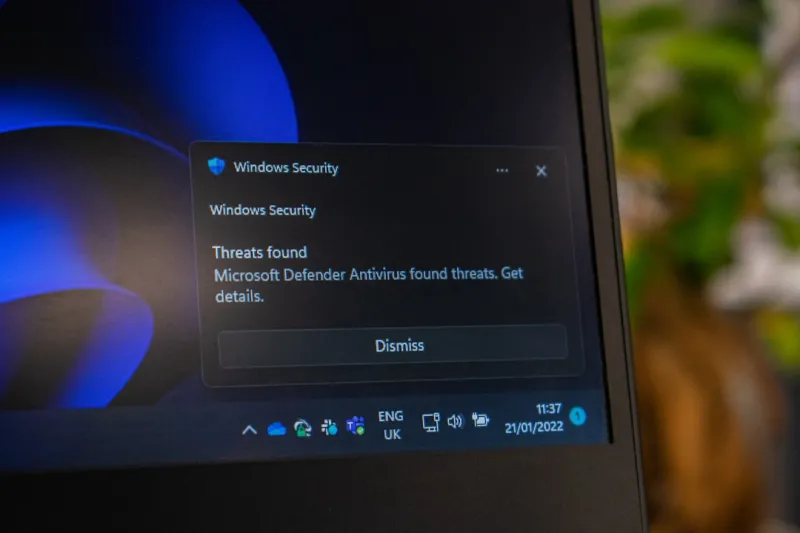
Security has always been a double‑edged sword for power users. We crave openness, yet we can’t afford the downtime that a breach causes. In 2026 Microsoft rolled out Zero‑Trust Boot, a feature that verifies each driver and kernel module against a cryptographic ledger before allowing it to execute. I remember the old days of manually signing drivers—painful, but necessary. Now, the OS does it for me, and any unsigned component is quarantined instantly. Pair this with the new “Smart Defender” alerts that learn my typical usage patterns, and I’m no longer bombarded with generic warnings. Instead, I get contextual advice, like when a new macro script tries to access my credential vault. The result? A smoother, more confident experience that lets me focus on building software, not patching holes.
One area where Windows truly shines for me is integration with cloud‑native development pipelines. The built‑in Azure Developer CLI now runs natively in PowerShell, letting me spin up DevTest labs, push container images, and monitor deployments without leaving the terminal. This seamless bridge means I can write code locally, test in a replica of the production environment, and deploy with a single command—no extra plugins or third‑party tools required. The experience is so fluid that I often forget I’m not directly on a Linux host. For anyone still skeptical about Windows in a cloud‑first world, I recommend checking out Unlocking the Full Power of Windows for Modern Power Users, which dives deep into these workflows.
Another game‑changer is the revamped File Explorer with AI‑enhanced search. Gone are the days of typing cryptic queries and scrolling through endless results. The new search bar understands natural language—type “photos from last summer vacation larger than 5 MB” and it pulls the exact files in milliseconds. This feature alone has shaved hours off my media management tasks each month. Moreover, the integration with OneDrive now offers “Smart Sync,” automatically offloading rarely accessed files to the cloud while keeping placeholders locally. I can free up SSD space without breaking shortcuts, a crucial advantage when juggling large data sets for machine‑learning experiments.
For those who love tinkering with system visuals, the 2026 update introduced a fully scriptable Theme Engine. Using a simple JSON schema, I can define color palettes, icon sets, and even cursor animations that apply across the OS and supported third‑party apps. This has turned my workstation into a brand‑consistent environment that matches the corporate design guidelines of the clients I work with, without sacrificing performance. The best part is the engine’s compatibility with the new Live Tiles API, letting me display real‑time metrics—CPU usage, Git commit counts, or even a weather widget—directly on the taskbar. It’s a subtle, yet powerful way to keep information at a glance while keeping the desktop uncluttered.
Automation is another pillar of my Windows workflow. With the introduction of Power Automate Desktop v3, creating multi‑step scripts is now a drag‑and‑drop experience that outputs PowerShell code behind the scenes. I’ve built a routine that backs up my development repositories, compresses them, and pushes them to both Azure Blob storage and an off‑site SFTP server—all triggered by a single hotkey. The process runs silently in the background, and if anything goes awry, I receive a concise email alert thanks to the integrated notification hub. This level of native automation reduces my reliance on external scheduling tools and keeps everything under one security umbrella.
Staying ahead of the curve also means embracing the latest Windows updates as a strategic advantage. Microsoft’s 2026 cumulative patch cycle has shifted from reactive to proactive, delivering feature previews and security hardening in the same package. This approach means I can test upcoming capabilities in a controlled environment before they hit production, reducing surprise downtime. For a deeper look at why these updates matter for power users, see Why 2026 Updates Are the Power‑User’s Secret Weapon. By aligning my update cadence with Microsoft’s roadmap, I’ve turned what used to be a maintenance headache into a competitive edge.
Finally, the community aspect of Windows in 2026 can’t be ignored. The revamped Windows Insider Program now offers “Power‑User Channels” that provide early access to beta features, exclusive forums, and direct feedback loops with the product team. I’ve contributed to the design of the new Task Manager layout, and seeing my suggestions implemented feels rewarding. This collaborative environment fosters a sense of ownership, encouraging us to push the OS further than the developers might have imagined. As I look ahead, I’m excited to see how this partnership will shape the next wave of productivity tools, cementing Windows as the ultimate platform for power users who demand both control and innovation.