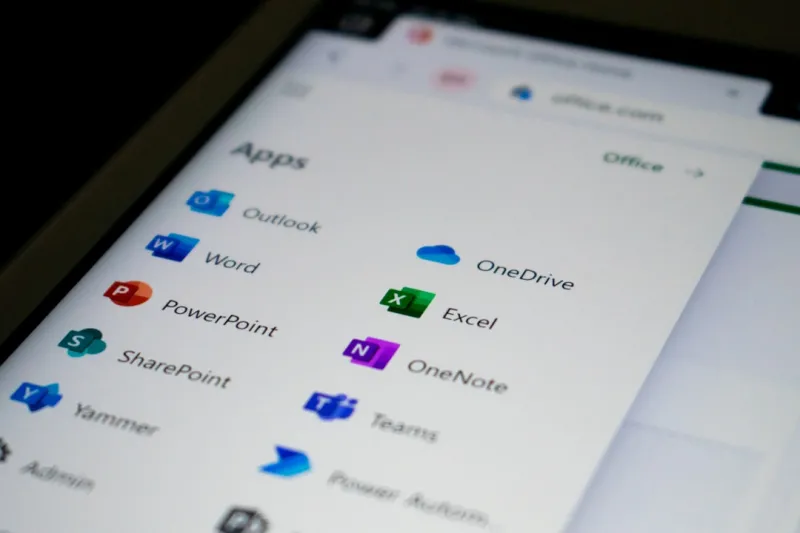
When I first opened a Word document back in the early 2000s, I never imagined the suite would evolve into the AI‑infused powerhouse it is today. Fast forward to 2026, Microsoft Office isn’t just a collection of static apps; it’s a living, learning ecosystem that adapts to the way we work, think, and collaborate. As a long‑time power user, I’ve watched Office transform from a simple word processor into an intelligent assistant that anticipates my needs, streamlines repetitive tasks, and safeguards my data with a level of precision that would have seemed sci‑fi a decade ago. In this post, I’ll walk you through the most compelling features, hidden shortcuts, and strategic tweaks that let you squeeze every ounce of productivity out of Word, Excel, PowerPoint, and Outlook—while keeping your workflow secure and future‑proof.
AI Integration: Office’s New Brain
Microsoft’s biggest gamble paid off: AI is now baked directly into the core of each Office app. The Copilot feature isn’t a gimmick; it’s a true collaborative partner that suggests content, refines language, and even drafts entire presentations based on a single prompt. In Word, I can type “Summarize this quarterly report in three bullet points,” and Copilot delivers a polished outline in seconds, freeing me to focus on analysis rather than transcription. Excel’s data‑modeling engine now suggests formulas, visualizations, and predictive trends as you load new datasets, dramatically reducing the time spent wrestling with complex functions. Even PowerPoint can generate slide designs, match branding palettes, and rehearse delivery using AI‑driven speaker coaching. By embracing these tools, power users can shift from manual labor to strategic thinking—an evolution that feels especially relevant as AI continues to reshape the workplace in 2026.
Performance Hacks for the Savvy User
Speed matters, especially when you’re juggling massive spreadsheets or high‑resolution presentations. One of my go‑to tricks is to customize the Office cache settings, allocating more RAM to Excel and PowerPoint so they can handle larger files without lag. Pair this with the “Fast Save” option in Word, which writes changes in the background, keeping the UI responsive during heavy editing sessions. For those who love macros, consider moving your VBA scripts to the new “Office Script” environment, which runs on TypeScript and benefits from Microsoft’s cloud‑based performance optimizations. If you’re wondering how your operating system impacts Office’s responsiveness, check out the insights in operating‑system power‑user strategies. Optimizing your OS settings—like disabling unnecessary background services—can shave seconds off load times, a small win that adds up over a full workday.
Security isn’t an afterthought; it’s woven into the fabric of Office. Microsoft now offers “Information Protection” policies that automatically classify and encrypt documents based on content sensitivity. When you enable “Sensitivity Labels,” the system tags files with encryption keys that only authorized teammates can unlock, reducing the risk of accidental data leaks. For an in‑depth look at fortifying your workflow, the Elevating Your Security Playbook guide walks through configuring multi‑factor authentication, conditional access policies, and real‑time threat monitoring—essential steps for any power user handling confidential information.
Collaboration: From Static Docs to Living Workspaces
The old model of emailing attachments is dead. Office 2026’s real‑time co‑authoring lets multiple users edit the same document simultaneously, with changes highlighted in the sidebar. In Teams, Office files open directly in a shared pane, so you can discuss edits while they happen, eliminating version‑control nightmares. I’ve found that setting up “Shared Workspaces” in OneDrive, combined with granular permissions, creates a sandbox where teammates can experiment without risking the master copy. Additionally, the new “Comment Thread AI” can summarize discussion points and suggest action items, ensuring that meetings stay focused and decisions are captured accurately. This collaborative fabric not only speeds up project timelines but also builds a culture of transparency—something every modern organization strives for.
Data analysis in Excel has never been more powerful. The integration of Power Query with AI models means you can clean, transform, and visualize data with just a few clicks. For instance, I can ask Copilot to “Identify outliers in this sales dataset,” and it will flag anomalies, suggest visual charts, and even generate a brief narrative explaining the trends. This synergy between AI and traditional spreadsheet functions cuts analysis time dramatically, letting you pivot from data collection to strategic insight. To dive deeper into harnessing AI for heavy‑duty computing, explore the tactics outlined in AI computing mastery. Those strategies translate directly into smarter Excel workbooks that adapt as your data evolves.
PowerPoint and the Future of Visual Storytelling
Presentations used to be a slog—designing slides, aligning graphics, rehearsing timing. Today, PowerPoint’s AI Designer suggests layouts, selects appropriate icons, and even writes speaker notes based on the content you provide. The new “Live Slides” feature streams your deck directly to remote audiences, syncing animations and transitions in real time, which is a game‑changer for hybrid meetings. I love the “Slide Coach” that analyzes my pacing, filler words, and body language (via webcam) and offers constructive feedback on the fly. By leveraging these tools, you can focus on the narrative arc rather than the minutiae of slide construction, delivering polished presentations that resonate with any audience.
Outlook has evolved from a simple email client into an AI‑enhanced hub for time management. The “Focused Inbox” now learns which messages truly need your attention, while “Meeting Insights” pulls relevant files, past emails, and even suggested agendas into a single pane before a call starts. I’ve set up custom rules that automatically categorize newsletters, flag high‑priority client emails, and route project updates to dedicated folders—all without lifting a finger. The AI-driven “Triage Bot” can draft quick replies, schedule follow‑ups, and even propose meeting times based on participants’ calendars, reducing inbox overload and freeing mental bandwidth for deeper work.
Looking Ahead: The Office Suite as a Platform
What excites me most about Microsoft Office in 2026 is its trajectory toward becoming a full‑blown development platform. With the introduction of low‑code “Power Automate” flows and extensible add‑ins built on JavaScript, power users can now create bespoke solutions that automate cross‑app workflows—think a single click that pulls data from Excel, generates a PowerPoint deck, and emails it via Outlook. This modularity means the suite will continue to adapt to emerging technologies, whether that’s quantum‑ready encryption or deeper AI integration. As we navigate an ever‑more digital workplace, mastering Office isn’t just about knowing shortcuts; it’s about understanding how to harness the suite’s ecosystem to stay ahead of the curve. Embrace the AI, tighten your security, and keep experimenting—your future‑proofed productivity engine is already at your fingertips.