Why Windows 11 Still Feels Fresh in 2024
When I first installed Windows 11 back in 2022, I was skeptical—Microsoft had promised a sleek redesign, but the real test was whether the OS could keep pace with the relentless hardware churn we see today. Fast forward to 2024, and I’m still finding new layers of polish that keep my workflow humming. The revamped Start menu now intelligently surfaces recent documents, while the integrated Snap Layouts make multitasking on ultrawide monitors a breeze. What truly sets Windows 11 apart this year is its refined compatibility engine, which silently resolves driver conflicts that used to haunt us on older builds. If you’ve been lingering on Windows 10, give the free upgrade a try—Microsoft’s telemetry improvements mean you’ll notice fewer background hiccups, and the OS feels lighter on the same hardware. For a deeper dive into the power‑user nuances, check out Windows 11 in 2024: A Power User’s Guide.
Performance Tweaks That Actually Matter
Most users think “turn off visual effects” is the only way to squeeze performance out of Windows, but as someone who builds and tweaks rigs daily, I’ve learned that a layered approach works best. Start by enabling the Hardware‑Accelerated GPU Scheduling feature in the Graphics Settings—this offloads some work from the CPU, reducing latency in demanding apps like Adobe Premiere or the latest AAA titles. Next, use the built‑in Storage Spaces Direct to pool NVMe drives for lightning‑fast read/write speeds, a trick I borrowed from enterprise environments. Don’t forget to revisit the Power Plan; the “High performance” preset is great, but customizing a plan that balances CPU boost thresholds with lower idle power draw can extend battery life on laptops without sacrificing speed. If you’re wondering how to align these tweaks with the latest hardware trends, my Ultimate 2024 PC Upgrade Guide walks you through pairing Windows settings with the newest SSDs and CPUs.
Compatibility: The Hidden Battleground
One of the biggest pain points I’ve encountered is legacy software that simply refuses to cooperate with modern Windows builds. The built‑in Compatibility Mode can sometimes resurrect old utilities, but it’s a blunt instrument. For more granular control, I recommend using the Windows Sandbox to spin up isolated environments where you can run older installers without contaminating your main system. Another underrated tool is the “Program Compatibility Troubleshooter,” which intelligently suggests registry tweaks and DLL redirects. If you’re a developer, the new Windows Subsystem for Linux (WSL 2) provides a seamless bridge to Unix‑based tools, eliminating the need for clunky virtual machines. And for those still clinging to the Office suite, you’ll be relieved to learn that Microsoft Office Still Rules the Productivity World in 2024, with full compatibility layers that keep legacy macros alive.
Security in the Age of Ransomware
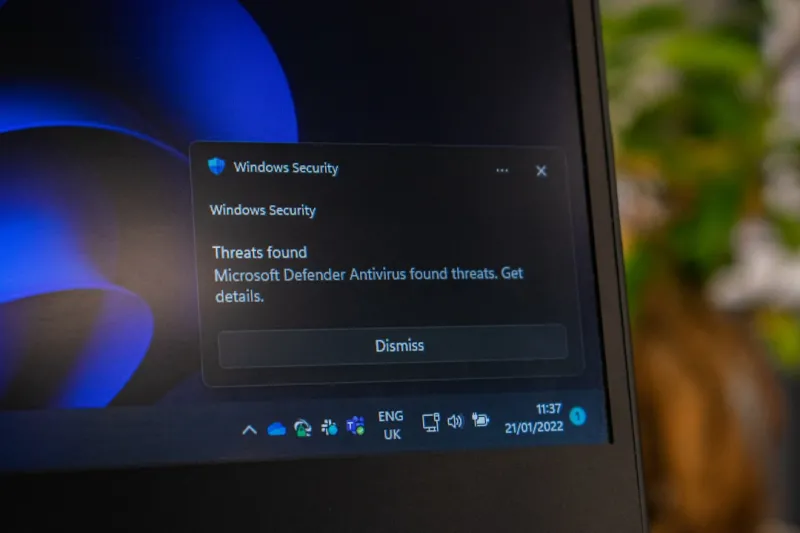
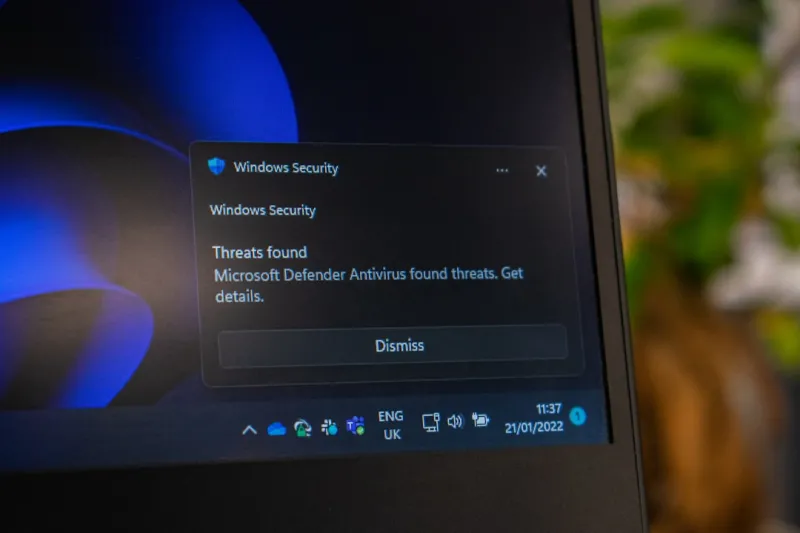
Security isn’t a set‑and‑forget checklist; it evolves as fast as the threats that target us. Windows 11’s built‑in Microsoft Defender Antivirus now leverages cloud‑based AI to flag zero‑day exploits before they spread, but you still need a layered defense. I always enable Controlled Folder Access to protect critical directories from ransomware, and I pair it with a reputable third‑party EDR solution for behavior‑based monitoring. The new Hardware‑Based Isolation using TPM 2.0 and Secure Boot ensures that firmware attacks are nipped in the bud. Don’t overlook the importance of regular patch cycles—Microsoft’s “Patch Tuesday” updates now bundle driver signatures, reducing the risk of compromised peripherals. For a broader view on securing your digital perimeter, my article on Navigating the New Frontier of Computer Security offers actionable insights.
The Rise of AI Integration Within Windows
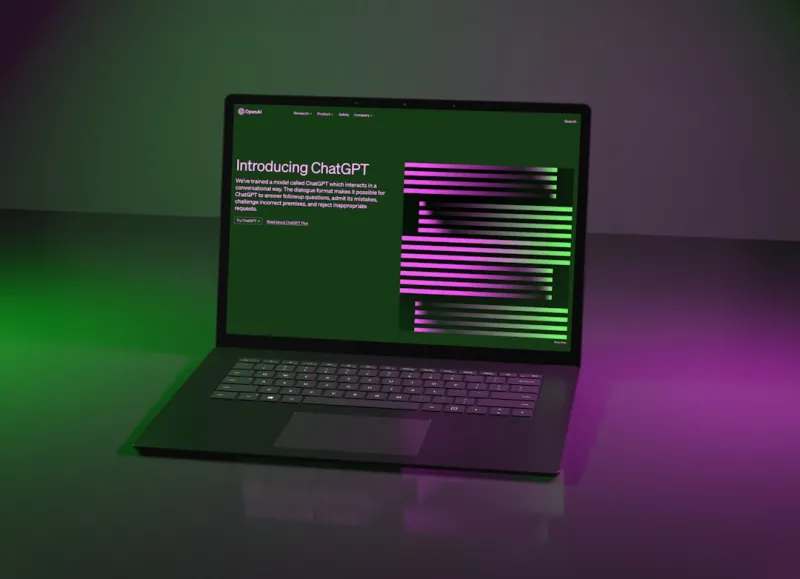
AI isn’t just a buzzword; it’s becoming an intrinsic part of the Windows experience. The new Copilot feature, embedded directly into the taskbar, offers context‑aware suggestions—from drafting emails to summarizing long documents. What’s exciting for power users is the ability to script Copilot actions using PowerShell, turning routine tasks into one‑click operations. Meanwhile, Windows 11’s Voice Access has matured, providing hands‑free navigation that rivals dedicated accessibility tools. For developers, the integration of ONNX Runtime means you can run local machine‑learning models without pulling data to the cloud, preserving privacy and reducing latency. If you’re curious about the broader AI landscape shaping our hardware choices, my piece on AI Computing in 2025 outlines the trends that will soon influence Windows updates.
Hardware Synergy: Matching Windows to Your Build
Choosing the right hardware for a Windows machine is more than picking the fastest CPU. The OS now optimizes workloads based on the Processor Performance States (P‑states), which means a balanced mix of cores and clock speeds can outshine a raw high‑clock processor in real‑world tasks. When selecting storage, go for NVMe drives that support PCIe 4.0 or even the emerging PCIe 5.0 standard; Windows 11’s storage stack is built to harness that bandwidth, dramatically cutting load times. Memory also matters—DDR5’s higher bandwidth pairs nicely with the OS’s improved memory scheduler, reducing page‑fault latency. For gamers, the new DirectStorage API offloads asset decompression to the GPU, so a high‑end graphics card can deliver smoother frame rates even on modest CPUs. My 2024 Hardware Playbook dives deep into these synergies, helping you build a Windows rig that stays relevant for years.
Future‑Proofing: What’s Next After Windows 11?
Rumors of Windows 12 have been swirling, but the reality is that Microsoft is adopting a “continuous update” model, rolling out major feature sets without a full version jump. Expect tighter integration with cloud services, especially Azure Arc, which will let you manage on‑premise Windows machines as if they were virtual instances. The OS is also moving toward a modular kernel, allowing you to enable or disable subsystems based on your workload—think a leaner core for embedded devices or a fully loaded stack for workstation‑grade tasks. For those worried about legacy support, Microsoft has pledged an extended “Enterprise LTSC” roadmap, guaranteeing security updates for up to a decade. Preparing now means investing in hardware with upgrade paths—socket‑compatible CPUs, M.2 slots, and ample RAM slots—so when the next Windows evolution arrives, your machine can adapt without a complete overhaul.
Productivity Hacks Tailored for Power Users
Even seasoned pros can benefit from hidden Windows shortcuts that shave seconds off daily tasks. Press Win + Z to open the new “Snap Layouts” menu, then use the arrow keys to snap windows in a split‑screen configuration without touching the mouse. The Virtual Desktop feature, accessed via Win + Ctrl + D, lets you compartmentalize workspaces—perfect for juggling coding, design, and communication apps side by side. For quick file access, pin frequently used folders to the taskbar using the “Pin to taskbar” option in File Explorer. Don’t overlook the power of the Windows Terminal, which now supports multiple tabs, split panes, and custom color schemes—ideal for developers who need a unified console experience. Pair these tricks with the latest Office suite, and you’ll find your productivity soaring, a point I explore extensively in my guide on why Office remains dominant.
Wrapping Up: Embrace the Windows Evolution
Windows has always been a platform of contradictions—stable enough for enterprises, yet flexible enough for hobbyists. In 2024, the balance has tipped toward a more adaptable, AI‑infused experience that rewards users who invest time into fine‑tuning settings and hardware. Whether you’re a gamer, a creator, or a developer, the OS now offers a toolbox that can be customized to your exact workflow, without sacrificing security or performance. My journey through the latest updates, hardware pairings, and productivity hacks shows that the “Windows” brand is still a living, breathing ecosystem worth exploring. Stay curious, keep your system patched, and don’t be afraid to experiment with the new features—your future‑proofed Windows machine is just a few clicks away.