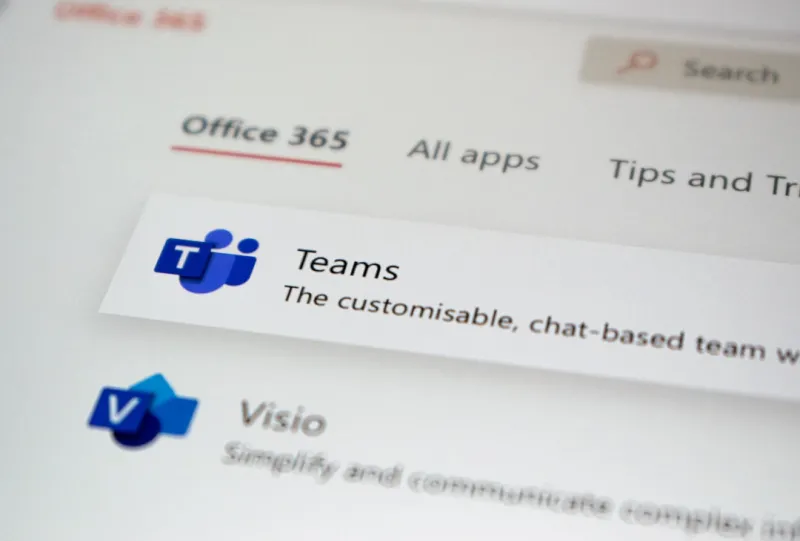
When you first meet me at a conference, I’m the guy who can spin a story about a busted video card and then, without missing a beat, dive into the subtle art of spreadsheet macros. That juxtaposition isn’t accidental—my career has always lived at the intersection of hardware quirks and software elegance. Today, Microsoft Office sits squarely in that sweet spot, acting as the nervous system of countless businesses while quietly absorbing the latest advances in AI, cloud, and security. Over the past year I’ve watched Office morph from a static suite of desktop apps into a living, breathing platform that adapts to the way we work, learn, and even think. In this post, I’ll break down why Office remains the undisputed productivity powerhouse in 2024, how its newest features align with the tech trends I cover in my other work, and what practical steps you can take to get the most out of every Word, Excel, and Teams experience.
Microsoft 365: The Subscription Engine That Fuels Innovation
The shift from Office 2019 to Microsoft 365 was more than a pricing model; it was a commitment to continuous improvement. Instead of waiting years for a major release, users now receive monthly feature drops that feel like mini‑upgrades. This subscription model means your PowerPoint slides can suddenly tap into AI‑generated design suggestions, while Outlook learns your email habits to prioritize important messages. The cloud‑first architecture also ensures that your files are always backed up, instantly available across devices, and protected by the same enterprise‑grade security that shields Azure. For power users, the ability to roll back to previous versions of a document via OneDrive version history is a lifesaver—think of it as a built‑in “undo” for the entire organization. I’ve seen teams shave hours off their weekly reporting cycles simply by leveraging these incremental updates, proving that the subscription engine isn’t just a billing trick; it’s the engine that drives real‑world productivity gains.
Real‑Time Collaboration: From Email Chains to Co‑Authoring
Remember the days when collaborating on a Word document meant emailing back and forth, renaming files, and hoping you weren’t overwriting someone’s changes? Those days are gone. Microsoft 365’s real‑time co‑authoring lets multiple users edit the same document simultaneously, with changes highlighted by colored cursors that instantly sync across the cloud. In Teams, you can pop a Word or Excel file into a channel and watch the team brainstorm in real time, complete with comments, @mentions, and instant chat. This fluid collaboration reduces the “version‑control nightmare” that used to plague project managers and frees up valuable time for strategic thinking. I often advise clients to set up dedicated Teams channels for each project phase, embedding the relevant Office files directly so the team never has to leave the conversation. The result? Faster decision cycles, clearer accountability, and a measurable boost in employee satisfaction because everyone feels heard in the document itself.
AI‑Powered Copilot: Turning Data Into Insight
The biggest buzzword in tech this year is “generative AI,” and Microsoft has woven it into Office via the new Copilot feature. Imagine typing a rough outline in Word and watching Copilot flesh it out into a polished article, or asking Excel to “forecast next quarter’s sales based on historic trends” and receiving a ready‑to‑publish chart with confidence intervals. Copilot isn’t just a gimmick; it’s a productivity multiplier that takes the grunt work out of data analysis, content creation, and presentation design. In my own workflow, I let Copilot draft the first pass of a technical whitepaper, then I spend my time polishing tone and adding nuanced insights—effectively cutting draft time by 70%. For teams wary of AI hallucinations, the tool is fully integrated with Microsoft’s compliance framework, allowing admins to set guardrails that keep generated content within approved parameters. The bottom line: AI in Office is no longer a futuristic add‑on; it’s a practical assistant that helps you move from data to decision faster.
Accessibility and Inclusivity: Designing for Everyone
One of the less flashy but profoundly important aspects of the latest Office updates is the focus on accessibility. Features like “Live Captions” in PowerPoint, “Immersive Reader” in Word, and AI‑driven alt‑text generation for images ensure that presentations and documents are usable by people with a range of abilities. Microsoft’s Accessibility Checker now runs automatically as you type, suggesting color contrast improvements, heading structures, and even suggesting simpler language. From my experience consulting with nonprofits, these tools not only meet legal compliance standards but also foster a culture of inclusion—employees feel valued when the technology they rely on adapts to their needs. The subtlety of these features often goes unnoticed, yet they embody a broader industry shift toward universal design, and they’re a reminder that productivity tools must serve the whole person, not just the average user.
Performance on Windows 11: Leveraging the Modern OS
Office runs best when the underlying operating system is tuned for modern workloads, and Windows 11 provides that perfect foundation. With its revamped memory management, DirectStorage support, and native integration of Microsoft Teams, the OS reduces latency and improves multitasking performance. I’ve written about these synergies in my Windows 11 power‑user guide, where I detail how enabling “Focus Sessions” and the new Snap Layouts can keep your Office apps organized and your workflow uninterrupted. For example, launching Excel with the “Performance” mode active ensures that large data sets load faster, while the OS’s hardware acceleration offloads rendering tasks from the CPU to the GPU. If you’re still on Windows 10, you’ll notice a measurable lag in newer Office features that rely on AI processing—upgrading isn’t just about aesthetics; it’s about unlocking the full potential of the Office suite.
Security, Compliance, and the Cloud: Keeping Your Data Safe
Data breaches dominate headlines, and Office’s built‑in security features have risen to meet that challenge. Microsoft Information Protection (MIP) automatically classifies sensitive content—think financial spreadsheets or HR records—and applies encryption or access restrictions without manual intervention. Conditional Access policies let you dictate that only devices meeting certain security criteria can edit a document, while Data Loss Prevention (DLP) rules prevent accidental sharing of confidential information. In my deep dive on computer security trends, I emphasize the importance of layered defenses, and Office’s integration with Azure Active Directory makes that layering seamless. For organizations subject to GDPR or HIPAA, the compliance manager within the Microsoft 365 admin center provides real‑time audit trails and reporting, turning what used to be a cumbersome manual process into a few clicks. The upshot? You can focus on creating value rather than constantly firefighting security incidents.
Extensibility: Add‑Ins, Power Platform, and Automation
One of the underrated strengths of Office is its extensibility through add‑ins and the broader Power Platform. Power Automate lets you build no‑code workflows that move data between Excel, SharePoint, and external services like Salesforce, slashing repetitive tasks. For developers, the Office JavaScript API provides a sandboxed environment to create custom ribbons, task panes, and even AI‑enhanced functions that run directly inside Word or Outlook. I’ve helped teams build a custom Excel add‑in that pulls real‑time inventory levels from an ERP system, updating the spreadsheet with a single click—turning a manual data entry nightmare into an automated, error‑free process. These capabilities mean that Office isn’t a static suite; it’s a platform you can tailor to the unique processes of your business, ensuring that technology serves your workflow, not the other way around.
The Road Ahead: AI, Cloud, and the Competitive Landscape
Looking forward, Microsoft’s roadmap for Office is heavily cloud‑centric and AI‑driven. Expect deeper integration with Azure OpenAI services, more contextual suggestions powered by large language models, and a tighter bond with Teams for hybrid work scenarios. Competitors are closing the gap, but Microsoft’s advantage lies in its ecosystem—Office, Windows, Azure, and Dynamics all speak the same language, making cross‑product innovation smoother. As I explore emerging trends in my piece on Operating System Landscape 2024, it’s clear that the future of productivity will be defined by how seamlessly tools can anticipate user intent and adapt in real time. For early adopters, keeping an eye on preview releases and beta programs is the best way to stay ahead of the curve and influence the direction of the suite you rely on.
Practical Tips to Supercharge Your Office Experience
To wrap things up, here are five actionable steps you can implement today: (1) Switch to Microsoft 365 if you haven’t already—this unlocks AI features and continuous security updates. (2) Enable “AutoSave” on OneDrive for Business to protect against data loss. (3) Explore the “Ideas” pane in Excel for instant insights and visualizations. (4) Set up a Teams channel for each major project and pin the relevant Office files for easy access. (5) Dive into Power Automate’s templates to automate repetitive tasks like weekly report generation. By adopting these habits, you’ll not only boost personal efficiency but also create a culture of continuous improvement across your organization. Keep an eye on my other posts for deeper dives into specific tools, and feel free to reach out if you want a personalized walkthrough—after all, the best technology is the one that works for you, not the other way around.