When I first unboxed a Windows machine back in the late ’90s, I was dazzled by the promise of a graphical interface that could make a tech‑savvy teen feel like a wizard. Fast‑forward to today, and that same sense of wonder still fuels my daily grind. As someone who’s spent countless nights wrestling with driver updates, tweaking the registry, and debating whether to jump to the newest build, I’ve learned that Windows isn’t just an OS—it’s a living, breathing ecosystem that evolves with every hardware breakthrough and user demand. In this post, I’ll break down why Windows remains the go‑to platform for both power users and casual folks, spotlight the most compelling Windows 11 upgrades, and lay out a roadmap for future‑proofing your rig. Trust me, if you’ve ever felt overwhelmed by the pace of change, you’ll find a friend in this guide.
Windows’ Unmatched Compatibility: The Secret Sauce
One of the biggest reasons I keep my Windows machine humming is the sheer breadth of compatibility it offers. From legacy applications that still run on legacy hardware to cutting‑edge games that push the limits of GPU performance, Windows delivers a level of flexibility that’s hard to match. The platform’s driver model, backed by Microsoft’s Windows Driver Framework (WDF), means manufacturers can roll out updates that keep older devices relevant longer. This is especially vital for professionals who rely on niche software that hasn’t been ported to macOS or Linux. Moreover, the Windows Subsystem for Linux (WSL) bridges the gap between dev environments and native Windows tools, allowing me to spin up a Ubuntu shell without leaving the comfort of my familiar desktop. For anyone looking to blend the best of both worlds, this compatibility is a game‑changer, and it’s a cornerstone of why Windows continues to dominate the market.
The Evolution of Windows 11: Features That Matter
Windows 11 isn’t just a cosmetic overhaul; it’s a strategic pivot toward productivity and security. The new centered start menu feels sleek, but the real magic lies under the hood. Integrated widgets give instant access to weather, calendar, and news, cutting down the need to switch apps. Snap Layouts and Groups revolutionize multitasking, letting you organize windows with a simple drag‑and‑drop—perfect for my workflow when I’m juggling code editors, virtual machines, and a spreadsheet of client data. Security has also taken a leap forward with hardware‑based isolation via TPM 2.0 and Secure Boot, dramatically reducing the attack surface. If you’re wondering how these changes stack up against broader OS trends, take a look at The Operating System Landscape in 2024 for a deeper dive. In short, Windows 11 blends modern UI aesthetics with robust underpinnings that keep both power users and newcomers satisfied.
Performance Tweaks You Might Have Missed
Even though Windows 11 ships with many optimizations, there are still hidden levers you can pull to squeeze out extra performance. First, enable “Hardware‑accelerated GPU scheduling” in the Graphics Settings; this reduces latency and can boost frame rates in demanding titles. Next, consider turning off background apps that you never use—this frees up RAM and CPU cycles for the tasks that truly matter. I also recommend using the built‑in “Storage Sense” to automatically clean up temporary files, which can reclaim gigabytes of space over time. Finally, for those who love to tinker, the Power Plan “High performance” (or the newer “Ultimate Performance” on Pro editions) ensures your CPU isn’t throttling under light loads. These tweaks, while modest, collectively deliver a smoother experience that feels like a fresh install every time you boot up.
Future‑Proofing Your PC: Hardware and Software Alignment
Looking ahead, the biggest challenge for Windows users is aligning hardware upgrades with the OS’s evolving demands. With the rise of AI‑accelerated workloads and ultra‑high‑resolution displays, you’ll want a system that can handle both. I recommend prioritizing a CPU with strong single‑core performance—modern Intel Alder Lake or AMD Zen 4 chips excel here—and pairing it with a DDR5‑compatible motherboard for future memory upgrades. On the storage front, NVMe SSDs are now the standard; they drastically cut boot times and improve load speeds for large datasets. If you’re curious about storage trends, my article on Hard Drive Trends 2024 offers a comprehensive look. By choosing components that support Windows’s native security features, like TPM 2.0 and Secure Boot, you’ll also ensure that your system stays compliant with upcoming updates and enterprise policies.
Software Strategies for Longevity
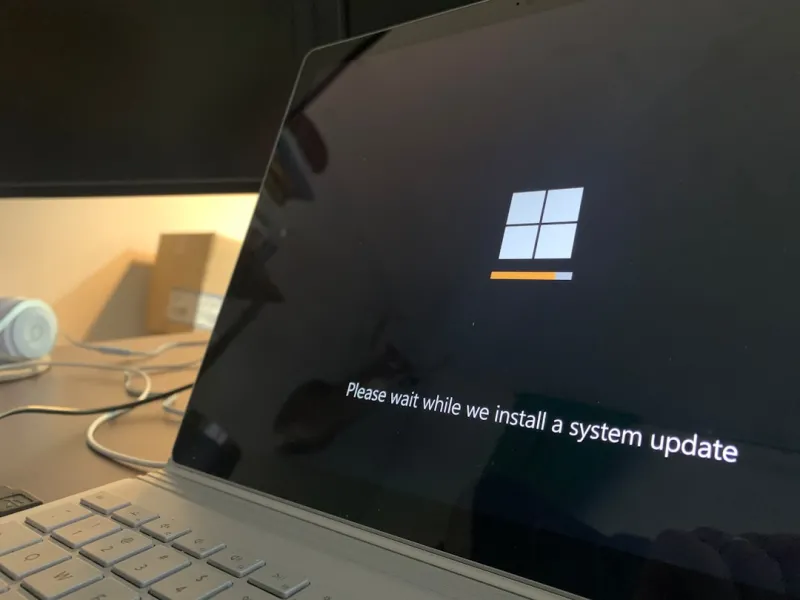
Hardware alone won’t keep your PC future‑ready; you need a software strategy that anticipates change. Start by subscribing to the Windows Insider Program, which gives you early access to upcoming features and bug fixes—perfect for staying ahead of the curve without waiting for major releases. Keep your drivers current, especially for graphics and network adapters, because Microsoft’s latest patches often rely on up‑to‑date firmware to deliver performance boosts. Additionally, adopt a modular approach to your software stack: use containerization tools like Docker for development environments, and consider migrating legacy apps to cloud‑based equivalents when possible. This not only reduces the load on your local machine but also ensures you’re not locked into outdated binaries that could become security liabilities. In my experience, a proactive software routine can extend the useful life of a Windows PC by several years.
Security in the Windows Era: What You Must Know
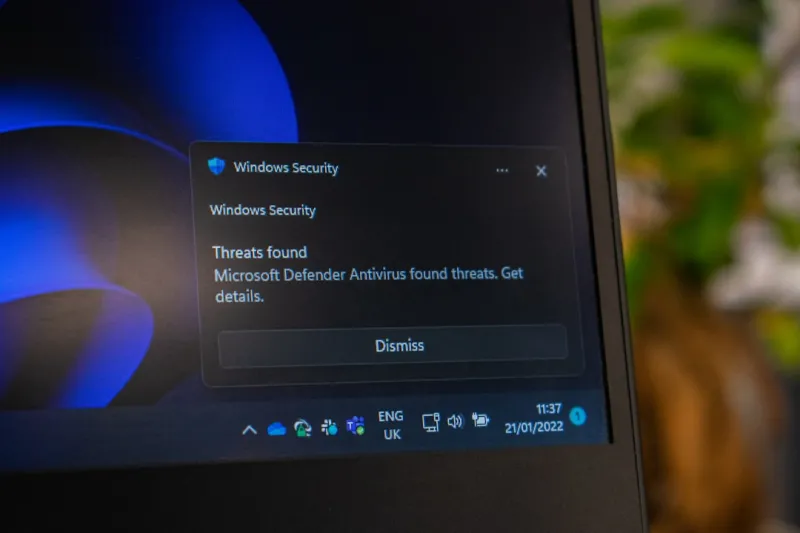
Security threats have become more sophisticated, and Windows has responded with a layered defense model that I rely on daily. The built‑in Windows Defender Antivirus now rivals many third‑party solutions, offering real‑time protection, cloud‑based threat analysis, and controlled folder access to guard against ransomware. Coupled with Microsoft’s Defender SmartScreen, you get an extra line of defense against phishing sites and malicious downloads. For businesses, Microsoft Endpoint Manager (formerly Intune) provides centralized policy enforcement, ensuring devices stay compliant with corporate standards. If you’re interested in a broader view of security trends, check out The Evolution of Computer Security, which outlines how Windows fits into the larger cybersecurity landscape. By staying updated and leveraging these built‑in tools, you can protect your data without sacrificing performance.
Balancing Productivity and Privacy
While Windows offers robust security, it also collects telemetry data to improve the user experience—a double‑edged sword for privacy‑concerned users. The good news is you can fine‑tune these settings. Navigate to Settings → Privacy & Security and disable “Tailored experiences” and “Send diagnostic data” if you prefer minimal data sharing. For those who use Microsoft 365, consider enabling “Information Protection” policies that encrypt sensitive files both at rest and in transit. This balance between productivity features and privacy controls lets you enjoy the convenience of cloud integration while keeping a tight grip on who sees your data. In my own workflow, I’ve found that a few minutes spent configuring these options pays dividends in peace of mind.
Wrapping Up: Embrace the Windows Journey
Whether you’re a seasoned IT pro, a gaming enthusiast, or someone just getting comfortable with a new PC, Windows offers a dynamic platform that adapts to your needs. Its unmatched compatibility, continual feature enhancements in Windows 11, and forward‑thinking security measures make it a compelling choice for the next decade. By staying proactive—keeping hardware up‑to‑date, leveraging Insider builds, and fine‑tuning privacy settings—you’ll ensure that your Windows experience remains smooth, secure, and enjoyable. As I always say, the best Windows machine is the one that evolves with you, and with the right strategies, that evolution is both exciting and manageable.