Is your once-snappy computer starting to feel like a relic from the past? You are certainly not alone. Many users find themselves staring at a loading screen that feels like it lasts for an eternity. The good news is that discovering the best way to revive an old PC or laptop is often easier and more affordable than buying an entirely new machine.
With just a few tactical upgrades, you can breathe new life into your hardware. Whether your device is struggling to open a browser or lagging during simple word processing tasks, these performance-enhancing tips will help you reclaim your productivity. Let’s dive into the most effective methods for restoring your system to its former glory.
The Hardware Refresh: Where to Start
Before you dive into software tweaks, you must look at your physical components. Most computers from the last decade are held back by aging hardware that simply cannot keep up with the demands of modern software. Identifying these bottlenecks is the most critical step in your revitalization journey.
Upgrade to an SSD Drive
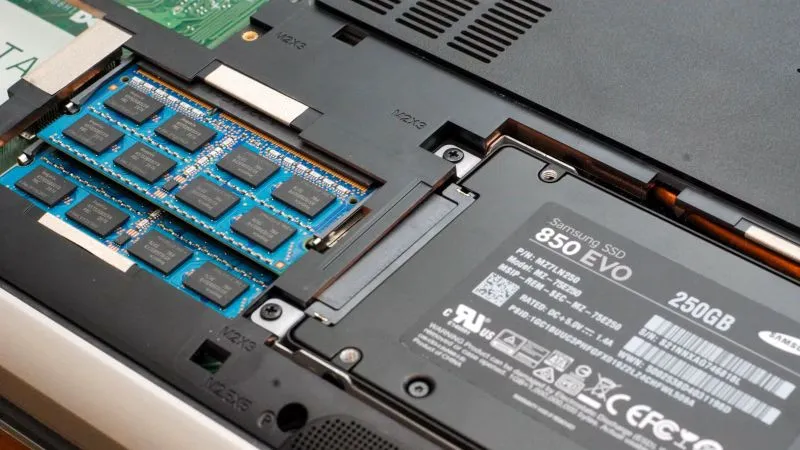
If there is one single modification that offers the most dramatic impact, it is switching from a mechanical hard disk drive (HDD) to an SSD Drive. Traditional spinning disks are slow and prone to failure over time, creating a massive bottleneck for your operating system.
An SSD uses flash storage, which provides near-instantaneous access to your files and applications. You will notice the difference the moment you press the power button, as your computer will boot in seconds rather than minutes. This is truly the gold standard for reviving older machines.
Expand Your System Memory
Modern applications are incredibly hungry for resources. If your computer frequently freezes when you have more than two tabs open, you are likely running out of physical RAM. Increasing your capacity allows your machine to handle more processes simultaneously without stuttering.
Most laptops and desktop PCs allow you to add more modules easily. Even moving from 4GB to 8GB or 16GB of RAM can drastically change your experience. It prevents your system from relying on the slower virtual memory located on your storage drive, ensuring a much smoother workflow.
Software Optimization Tactics
Once you have handled the hardware, it is time to look at the digital clutter. Over years of use, your operating system accumulates junk files, background services, and unnecessary startup programs that drain your resources. Cleaning up the software layer is a vital part of the recovery process.
Manage Your Startup Programs
Have you ever noticed your PC struggling to become responsive right after you log in? This is usually due to dozens of background applications trying to launch simultaneously. Many of these programs are unnecessary and contribute nothing to your daily tasks.
- Open your Task Manager or System Settings.
- Navigate to the "Startup" tab to see all active apps.
- Disable anything that you do not need immediately upon booting.
- Restart your computer to see the improved speed.
Perform a Clean Install
Sometimes, the best way to fix a sluggish machine is to wipe the slate clean. Over time, Windows or macOS installations become "bloated" with broken registry entries and orphaned files that are difficult to track down. A fresh installation removes all the digital debris that has built up over the years.
Before you take this step, ensure that you have backed up all your important photos, documents, and files to an external cloud service or drive. A fresh system is essentially a blank canvas, giving you the best opportunity to start fresh with a lean and mean operating system.
Routine Maintenance for Long-Term Speed
Reviving your machine is not a one-time project; it requires a bit of maintenance to keep things running efficiently. Establishing a few simple habits will ensure that your laptop or PC remains fast and reliable for years to come, preventing the need for another major overhaul down the line.
Keep Your System Updated
While it might be tempting to ignore update prompts, keeping your operating system current is essential. These updates often include performance optimizations and critical security patches. By allowing these to run, you ensure your software is communicating effectively with your hardware.
Clean Your Physical Components
Dust is the silent killer of performance. When vents and fans become clogged with debris, your processor heats up rapidly. To protect itself from damage, the CPU will "throttle" or slow down its processing speed, which leads to sudden performance drops during intensive tasks.
Use a can of compressed air to gently blow out the dust from your vents and fans. If you are comfortable opening your laptop or desktop, ensure you are working in a clean, static-free environment. This simple physical cleaning can help your computer stay cool and fast throughout the day.
Understanding When to Retire Your Machine
As much as we love to breathe life into older gear, there comes a point where hardware limits are unavoidable. If you have already installed a high-speed SSD and maximized your memory, but your machine still cannot run the software you need, it might be time to consider an upgrade.
Look at the limitations of your motherboard and processor. If they do not support modern operating systems or the latest industry-standard security features, you are essentially fighting a losing battle. Knowing when to stop spending money on an old unit is just as important as knowing how to fix it.
The Sustainability Benefit
By choosing to upgrade rather than replace, you are making a fantastic choice for the planet. E-waste is a massive global issue, and extending the life of your hardware by even two or three years significantly reduces your environmental impact. It is a win-win situation for your wallet and the Earth.
Personalizing the Experience
Once you have successfully restored your machine, take the time to customize it to your needs. Use lightweight software alternatives, organize your desktop, and remove any leftover tools you no longer use. A clean, organized workspace often feels faster and more efficient, even if the hardware underneath is modest.
Remember that the goal is functionality. You do not need the most powerful machine on the market to be productive. You just need a system that is well-maintained, properly configured, and equipped with the right core components to handle your specific workload without getting in your way.
Common Pitfalls to Avoid
While reviving an old PC is a great project, there are common mistakes that can lead to frustration. Many users try to "patch" problems with questionable software or overly aggressive settings that can actually make things worse rather than better. Stick to proven methods rather than risky shortcuts.
- Avoid "PC Booster" or "Registry Cleaner" software, which often do more harm than good.
- Never upgrade your hardware without checking for compatibility with your specific motherboard.
- Avoid using outdated browsers that may leave your system vulnerable to modern security threats.
- Do not try to force an operating system onto hardware that lacks the minimum requirements.
Following these best practices ensures that your restoration effort remains safe and effective. If you encounter errors, research the specific issue online. There is a vast community of tech enthusiasts who have likely encountered and solved the exact same problems you are facing with your older computer.
Final Thoughts on Performance
Ultimately, the best way to revive an old PC or laptop is to focus on the basics: storage speed, memory capacity, and system cleanliness. By upgrading your storage to an SSD, adding sufficient memory, and maintaining a clean operating system, you can transform a frustrating machine into a reliable daily driver.
Take your time with the process. Do not feel rushed to complete all the upgrades in one sitting. Start with the most impactful changes, such as the storage upgrade, and evaluate the performance before moving on to secondary tweaks. You will likely be surprised at how much life is still left in your trusted old friend.
Technology is meant to serve us, not stress us out. By taking control of your hardware and understanding the limitations of your system, you can extend the longevity of your investment significantly. Enjoy the process of learning how your machine works and the satisfaction of reclaiming your digital workspace.
Whether you use your device for school, work, or simple web browsing, these tips provide a clear path forward. You now have the knowledge to assess your bottlenecks, perform essential upgrades, and keep your system running smoothly. It is time to stop the lag and start enjoying your computer again.