

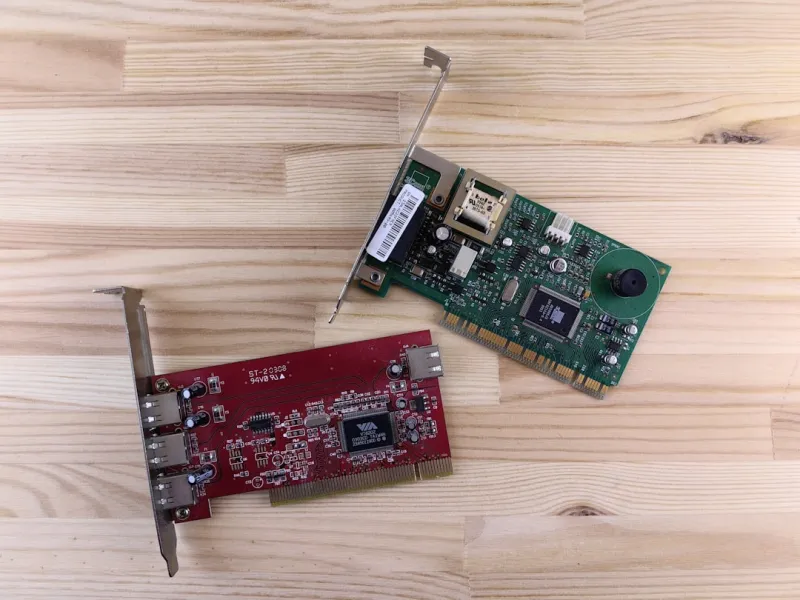
When my RTX 4090 decided to flicker like a strobe light during a heated Fortnite match, I felt that familiar mix of panic and curiosity that every PC enthusiast knows too well. I’m Shawn DesRochers, and I’ve spent the better part of a decade untangling the mysteries that hide beneath silicon and solder. Video‑card trouble isn’t just a nuisance; it’s a symptom of deeper system interactions that can cascade from power delivery to firmware quirks. In this post I’ll walk you through the exact steps I take when a GPU throws a tantrum, from the first symptom check to the final decision of whether to RMA or replace. You’ll get a practical, hands‑on perspective that blends my love for performance tweaking with a pragmatic, security‑first mindset that I champion in every guide I write. Buckle up, because troubleshooting a video card is as much about methodical patience as it is about raw technical know‑how.
Understanding the Symptoms
First things first: you need to catalog the exact behavior you’re seeing. Is the screen turning black after a few minutes of load, or are you getting artifacting—those rainbow‑colored pixels that look like a glitchy acid trip? Does the problem appear only under heavy GPU stress, such as gaming or rendering, or does it manifest during idle desktop use? I always start by noting the environment: ambient temperature, recent driver updates, any recent hardware swaps, and even the power source quality. Artifacting often points to memory errors or overheating, while intermittent blackouts can signal power delivery hiccups or a failing VRM on the graphics card. By creating a concise symptom log, you give yourself a roadmap that prevents you from chasing red herrings later on. This disciplined approach mirrors the systematic style I apply in my Future‑Proof Your PC in 2024 playbook, where clear documentation is the first line of defense against future headaches.
Beyond visual glitches, listen for audible clues. A GPU fan that spins up to screaming speeds without an obvious load often indicates a thermal sensor malfunction or a firmware bug. Conversely, a complete silence might suggest the fan has failed entirely, leaving the die to overheat unchecked. Power-related issues can also reveal themselves through BIOS beep codes or Windows Event Viewer entries about “Display driver stopped responding and has recovered.” These logs are gold mines; they provide timestamps and error codes that can be cross‑referenced with driver release notes. I’ve found that many “random” crashes actually line up perfectly with a specific driver version rollout, which brings us to the next critical step: driver management.
Deep‑Dive Diagnostics
Once you’ve nailed down the symptoms, it’s time to pull out the diagnostic toolbox. I start with the built‑in Windows “Graphics Settings” performance monitor, which gives you real‑time temperature, utilization, and power draw numbers. For more granular data, I fire up GPU‑specific utilities like MSI Afterburner or GPU‑Z, which can log temperature spikes, clock throttling, and voltage fluctuations to a CSV file. If you suspect a driver issue, the Device Manager can be used to roll back to a previous driver version while you test stability. Another underrated tool is the “Windows Memory Diagnostic”—even though it’s primarily for RAM, it can sometimes expose DMA conflicts that manifest as video glitches.
When temperature is the suspect, I employ a two‑pronged approach: immediate cooling and long‑term mitigation. A quick cool‑down can be achieved by elevating the case, cleaning dust from heatsinks, and reseating the GPU with fresh thermal paste if you feel comfortable. For long‑term solutions, consider upgrading case airflow or adding a dedicated GPU cooler. In my experience, a well‑ventilated chassis can shave off 10–15 °C under load, which is often enough to keep the card in its “sweet spot” performance envelope. If the problem persists despite optimal cooling, you may be looking at a hardware failure that requires a deeper dive into the PCB’s power phases.
Power delivery diagnostics involve checking both the PSU and the GPU’s own power connectors. Use a multimeter or a power‑monitoring plug to verify that the 12 V rail is stable under load. Sudden voltage drops can cause the GPU to reset, leading to the dreaded “Display driver stopped responding” error. If your PSU is borderline on wattage—say, you’re running a 650 W unit with a 300 W GPU—it’s time to upgrade. Remember, a power‑starved GPU will not only under‑perform but also suffer premature component wear.
Future‑Proof Strategies
Now that you’ve isolated the immediate issue, let’s talk about positioning your rig for the next wave of workloads. Modern GPUs are no longer just for gaming; they’re the backbone of AI inference, video rendering, and even real‑time ray tracing for design software. This shift means that driver stability and firmware updates have become even more critical. I recently explored this in depth in my AI Computing Unleashed guide, where I stress the importance of selecting a card with ample VRAM and robust driver support for emerging frameworks like TensorFlow and CUDA.
One often‑overlooked aspect is the motherboard’s PCIe lane configuration. A motherboard that supports PCIe 4.0 or even PCIe 5.0 can dramatically improve data throughput for high‑end GPUs, especially in AI‑heavy scenarios. When planning an upgrade, I always cross‑reference my Motherboard Mastery in 2024 playbook to ensure the platform can fully exploit the GPU’s bandwidth. A bottleneck at the PCIe level can masquerade as a “slow” or “unstable” GPU, when in reality the card is waiting for data that never arrives quickly enough.
Finally, keep an eye on firmware updates not just for the GPU but also for the BIOS/UEFI. Manufacturers occasionally release BIOS patches that improve GPU compatibility, especially with newer CPUs or memory configurations. Enabling “Above 4G Decoding” and setting the PCIe slot to “Gen 4” (or “Auto”) can unlock performance that would otherwise be throttled. As you future‑proof your rig, think of the GPU as a dynamic component that will evolve with software demands; maintaining a clean, up‑to‑date ecosystem is the best way to ensure longevity.

