Why Windows Remains the Backbone of Modern Workflows
When I first cracked open a brand‑new PC back in 2005, Windows felt like an endless playground of possibilities. Fast‑forward two decades, and that sentiment hasn’t faded; Windows still powers the majority of corporate desktops, creative studios, and home offices worldwide. What makes it endure isn’t just legacy compatibility—though that’s a huge part—but a relentless cycle of refinement that blends user‑centric design with enterprise‑grade robustness. As a longtime tech strategist, I’ve watched countless operating systems rise and fall, yet Windows keeps reinventing itself, aligning with the needs of developers, gamers, and productivity junkies alike. In 2024, the platform’s evolution is more about subtle, high‑impact changes than flashy overhauls, delivering smoother multitasking, smarter resource allocation, and deeper integration with cloud services. This steady progress ensures that whether you’re compiling code in Visual Studio, editing a video on Premiere Pro, or simply juggling spreadsheets, Windows remains the reliable engine under the hood. It’s this dependable foundation that lets me, Shawn DesRochers, focus on the next big thing without worrying about the OS throwing a fit.
My own workflow is a living case study of Windows’ adaptability. I spend mornings drafting articles on this very blog, afternoons troubleshooting GPU drivers for fellow enthusiasts, and evenings deep‑diving into network architecture for upcoming client projects. Each of these tasks leans on a different facet of the OS—its file system, its driver model, and its networking stack. The Future‑Proof Your Network guide I authored earlier this year highlighted how Windows 11 now supports faster Wi‑Fi 6E and better VPN throughput, a boon for remote teams. When I pair that with the OS’s built‑in PowerShell scripting, I can automate routine maintenance, patch deployments, and even monitor system health in real time. This synergy between native Windows tools and third‑party utilities is why I rarely consider switching ecosystems; the platform simply evolves fast enough to meet the demands of my ever‑changing projects.
Developers, in particular, have found Windows to be a surprisingly fertile ground for innovation. The recent surge in Windows Subsystem for Linux (WSL 2) bridges the gap between traditional Windows environments and the open‑source world, allowing us to spin up Linux containers without a VM. This means I can test cross‑platform code, spin up a Docker swarm, or run a full‑stack Node.js server—all within the same window I use for Outlook. Moreover, the integration of Microsoft Edge’s Chromium engine means web developers enjoy a fast, standards‑compliant browser that doubles as a debugging powerhouse. When I reference my Insider’s Guide to Thriving in the 2024 Software Development Boom, I often point out that Windows’ native support for Azure pipelines and GitHub Actions reduces friction in CI/CD pipelines, letting teams ship faster and with fewer environment headaches.
Windows 11 Updates: What’s Hot in 2024 and How to Leverage Them
Microsoft’s 2024 Windows 11 rollout is less about a massive redesign and more about fine‑tuning the user experience for power users like us. The most noticeable change is the revamped Start menu, now offering dynamic groups that reorganize based on usage patterns—think of it as an intelligent dashboard that anticipates your next move. Coupled with the new “Focus Sessions” widget, you can lock your screen, set a Pomodoro timer, and sync with Microsoft To‑Do, turning distractions into data points you can analyze later. For those of us who juggle multiple projects, this is a game‑changer; you can dedicate a focused block of time to writing a post, then let the OS automatically surface the apps you need for the next task. The underlying improvements also extend to resource management: Windows now better prioritizes foreground apps, reducing lag when you switch between a heavy IDE and a streaming video.
Performance enthusiasts will appreciate the under‑the‑hood enhancements to the Windows Scheduler and memory compression. The scheduler now employs a hybrid approach that balances low‑latency thread handling for interactive tasks with high‑throughput processing for background workloads. In practice, this means less stutter when you’re gaming and a smoother experience when you’re compiling large codebases. Additionally, the updated DirectStorage API, initially exclusive to Xbox, is now fully integrated, allowing SSDs to feed data to the GPU with minimal CPU overhead. If you’ve upgraded to a PCIe 4.0 NVMe drive, you’ll notice faster game load times and quicker asset streaming in professional applications like Blender. These improvements are subtle but cumulative, delivering a more responsive system without a single user‑visible setting to tweak.
One of the most overlooked yet powerful additions is the new “Power Automate Desktop” integration, which brings low‑code workflow automation directly into the OS. Imagine setting a rule that automatically backs up your current project folder to OneDrive whenever you close Visual Studio—no scripting required. This feature aligns perfectly with my own approach to “automation first,” allowing me to offload repetitive chores to the OS itself. For teams, the centralized policy management ensures that these automations can be rolled out organization‑wide, keeping everyone on the same page. It’s a testament to how Windows 11 is morphing from a static operating system into a dynamic productivity hub, a transformation I’ve documented in several of my recent posts.
Security, Stability, and the Future: Preparing Your PC for 2025
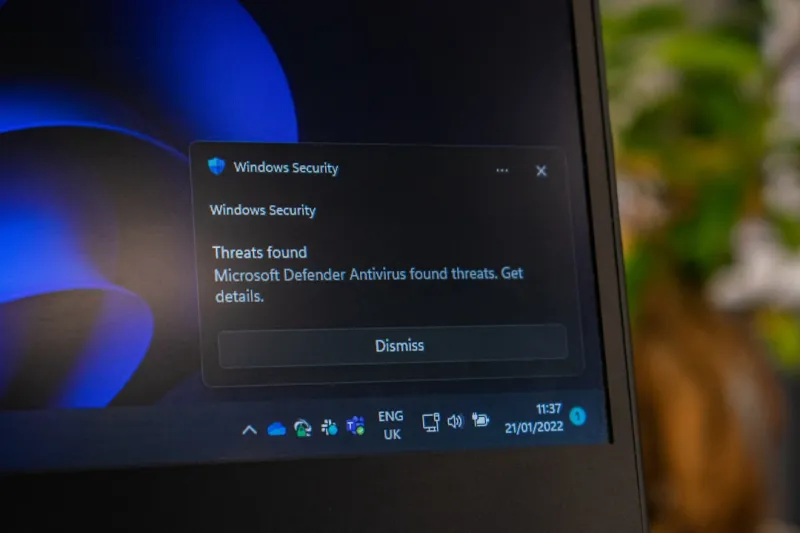
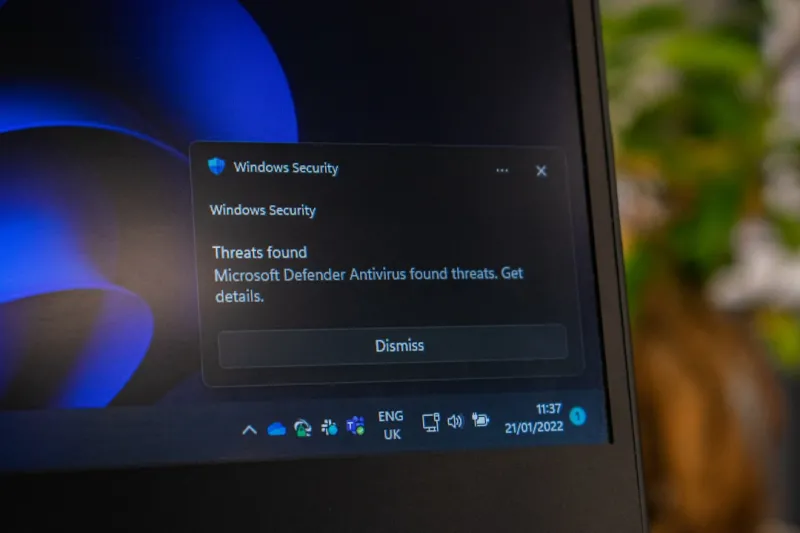
Security has always been a top priority for me, and Windows 11’s 2024 security stack reflects that commitment. The platform now ships with a hardened core that leverages hardware‑based isolation via TPM 2.0 and Secure Boot, making it significantly harder for malware to gain low‑level access. On top of that, Microsoft Defender has received a major upgrade, offering real‑time ransomware protection that can automatically roll back encrypted files using cloud‑based snapshots. This is crucial for professionals who can’t afford downtime—think of a journalist who loses a week’s worth of research due to a cryptolocker. In my guide titled Navigating the New Frontier of Computer Security, I stress the importance of enabling these built‑in defenses before considering third‑party solutions.
If your PC has been throwing the dreaded Blue Screen of Death (BSOD) lately, you’re not alone. A recent spike in driver conflicts and firmware mismatches has been the primary culprit. My article Why Your PC Keeps Throwing a Blue Screen (and How to Stop It) outlines a step‑by‑step troubleshooting playbook that starts with checking the Windows Event Viewer, updating chipset drivers, and, if necessary, rolling back recent Windows updates. One tip that often gets missed is to verify that your BIOS is set to “Fast Startup” disabled; while this feature speeds up boot times, it can also cause hidden driver initialization issues that manifest as BSODs under heavy load. By following these guidelines, you can dramatically reduce system crashes and keep your workflow uninterrupted.
Looking ahead to 2025, the key to a future‑proof Windows PC lies in proactive maintenance and strategic upgrades. Start by auditing your hardware: ensure your CPU supports the latest instruction sets (like AVX‑512) and that your GPU drivers are sourced directly from the manufacturer to avoid third‑party bloat. Next, adopt a layered backup strategy—use both local snapshots (via Windows File History) and cloud redundancy (OneDrive for Business). Finally, keep your software ecosystem tight: regularly review installed apps, remove legacy utilities, and leverage the “Apps & Features” cleanup tool to purge residual files. Below is a quick checklist to keep your machine humming:
- Run Windows Update weekly and opt into optional driver updates.
- Enable Secure Boot and verify TPM status in the Device Security settings.
- Schedule monthly disk cleanup using Storage Sense.
- Test system stability with the built‑in Windows Performance Monitor.
By treating your PC as a living system—one that needs regular check‑ups, updates, and occasional hardware tuning—you’ll be ready for whatever Windows throws at you next year. As I always say, a well‑maintained Windows machine is the quiet workhorse that lets you focus on creating, not troubleshooting.