Understanding the Blue Screen of Death in 2024
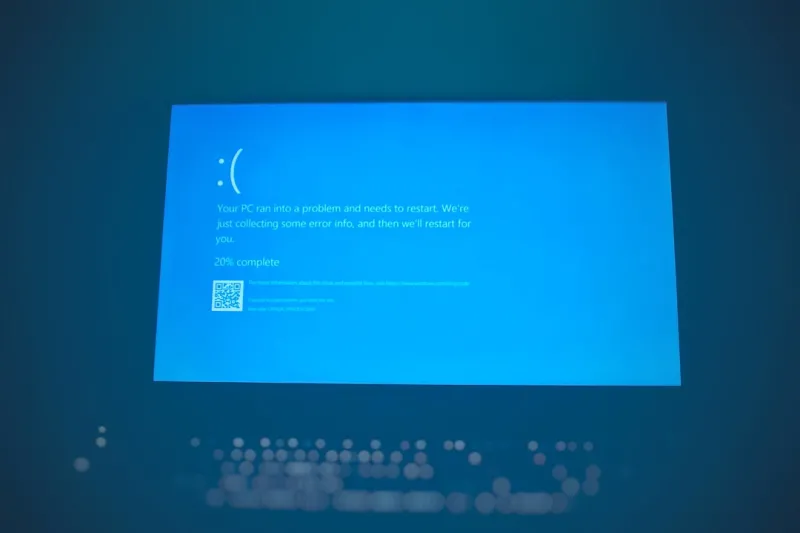
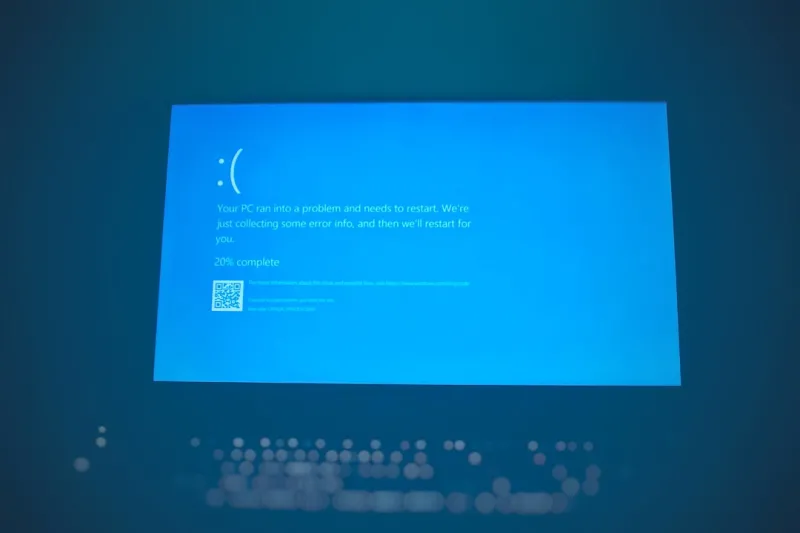
When I first stared at that familiar sea of white text on my Dell desktop last winter, I felt a strange mix of dread and curiosity. The Blue Screen of Death (BSOD) has become a trending headache for both home users and IT pros, especially as Windows 11 leans harder into AI‑driven diagnostics. As someone who spends my days dissecting encryption quirks and malware playbooks, I’ve learned that a BSOD isn’t just a random glitch—it’s a message from the core of your system begging for attention. In this post, I’ll walk you through why BSODs are spiking, how to read the cryptic error codes, and what practical steps you can take to stop them before they cripple your workflow. Think of this as a no‑fluff guide that blends my hands‑on experience with the latest 2024 tech trends, all while keeping the jargon to a minimum. By the end, you’ll know exactly what to do when that dreaded blue canvas appears, and you’ll feel empowered to keep your machine humming.
What Triggers a BSOD Today?
Modern BSODs are rarely caused by a single rogue driver; they’re the result of a tangled ecosystem of hardware, software, and security layers. In 2024, the most common culprits include outdated graphics drivers, aggressive Windows 11 updates, and the ever‑evolving malware families that target kernel-level processes. Even a seemingly innocuous USB peripheral can spark a crash if its firmware clashes with the OS’s new memory management routines. Add to that the rise of AI‑assisted system optimizers that sometimes overstep, and you have a perfect storm for a blue screen. While many still blame “bad RAM,” the truth is that a cascade of minor misconfigurations can quickly amplify into a full system halt. Understanding these triggers is the first line of defense, and it sets the stage for the diagnostic methods I’ll share later.
Decoding the Error Message
Every BSOD comes with a stop code—a six‑character alphanumeric string like 0x0000007E—and sometimes a short description such as “SYSTEM_THREAD_EXCEPTION_NOT_HANDLED.” These codes aren’t just random; they map to specific subsystems, whether it’s a driver (e.g., dxgkrnl.sys for graphics) or a hardware fault. I always start by taking a photo or screenshot, then cross‑referencing the code with Microsoft’s online database and community forums. The RAM troubleshooting playbook is especially handy when the code points to memory errors. Don’t overlook the “BugCheck” details in the Event Viewer, as they often reveal the exact module that caused the failure. By systematically cataloguing the code, you’ll save hours of blind guessing and be ready to apply a targeted fix.
Step‑by‑Step: Safe Mode to Driver Rollback
The fastest way to regain control after a BSOD is to boot into Safe Mode, where Windows loads only essential drivers. From there, I recommend a three‑pronged approach: first, uninstall any recently added software or drivers—especially graphics or network adapters that coincide with the crash timeline. Second, run the built‑in “Windows Memory Diagnostic” to rule out flaky RAM modules. Third, use Device Manager to roll back graphics drivers to a stable version; the newer releases often chase performance at the expense of stability. If the BSOD persists, consider using the “System Restore” point from before the last major update. This method has saved me countless nights of frustration, and it’s a cornerstone of my troubleshooting philosophy: start simple, then dig deeper if needed.
When the Graphics Card Is the Villain
Graphics cards have become the most frequent source of BSODs in recent years, thanks to the relentless push for higher frame rates and ray tracing. If your stop code references dxgkrnl.sys or you notice artifacting before the crash, you’re likely dealing with a video card nightmare. I recently authored Taming Video Card Nightmares, which walks you through reseating the card, updating firmware, and testing with a known‑good driver branch. Don’t forget to monitor temperatures using tools like HWMonitor; overheating can corrupt VRAM and trigger a blue screen. In some cases, the solution is as simple as adjusting the power limit in the GPU’s control panel, which prevents the card from throttling under load and causing a system halt.
Security‑Related Crashes: Malware’s Hidden Hand
While hardware and drivers dominate the BSOD conversation, malware is an underappreciated adversary that can deliberately corrupt kernel space to force a crash, effectively covering its tracks. In 2024, sophisticated ransomware strains inject malicious code into system processes, causing the OS to panic and display a blue screen. This is why I always cross‑reference suspicious stop codes with the latest threat intel. My recent analysis in Why 2024’s Malware Threats Demand a New Playbook highlights how these attacks bypass traditional AV signatures. Running a full system scan with a next‑gen endpoint solution, combined with checking for unsigned drivers in the “DriverStore,” can expose hidden threats before they bring your PC to its knees.
Memory Matters: RAM Health Checks
Faulty RAM is still a top contender for BSODs, especially as newer DDR5 modules push the limits of speed and voltage. I encourage readers to use the Windows Memory Diagnostic or the more thorough MemTest86+ utility for a full stress test. Pay attention to error patterns: a single‑bit error often points to a marginal stick, while repeated failures across multiple passes suggest a deeper motherboard issue. Pair your memory testing with the RAM troubleshooting playbook for a step‑by‑step guide on reseating, BIOS configuration, and voltage tweaking. In my experience, correcting a mismatched RAM timing profile can eliminate recurring BSODs that seemed otherwise inexplicable.
Preventative Maintenance for a Crash‑Free PC
Prevention is far cheaper than cure, and there are several habits that keep the blue screen at bay. Keep Windows 11 up to date, but defer major feature updates until they’ve been vetted by the community—especially on mission‑critical machines. Regularly back up your system using a hybrid cloud‑local strategy, so a restore point is always within reach. Disable unnecessary startup services that can conflict with core drivers, and maintain a clean boot environment. Additionally, leverage the AI‑driven “Hardware Health” diagnostics built into Windows 11, which can predict impending failures before they manifest as BSODs. By treating your PC like a living organism—feeding it updates, monitoring its vitals, and performing routine “check‑ups”—you’ll dramatically reduce the odds of an unexpected crash.
Looking Ahead: The Future of BSOD Diagnostics
As we move deeper into 2024, Microsoft’s AI‑enhanced troubleshooting is set to revolutionize how we respond to blue screens. Real‑time telemetry will automatically upload crash dumps to the cloud, where machine‑learning models suggest precise fixes within seconds. While this promises faster resolutions, it also raises privacy considerations that we must navigate carefully. I’m excited to see how these advancements will integrate with third‑party tools and my own security playbooks, creating a more resilient ecosystem. Until then, staying educated, maintaining a disciplined maintenance routine, and applying the proven steps outlined above will keep you ahead of the curve.
Final Thoughts and Call to Action
If you’ve ever felt the frustration of a sudden BSOD, you know it can derail an entire day of work. My goal with this guide is to transform that frustration into confidence—empowering you to diagnose, fix, and prevent blue screens with a methodical approach. Have you encountered a particularly stubborn BSOD? Share your story in the comments, and let’s troubleshoot together. And if you found this article helpful, consider exploring my other deep‑dive pieces on security and hardware. Together, we’ll keep our machines running smoothly in an increasingly complex tech landscape.