Troubleshooting Memory (RAM) Issues: A Comprehensive Guide
As a seasoned IT professional, I've encountered my fair share of computer crashes, freezes, and errors. One of the most common culprits behind these issues is faulty or malfunctioning RAM (Random Access Memory). In this article, I'll share my expertise on troubleshooting memory (RAM) issues, helping you identify and fix problems that might be slowing down your computer or causing frustrating crashes. A thorough understanding of RAM and its functions is essential in diagnosing and resolving these issues.
RAM plays a vital role in a computer's performance, acting as a temporary storage space for data that the CPU (Central Processing Unit) uses to perform tasks. When RAM becomes faulty or inadequate, it can lead to a range of problems, from slow performance and frequent crashes to complete system failures. In this guide, I'll walk you through the steps to diagnose and troubleshoot RAM-related issues, ensuring your computer runs smoothly and efficiently.
Understanding RAM and Its Importance
Before diving into troubleshooting, it's essential to understand the basics of RAM and its significance in computer performance. RAM is a type of computer storage that temporarily holds data and applications while the CPU processes them. The more RAM a computer has, the more applications it can run simultaneously without a significant decrease in performance. However, when RAM becomes faulty or runs out of capacity, it can cause a range of issues, including slow performance, frequent crashes, and system freezes.
To better understand the importance of RAM, let's consider a scenario where a computer is running multiple resource-intensive applications simultaneously. In this case, sufficient RAM is crucial to ensure smooth performance and prevent crashes. On the other hand, inadequate RAM can lead to a significant decrease in performance, causing frustration and lost productivity. By understanding the role of RAM in computer performance, you'll be better equipped to diagnose and troubleshoot related issues.
Common Symptoms of RAM Issues
So, how do you know if your computer's RAM is causing problems? Look out for these common symptoms: frequent crashes, freezes, and error messages related to memory issues. If your computer consistently crashes or freezes, especially when running multiple applications, it may indicate a RAM problem. Additionally, if you receive error messages such as "Out of memory" or "Memory could not be read," it's likely related to your RAM.
Other signs of RAM issues include slow performance, random shutdowns, and BSODs (Blue Screens of Death). If you're experiencing any of these issues, it's essential to investigate further to determine if your RAM is the culprit. In some cases, these symptoms can be caused by other factors, such as a failing hard drive or malware infection. Therefore, it's crucial to perform thorough troubleshooting to identify the root cause of the issue.
Troubleshooting Steps
Now that we've covered the common symptoms, let's dive into the troubleshooting steps. The first step is to run a memory diagnostic test using a tool like Windows Memory Diagnostic or MemTest86+. These tools will scan your RAM for any issues and report back with the results. If the test reveals any problems, it's likely that your RAM is faulty and needs to be replaced.
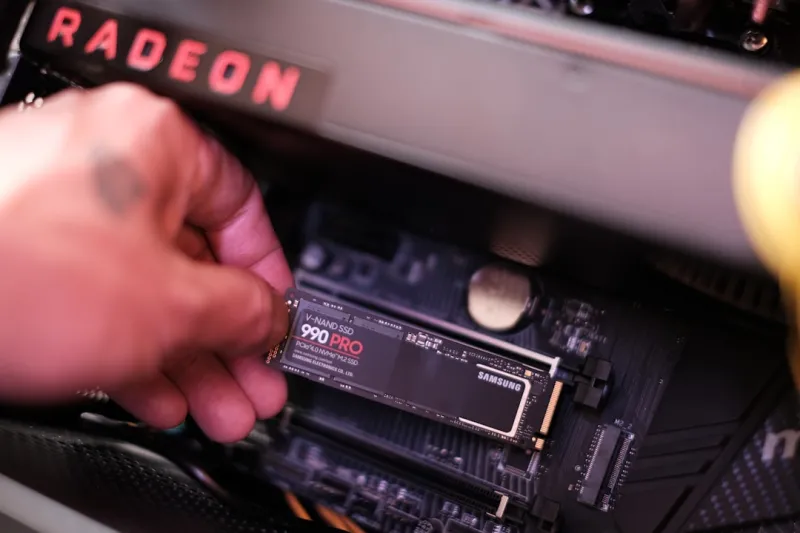
Another troubleshooting step is to inspect your RAM physically. Check for any signs of physical damage, such as cracks or burn marks, on your RAM modules. Make sure they're properly seated in their slots and that the slots are clean and free of debris. Sometimes, a simple cleaning or reseating of the RAM modules can resolve the issue. For more information on troubleshooting computer hardware, check out my previous article on troubleshooting video cards.
Upgrading or Replacing RAM
If your diagnostic tests reveal that your RAM is faulty, it's time to consider upgrading or replacing it. Before making a purchase, ensure that you're buying compatible RAM for your computer. Check your computer's specifications or consult with the manufacturer to determine the correct type and amount of RAM required. When upgrading or replacing RAM, it's essential to follow proper safety precautions to avoid damaging your computer's components.
When upgrading your RAM, consider the following: check compatibility, choose the right type, and ensure sufficient capacity. By doing so, you'll be able to enjoy improved performance and avoid potential issues down the line. For more information on computer hardware security, I recommend reading The Critical Importance of Computer Hardware Security.
Preventing Future RAM Issues
To prevent future RAM issues, it's essential to take proactive measures. Regularly clean dust from your computer's vents and fans to prevent overheating, which can damage your RAM. Additionally, avoid overclocking your RAM, as this can put excessive stress on the modules and lead to failures. By taking these precautions, you'll be able to minimize the risk of RAM-related issues and ensure your computer runs smoothly.
Another way to prevent RAM issues is to monitor your computer's performance and adjust your usage habits accordingly. If you notice your computer slowing down or experiencing frequent crashes, it may be a sign that your RAM is reaching its limits. By being mindful of your computer's performance and taking proactive measures, you'll be able to prevent RAM-related issues and ensure your computer runs efficiently.
Conclusion
In conclusion, troubleshooting memory (RAM) issues requires a comprehensive approach that involves understanding the basics of RAM, identifying common symptoms, and performing diagnostic tests. By following the steps outlined in this article, you'll be able to diagnose and fix RAM-related issues, ensuring your computer runs smoothly and efficiently. For more information on computer security and troubleshooting, I recommend reading The Looming Threat of Zero-Day Exploits: A Growing Concern in Cybersecurity.
By taking a proactive approach to RAM maintenance and troubleshooting, you'll be able to prevent future issues and ensure your computer runs at optimal performance. Remember to stay vigilant, monitor your computer's performance, and take corrective action when necessary. With the right knowledge and tools, you'll be able to overcome RAM-related challenges and enjoy a seamless computing experience.
As a final note, I want to emphasize the importance of computer hardware security in preventing RAM-related issues. By staying informed about the latest security threats and taking proactive measures to protect your computer, you'll be able to minimize the risk of RAM-related issues and ensure your computer runs smoothly. For more information on computer hardware security, I recommend reading Staying Ahead of the Curve: Critical Updates on Computer Hardware Security.