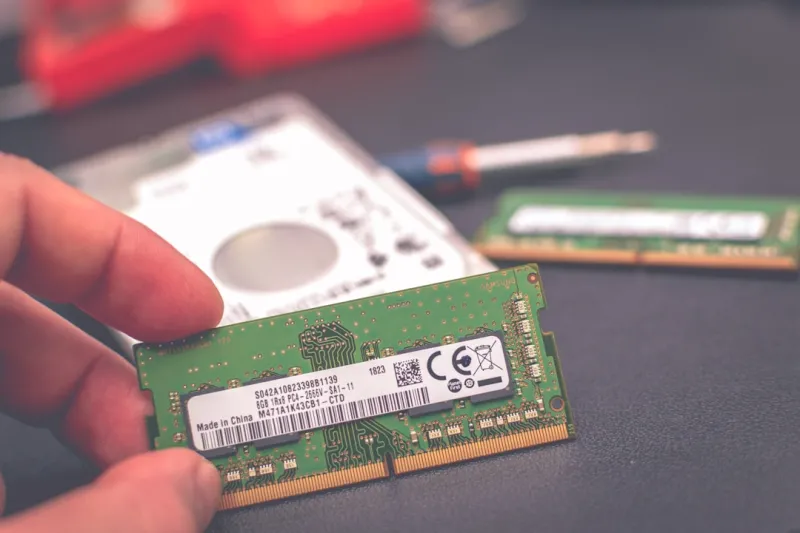
Why RAM Issues Sneak Up on You
When I first built my 2022 workstation, I was obsessed with the GPU and storage, barely giving a second thought to the sticks of RAM humming quietly beneath the motherboard. Fast‑forward to 2024, and I’ve seen a parade of users—novices and power users alike—who swear their PCs are “slow” or “crashing” only to discover a rogue memory module was the culprit. Memory is the unsung workhorse that shuttles data between the CPU and the rest of the system; when it falters, the entire experience grinds to a halt. What makes RAM troubleshooting tricky is that the symptoms often masquerade as software bugs, overheating, or even a faulty power supply. As someone who’s spent countless late‑night hours chasing phantom errors, I’ve learned that a systematic approach, coupled with a bit of intuition, can turn a maddening mystery into a quick fix. In this guide, I’ll share the exact steps I take—tested on everything from budget builds to AI‑ready rigs—to pinpoint, diagnose, and resolve RAM problems before they steal another hour of productivity.
Spotting the Red Flags
The first clue that memory is misbehaving usually appears as random freezes, BSODs, or mysterious application crashes. If you notice your system stuttering during simple tasks like web browsing, or if a heavy‑duty app such as a video editor throws “out‑of‑memory” errors despite ample free RAM, it’s time to suspect the hardware. Another tell‑tale sign is a system that fails to POST or boots only when one stick is removed—those are classic “bad module” symptoms. Don’t overlook subtle cues either: BIOS beeps, unexpected reboots after a Windows update, or a sudden dip in benchmark scores can all be memory‑related. I always advise users to keep a log of when and how the issue occurs, because patterns can help narrow down whether the problem is a single stick, a slot, or a deeper compatibility issue. Recognizing these red flags early saves you from digging through endless software settings and helps you target the right diagnostic tools.
Hands‑On Diagnostic Toolbox
The simplest first step is a visual inspection and reseating. Power down, unplug, and gently remove each DIMM, then re‑install them ensuring they click firmly into the correct notch. While you’re there, verify that the motherboard’s manual recommends the slot configuration for dual‑channel operation; mis‑aligned pairs can cause instability. Next, dive into the BIOS/UEFI and enable the built‑in memory test—most modern firmware will run a quick sanity check on boot. If the system survives that, Windows users can launch the built‑in Memory Diagnostic tool (type “mdsched” in the Run dialog) and let it run a full scan on the next reboot. I’ve found that many “ghost” errors disappear after a clean reseat, but when the problem persists, it’s time for a more thorough examination.
For deeper analysis, I swear by MemTest86—a free, bootable utility that pushes RAM to its limits with a battery of patterns designed to expose subtle timing faults. Create a USB stick with the latest version, boot from it, and let the test run for at least four passes (or overnight for absolute certainty). While the tool runs, watch the error count column; even a single error is a strong indicator of a defective module. Complement MemTest86 with third‑party programs like HCI MemTest, which can run multiple threads within Windows, allowing you to test while the OS is active. Interpreting results is straightforward: sporadic single‑bit errors point to a faulty chip, while systematic failures across multiple sticks may hint at a BIOS mis‑configuration or a motherboard slot issue.
Compatibility, Speed, and Future‑Proofing
One of the most common causes of RAM woes is a mismatch between the memory’s rated speed and what the motherboard or CPU can actually support. DDR5 has become mainstream in 2024, but many users still pair it with older DDR4‑only boards, resulting in fallback to the lowest common denominator or, worse, instability. Always cross‑check the motherboard’s Qualified Vendor List (QVL) for supported modules; even if a stick is advertised as “compatible,” subtle voltage or latency differences can trigger errors under load. Additionally, don’t overlook the impact of XMP profiles—automatic overclock settings that many manufacturers enable by default. While XMP can squeeze extra performance, it also raises the risk of timing violations if the motherboard’s BIOS isn’t fully tuned. For a broader view on how hardware trends influence these decisions, see my article on Trends Shaping Computer Hardware in 2024, where I break down why choosing the right memory is more critical than ever.
Software Side: OS Demands and AI Features
The software landscape has evolved dramatically, with AI‑assisted applications and cloud‑synced services consuming memory like never before. Modern versions of Windows 2024 integrate AI-driven background tasks—think contextual suggestions, voice assistants, and real‑time security scanning—that can add several gigabytes of RAM pressure even when the system appears idle. When troubleshooting, it’s useful to monitor memory usage with the Task Manager’s “Memory” tab or a third‑party tool like Process Explorer. Look for processes that continually grow or spike after certain actions; these are often the hidden memory hogs. Understanding the OS’s baseline consumption helps you determine whether you truly need more RAM or if a rogue app is leaking memory. For a deeper dive into how operating systems are reshaping RAM expectations, check out my piece on Operating Systems in 2024, which explores the balance between performance and AI‑driven features.
Overclocking, XMP, and the Fine Line
Enthusiasts love cranking up memory frequencies via XMP profiles or manual overclocking, but the margin for error is razor‑thin. A modest 5‑10% frequency bump can improve benchmarks, yet it also tightens timing windows, making the modules more susceptible to errors—especially on motherboards with less robust power delivery. If you’ve enabled an aggressive XMP profile and started seeing intermittent crashes, the first step is to revert to the JEDEC (default) settings and retest. From there, incrementally raise the frequency while adjusting secondary timings and voltage in small steps, always re‑running MemTest86 after each change. Remember, higher voltage can accelerate wear on the DRAM cells, reducing long‑term reliability. In my experience, the safest path is to let the BIOS auto‑detect the optimal profile for your specific CPU and motherboard combo, then fine‑tune only if you’re comfortable with the risk.
When to Upgrade and How to Choose
Even the most diligent troubleshooting can’t fix a memory module that’s reached the end of its life cycle. If errors persist after reseating, BIOS updates, and multiple diagnostic passes, it’s time to replace the offending sticks. Capacity planning is also crucial: modern development environments, virtual machines, and AI workloads can easily devour 32 GB or more. A good rule of thumb is to aim for at least 1.5 × your typical workload’s peak usage. When shopping, prioritize modules with a solid reputation for stability—brands that publish extensive QVL lists and offer lifetime warranties are a safe bet. For those building a future‑proof rig, I recommend a dual‑channel kit with a modest overclock headroom, ensuring you can upgrade to higher frequencies later without replacing the entire set. My recent guide on Future‑Proof Your PC in 2024 walks through selecting the right capacity and speed to keep your system ready for the next wave of AI‑intensive software.
Final Checklist and Pro Tips
Before you close the laptop lid on your RAM troubleshooting session, run through this quick checklist: 1) Power down, reseat all DIMMs, and verify correct slot placement for dual‑channel. 2) Update BIOS/UEFI to the latest version and reset to default memory settings. 3) Run Windows Memory Diagnostic, followed by at least two full passes of MemTest86. 4) Check for XMP or manual overclock settings; revert to default if instability persists. 5) Monitor real‑time memory usage in Task Manager to rule out software leaks. 6) Cross‑reference your modules against the motherboard’s QVL for compatibility. 7) If errors remain, replace the suspect sticks with a reputable dual‑channel kit sized for your workload. By following these steps, you’ll not only squash the current issue but also arm yourself with a repeatable process for any future memory hiccups. Remember, a stable RAM foundation is the bedrock of a fast, reliable PC—treat it with the care it deserves, and your system will thank you.