When you hear “Microsoft Windows” in 2024, the first thing that pops into my mind isn’t nostalgia for the classic start menu—it’s a living, breathing platform that’s finally catching up with the AI‑driven world we all live in. I’ve spent the last decade tearing apart PCs, tweaking registries, and fighting driver wars, so you can trust that my take isn’t just hype; it’s hard‑earned insight. The biggest shift right now is Windows 11’s deep integration of AI assistants, which means the OS is no longer just a passive shell but an active co‑pilot that anticipates your needs. From context‑aware suggestions in File Explorer to on‑the‑fly performance tweaks that learn your workflow, the AI layer is reshaping how we think about productivity. But with great power comes the inevitable security concerns, and that’s why you’ll find me constantly emphasizing a layered defense strategy that blends native Windows security tools with third‑party hardening. In this post, I’ll walk you through the most critical updates, the hidden gems that power users love, and the practical steps you can take today to future‑proof your Windows machine without breaking the bank.
AI‑Powered Windows 11: Beyond the Surface
The AI enhancements in Windows 11 aren’t just a marketing gimmick; they’re built on a robust foundation of Microsoft’s Copilot engine and Azure services that run locally when possible, minimizing latency. One of my favorite features is the “Smart Layout” that reorganizes open windows based on the tasks you’re juggling, effectively acting like a digital concierge. You’ll also notice the new “Voice Command Center,” which lets you launch apps, adjust settings, and even write emails using natural language—no need to remember cryptic shortcuts. However, the real power lies in the background optimizations: Windows now monitors resource usage patterns and reallocates CPU cores or RAM blocks on the fly to keep the most demanding applications humming. This is especially useful for creators who bounce between Photoshop, Premiere, and a web browser full of tabs. If you want to dig deeper into the AI aspects and see how they tie into broader OS trends, check out my analysis in Operating Systems in 2024.
Security Overhaul: Zero Trust Meets the Desktop
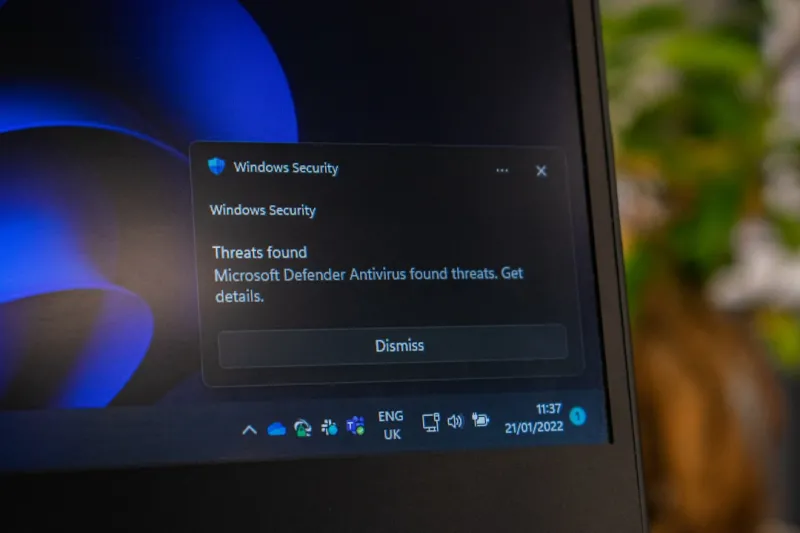
Microsoft has finally embraced a Zero Trust model at the desktop level, and the implications are massive for both enterprise and power users. Windows 11 now ships with an enhanced version of Windows Defender that incorporates cloud‑based threat intelligence, sandboxed execution for unknown binaries, and an optional “Secure Kernel” mode that isolates core system processes from the rest of the OS. For the average user, the biggest win is the streamlined “Security Health” dashboard that aggregates ransomware protection, exploit mitigation, and hardware‑based isolation status in a single glance. I’ve been a vocal advocate for leveraging hardware‑based security features like TPM 2.0 and Secure Boot, and Windows 11 makes those a non‑negotiable part of the setup. Pair this with the new “Credential Guard” that stores authentication tokens in an isolated virtual environment, and you’ve got a system that’s significantly harder for attackers to compromise. Don’t forget to enable the “Controlled Folder Access” feature to lock down your most valuable data against ransomware—just be sure to whitelist the apps you trust.
Performance Tweaks That Actually Matter
Let’s cut through the noise: not every performance tweak is worth your time. In Windows 11, the most impactful changes revolve around storage and memory management. First, enable the new “Storage Spaces Direct” feature if you have multiple SSDs; it creates a high‑speed virtual pool that dramatically reduces read/write latency, especially when dealing with large video files. Second, take advantage of the “Dynamic Memory Allocation” that the OS now offers for non‑critical background services—this can free up precious RAM for foreground applications without sacrificing stability. I also recommend disabling the “Background Apps” toggle for anything you don’t use daily; this reduces unnecessary CPU cycles and extends battery life on laptops. For those who love to tinker, the “Power Plan” editor now includes an “AI‑Optimized” preset that automatically balances performance and energy efficiency based on real‑time usage patterns. If you’re looking for a broader hardware perspective, my 2024 Hardware Playbook dives into how the latest SSDs and CPUs complement these OS‑level optimizations.
Compatibility Mode: A Bridge for Legacy Software
One of the biggest frustrations for Windows veterans is the inevitable drop‑off in support for legacy applications. Microsoft has responded with an expanded Compatibility Mode that now supports 32‑bit and even some 16‑bit programs without resorting to a virtual machine. The key is the “Application Compatibility Toolkit” (ACT), which lets you create custom compatibility shims that address specific API calls or registry expectations. I’ve used ACT to keep an older accounting suite running smoothly on a Windows 11 workstation, and the process was surprisingly straightforward: you just select the executable, choose a predefined shim, and test. For more stubborn cases, you can fall back to the “Windows Subsystem for Linux” (WSL) to run Linux‑based tools side‑by‑side, a feature that has become indispensable for developers needing both Windows and Linux environments. Remember to keep your drivers up to date—especially video and chipset drivers—because many compatibility issues trace back to outdated firmware rather than the OS itself.
Power‑User Customizations: The Registry Isn’t Dead
If you’ve ever felt limited by the Settings UI, the registry still holds the keys to deeper customization. While Microsoft has made strides in exposing more options through the Settings app, there are still hidden gems that only a power‑user can unlock. For example, you can tweak the “Desktop Window Manager” (DWM) cache size to improve multi‑monitor performance, or adjust the “Task Scheduler” to prioritize background tasks during off‑peak hours. Another favorite is the “Group Policy” setting that disables the “Windows Tips” pop‑ups—useful if you’re tired of the occasional “Did you know?” notification. Just be cautious: always back up the registry before making changes, and document each tweak so you can roll back if something goes awry. I’ve compiled a checklist of my most reliable registry edits in my guide on Windows 11 in 2024, which walks you through each step with screenshots and safety tips.
Hardware Synergy: Matching Your Rig to Windows 11
Windows 11 isn’t a one‑size‑fits‑all OS; it thrives when paired with hardware that can keep up with its AI and security features. The latest AMD Ryzen 7000 series and Intel 13th‑gen processors both include dedicated AI accelerators that offload tasks like voice recognition and image analysis, freeing the main cores for user workloads. Pair those CPUs with DDR5 memory running at 5600 MHz, and you’ll notice smoother multitasking and faster app launches. On the graphics side, even mid‑range RTX 40‑series cards now support the new DirectX 12 Ultimate features, which Windows 11 leverages for smoother UI animations and lower latency in games. Don’t overlook the importance of a good motherboard—look for one with robust power delivery, PCIe 5.0 support, and integrated TPM 2.0. If you’re planning a full upgrade, my “Maximize Your Rig” guide provides a step‑by‑step roadmap that aligns the latest hardware trends with Windows 11’s capabilities.
Future‑Proofing: What’s Next After Windows 11?
Microsoft has already hinted at the next major iteration, tentatively called “Windows 12,” which will deepen the AI integration and possibly shift more workloads to the cloud via a “Hybrid OS” model. While it’s too early to speculate on exact features, the direction is clear: tighter coupling with Azure, more edge‑computing capabilities, and a stronger emphasis on modular updates that don’t require full system restarts. To stay ahead, you should adopt a few forward‑thinking habits now: keep your system on the “Insider Fast” channel for early access to new APIs, regularly clean up legacy drivers that could become bottlenecks, and invest in modular components like M.2 NVMe SSDs that can be swapped out as newer standards emerge. By treating your PC as a living platform rather than a static purchase, you’ll be ready to embrace whatever Microsoft rolls out next without needing a complete rebuild.
Real‑World Use Cases: From Creators to Coders
In my consulting work, I see three primary user personas that benefit most from Windows 11’s latest upgrades. First, content creators who rely on heavy multitasking and large file transfers—AI‑driven storage optimizations and the new “Snap Layouts” make their workflow smoother than ever. Second, developers who need a hybrid environment; with WSL2 now tightly integrated, you can spin up Linux containers, compile code, and test across platforms without leaving Windows. Finally, remote workers who require robust security—Zero Trust and hardware‑based isolation give them confidence that corporate data stays protected even on personal devices. For each persona, I recommend a tailored set of tweaks: creators should prioritize high‑speed NVMe storage and enable “Hardware‑Accelerated GPU Scheduling”; developers benefit from enabling “Developer Mode” and installing the latest Windows Terminal; remote workers must enforce “Multi‑Factor Authentication” and regularly review the “Device Health” report. These practical steps ensure that Windows 11 adapts to the unique demands of each workflow.
Wrap‑Up: Your Action Plan for a Smarter Windows Experience
So where does all this leave you? In short, Windows 11 is a powerful, AI‑infused platform that rewards users who take a proactive stance on security, performance, and hardware compatibility. Start by enabling the built‑in AI features and reviewing the Security Health dashboard to lock down your system. Next, audit your hardware—make sure you have a TPM‑enabled motherboard, enough RAM, and an SSD that supports the latest NVMe standards. Then dive into the power‑user settings: use the Compatibility Toolkit for legacy apps, tweak the registry for UI personalization, and explore the new Power Plan presets. Finally, keep an eye on Microsoft’s roadmap and consider joining the Insider Program to stay ahead of upcoming features. By following this checklist, you’ll not only get the most out of Windows 11 today but also lay a solid foundation for whatever comes next. Happy computing!