When I first cut my teeth on the original Office suite back in the early 2000s, I never imagined it would evolve into the AI‑infused productivity powerhouse it is today. Fast‑forward to 2024, and Microsoft Office still sits at the heart of most enterprises, schools, and home offices. My journey—from building custom rigs to authoring security playbooks—has taught me that tools must adapt or become obsolete. Office’s relentless cadence of updates, its deep integration with Windows, and its expanding cloud services keep it relevant. In this post I’ll peel back the layers, sharing why Office remains indispensable, how AI like Copilot reshapes everyday tasks, and which security tweaks you can deploy right now to protect your data. Expect a blend of strategic insight and hands‑on tips, all filtered through my own hands‑on experience troubleshooting hardware, encrypting data, and fine‑tuning Windows performance.
The AI Revolution: Copilot in Everyday Use
Microsoft’s Copilot, powered by large language models, is more than a flashy add‑on; it’s a genuine productivity catalyst. Imagine drafting a quarterly report in Word and having Copilot suggest concise executive summaries, pull relevant charts from Excel, and even format citations—all in seconds. In PowerPoint, it can auto‑generate speaker notes that align with your slide content, saving countless hours of manual editing. I’ve tested Copilot across multiple projects, and the biggest win is its contextual awareness: it doesn’t just spit out generic text; it respects your existing data, style guides, and even corporate branding. This AI assistance democratizes high‑level work, letting junior staff produce polished deliverables while senior leaders focus on strategy. The key is to treat Copilot as a collaborative partner rather than a replacement—review its suggestions, tweak where needed, and let it handle the repetitive grunt work. Embracing this AI layer can shave 30‑40% off routine document creation time.
Collaboration Tools That Keep Teams Connected
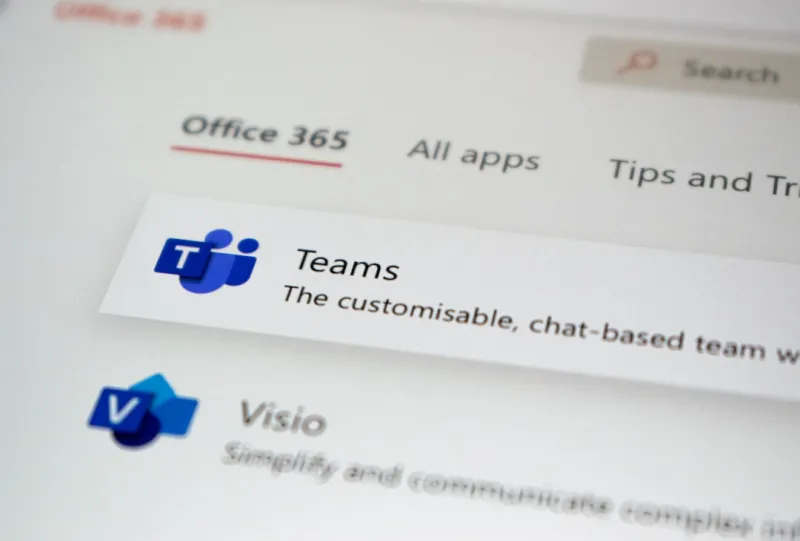
Office 2024 isn’t just about Word, Excel, and PowerPoint; it’s an ecosystem anchored by Teams, SharePoint, and OneDrive. Teams has become the digital office lobby, offering threaded chats, video calls, and integrated file editing that updates in real time. I often schedule brainstorming sessions where participants co‑author a whiteboard in Teams while a live Word document captures minutes, automatically saved to SharePoint for version control. This seamless flow eliminates the “email‑attachment” bottleneck that plagued earlier versions of Office. SharePoint’s modern sites provide a centralized hub for project assets, with granular permissions that keep sensitive information locked down. Meanwhile, OneDrive’s syncing engine ensures that whether you’re on a laptop, tablet, or phone, you’re always working on the latest file version. The synergy between these tools means you can start a conversation in Teams, attach a spreadsheet, and instantly see changes reflected across the team—no manual uploads required.
Security and Compliance Built Into the Suite
Security is no longer an afterthought; it’s woven into the fabric of Office 365. With Microsoft’s Zero‑Trust model, every access request is verified, and data is encrypted both at rest and in transit. Sensitivity labels let you classify documents as confidential, automatically applying watermarks, encryption, or restricting external sharing. I’ve incorporated these policies into my own security playbooks, ensuring that even a mis‑directed email can’t leak critical data. Advanced Threat Protection scans attachments for malicious macros, while Safe Links rewrites URLs to protect against phishing. For regulated industries, Office’s compliance manager provides a dashboard that maps your configurations to standards like GDPR, HIPAA, and ISO 27001. By leveraging these native controls, organizations can reduce reliance on third‑party security tools, streamline audits, and maintain a strong security posture without sacrificing usability.
Leveraging Windows 2024 Power Moves for Office Optimization
Office’s performance is tightly coupled with the underlying operating system. Windows 2024 introduces a suite of “Power Moves” that directly benefit Office users—fast startup, reduced background resource consumption, and AI‑driven memory management that keeps large Excel workbooks responsive. I routinely pair my Office workflow with the tips from Windows 2024 Power Moves, such as enabling the new “Dynamic Refresh Rate” to keep screen rendering smooth during PowerPoint presentations. Additionally, the integration of AI in Windows, like predictive file pre‑loading, means that opening a frequently used spreadsheet feels instantaneous. By aligning Office settings—like disabling unnecessary add‑ins—and tuning Windows for low latency, you can shave seconds off every task, which adds up to significant productivity gains over a typical workday.
Cross‑Device Continuity: From Desktop to Mobile
In today’s hybrid work environment, the ability to switch seamlessly between devices is non‑negotiable. Office 2024’s cloud‑first architecture ensures that a document you start on your desktop is instantly available on your iPad, Android phone, or web browser. The mobile apps have matured to the point where you can perform complex Excel functions, apply PowerPoint animations, and even run VBA macros with minimal latency. I’ve found the “Continue on PC” feature especially handy: start drafting a quick note on your phone’s Outlook app, then tap a notification to pick up exactly where you left off on your laptop. This fluid continuity reduces friction, empowers remote workers, and ensures that the momentum of creative thought isn’t lost when you switch contexts. For teams, it means meetings can be productive whether participants are in the office or on the road.
Customizing Workflows with Power Platform Add‑Ins
One of Office’s hidden strengths lies in its extensibility through the Power Platform—Power Automate, Power Apps, and Power BI. With Power Automate, you can build “no‑code” flows that, for example, automatically route a completed expense form in Excel to a SharePoint approvals list, then notify the requester via Teams. Power Apps lets you craft lightweight, custom‑built applications that surface Office data in a user‑friendly interface without a developer’s help. And Power BI, integrated directly into Excel, turns raw numbers into interactive dashboards that stakeholders can explore in real time. I often recommend starting with a simple “Approve/Reject” flow for routine documents; the time saved on manual routing quickly justifies the initial setup effort. By tapping into these tools, organizations can automate repetitive tasks, reduce errors, and free up human capital for higher‑value activities.
Licensing Strategies: Getting the Most Bang for Your Buck
Office’s licensing model can be confusing, especially for SMBs balancing cost and feature needs. Microsoft 365 Business Premium bundles Office apps, Teams, and advanced security at a predictable monthly rate, ideal for smaller firms that need a full suite without the overhead of on‑premise servers. Larger enterprises may benefit from the Enterprise E5 plan, which adds advanced compliance, analytics, and telephony capabilities. My experience with budgeting for hardware and software upgrades shows that a careful audit of existing usage—identifying dormant accounts or under‑utilized features—can reveal savings opportunities. Consider leveraging Microsoft’s “Shared Computer Activation” for labs or hot‑desking environments; it lets multiple users run Office on the same machine without separate licenses. By aligning your licensing with actual usage patterns, you avoid over‑paying while still unlocking the full power of Office’s collaborative and AI features.
Future Outlook: AI, Cloud, and the Next Generation of Office
The roadmap for Office extends beyond Copilot. Microsoft is investing heavily in AI‑driven analytics, contextual search, and deeper cloud integration. Upcoming features promise real‑time language translation within Word, automatic data cleaning in Excel, and immersive mixed‑reality presentations via PowerPoint. These innovations will be built on the same Azure backbone that powers the rest of Microsoft’s ecosystem, ensuring scalability and security. For a broader view of how AI and cloud are reshaping the desktop experience, check out my analysis in Operating Systems in 2024: AI, Security, and Cloud Are Redefining the Desktop. As these technologies mature, the line between traditional Office apps and intelligent assistants will blur, making the suite an even more integral part of daily workflows. Staying ahead means continuously exploring new features, training your team on AI best practices, and aligning Office’s evolution with your organization’s strategic goals.
Wrapping Up: Embrace, Customize, and Secure
Microsoft Office remains the undisputed workhorse of modern productivity, not because it’s static, but because it evolves in lockstep with the needs of its users. From AI‑enhanced drafting to robust security, from seamless cross‑device experiences to powerful automation via the Power Platform, the suite offers a toolbox that can be tailored to any workflow. My advice is threefold: first, adopt the AI features that free up creative time; second, tighten security by leveraging built‑in compliance tools; third, continuously evaluate licensing to ensure you’re getting maximum ROI. By approaching Office as a living, adaptable platform rather than a static set of programs, you’ll future‑proof your productivity and keep your team ahead of the curve. Stay tuned to the Comp Doc Computers blog for more insider tips, deep dives, and hands‑on guides that keep you at the cutting edge of technology.