Troubleshooting Video Cards: A Comprehensive Guide
As a computer hardware enthusiast, I've seen my fair share of video card issues. From faulty installations to outdated drivers, troubleshooting video cards can be a daunting task, especially for those who are new to the world of computer hardware. In this article, I'll share my expertise on how to identify and fix common video card problems, and provide you with a comprehensive guide on how to get your graphics card up and running smoothly.
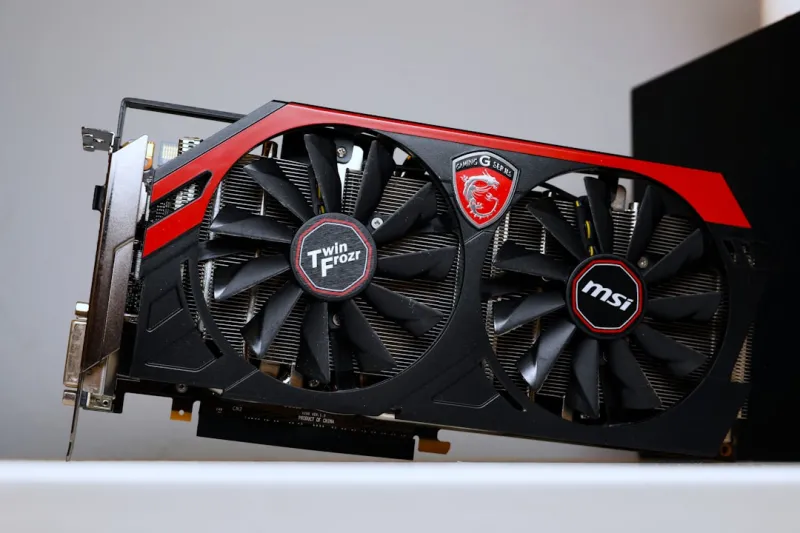
Before we dive into the troubleshooting process, it's essential to understand the basics of video cards and how they interact with your computer's hardware and software. A video card, also known as a graphics card, is a critical component of your computer's graphics processing unit (GPU). Its primary function is to render images on your monitor, making it an essential component for gaming, video editing, and other graphics-intensive activities.
Common Video Card Problems
So, what are some common video card problems that you might encounter? Here are a few:
- Faulty installations: If your video card is not properly installed, it can cause a range of problems, including display issues, crashes, and even system instability.
- Outdated drivers: Video card drivers are essential for ensuring that your graphics card works correctly with your computer's operating system. Outdated drivers can cause performance issues, crashes, and other problems.
- Overheating: Video cards can generate a lot of heat, especially during intense gaming sessions or video editing tasks. If your video card overheats, it can cause damage to your computer's hardware and even lead to system crashes.
- Power supply issues: If your power supply unit (PSU) is not sufficient to power your video card, it can cause a range of problems, including system instability, crashes, and even damage to your computer's hardware.
Troubleshooting Video Card Issues
Now that we've identified some common video card problems, let's discuss how to troubleshoot them. Here are some steps you can follow:
First, ensure that your video card is properly installed. Check your computer's documentation or manufacturer's website for instructions on how to install your video card. If you're still experiencing issues, try removing the video card and re-installing it.
Next, check for outdated drivers. You can do this by visiting your video card manufacturer's website and searching for the latest drivers for your specific graphics card model. For more information on software development and computer hardware trends, check out our previous article. Once you've downloaded the latest drivers, follow the installation instructions to update your drivers.
Overheating and Power Supply Issues
If you're experiencing overheating issues, ensure that your computer's cooling system is working correctly. Check that your computer's fans are spinning, and that there are no blockages in the airflow. You can also consider upgrading your computer's cooling system or using a liquid cooling solution.
If you're experiencing power supply issues, ensure that your PSU is sufficient to power your video card. Check your video card's power requirements and compare them to your PSU's specifications. If you're still unsure, consider consulting with a computer hardware expert or upgrading your PSU to a higher wattage model.
Advanced Troubleshooting Techniques
If you've tried the basic troubleshooting steps and are still experiencing issues, it's time to get advanced. Here are some advanced troubleshooting techniques you can try:
- Disable onboard graphics: If your computer has onboard graphics, try disabling them to see if it resolves the issue.
- Update your BIOS: If your computer's BIOS is outdated, it can cause compatibility issues with your video card. Try updating your BIOS to the latest version.
- Run a stress test: Run a stress test on your video card to see if it's causing the issue. You can use tools like FurMark or Unigine Heaven to stress test your graphics card.
Preventative Maintenance
Finally, preventative maintenance is key to ensuring that your video card runs smoothly and efficiently. Here are some tips:
Regularly clean dust from your computer's fans and heat sinks to ensure good airflow. Also, monitor your video card's temperatures to ensure that it's not overheating. For more information on computer hardware evolution, check out our previous article. You can use software like GPU-Z or HWMonitor to monitor your video card's temperatures.
Conclusion
In conclusion, troubleshooting video card issues can be a challenging task, but with the right guidance, you can identify and fix common problems. By following the steps outlined in this article, you can ensure that your video card runs smoothly and efficiently. Remember to regularly clean dust from your computer's fans and heat sinks, monitor your video card's temperatures, and update your drivers to prevent issues. For more information on the future of computer hardware, check out our previous article.
As a computer hardware enthusiast, I hope that this article has provided you with valuable insights and practical tips on how to troubleshoot video card issues. If you have any questions or comments, please feel free to leave them in the section below.