Every time I fire up a fresh Windows 11 install and see the familiar ribbon of Microsoft Office, I get a rush of nostalgia mixed with a pragmatic grin. I’ve spent the last decade dissecting everything from low‑level hardware quirks to AI‑driven cloud platforms, yet Office remains my go‑to productivity engine. In this post I’m stripping away the hype and giving you the no‑nonsense, battle‑tested perspective that only a tech‑savvy tinkerer like myself can provide. Expect blunt assessments, actionable tips, and a few links to deeper dives in my other posts—because staying ahead in 2024 means knowing not just what works, but why it works and how to integrate it into your daily grind.
Why Microsoft Office Still Rules the Productivity World in 2024
First off, let’s acknowledge the elephant in the room: the Office suite has been around forever, and that longevity is no accident. Its interoperability across Word, Excel, PowerPoint, and Outlook creates an ecosystem that rivals any newcomer’s best efforts. When you combine that with Microsoft’s relentless push toward cloud‑first, AI‑enhanced features, the suite becomes a living, breathing platform rather than a static set of apps. If you’ve ever tried to migrate a massive spreadsheet network to a competing service, you know the pain of broken formulas and lost macros—Office’s backward compatibility spares you that nightmare. For a deeper dive into how I keep my Office practice razor‑sharp, check out Microsoft Office in 2024: Shawn DesRochers' No‑Nonsense Guide to Staying Ahead. The bottom line? In a world of fleeting SaaS trends, Office’s stability is a strategic advantage.
AI‑Powered Features That Actually Save Time
Artificial intelligence isn’t a gimmick in Office 2024; it’s the engine that powers everyday shortcuts. Copilot, now baked into Word, Excel, and PowerPoint, can draft a first‑pass report from a bulleted outline, generate complex data visualizations in seconds, or even rewrite a slide deck to match your brand guidelines. The key is to treat Copilot as an assistant, not a replacement. For instance, in Excel, the “Analyze Data” button runs sophisticated statistical models behind the scenes, turning raw numbers into insights without a single line of code. In Outlook, AI‑driven “Play My Emails” reads your messages aloud while you’re on the go, and smart reply suggestions cut down on repetitive typing. These tools shine brightest when you feed them clean, well‑structured data—so spend a little time tidying up your source files, and the AI will reward you with minutes saved on every task.
Collaboration Made Seamless with Teams & Co‑authoring
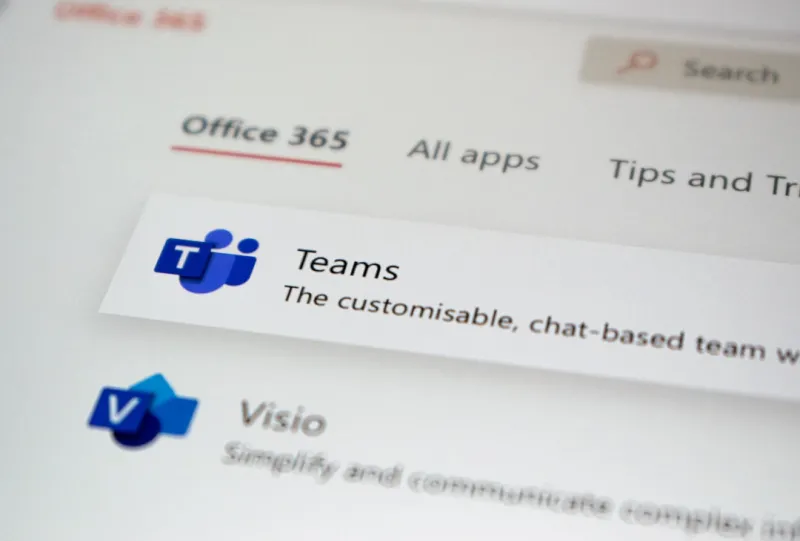
The pandemic taught us that real‑time collaboration isn’t a luxury; it’s a necessity. Office’s integration with Teams brings chat, video, and file sharing into a single pane, eliminating the “switch‑hassle” that used to plague remote work. Co‑authoring in Word and PowerPoint now updates in near‑real time, and you can see exactly who is editing which paragraph, complete with change‑tracking markers that disappear once the document is finalized. The secret sauce? Leveraging the “Share to Teams” button directly from the Office apps, which pushes a secure link to a channel where teammates can discuss changes on the fly. This workflow reduces email clutter and ensures everyone is literally on the same page—literally and figuratively. When you need deeper strategic guidance on integrating these tools across an organization, my post on Trending Software Development Strategies for 2024: Shawn DesRochers’ Insider Perspective offers a roadmap.
Productivity Hacks: Shortcuts, Templates, and Add‑ins
Speed isn’t just about AI; it’s also about the little tricks that seasoned power users swear by. Here are my top three go‑to shortcuts that shave off seconds—and cumulatively, minutes—every day:
- Ctrl + Shift + V in Outlook pastes plain text, stripping out unwanted formatting from copied emails.
- Alt + Q in any Office app opens the “Tell Me” search bar, letting you jump directly to commands without hunting through ribbons.
- Ctrl + Alt + F9 forces a full recalculation in Excel, useful when volatile functions lag behind.
Beyond shortcuts, custom templates for recurring reports (think weekly sales dashboards) and add‑ins like “Power BI Publisher” or “Grammarly for Microsoft Office” can automate repetitive steps. Keep a master template library on OneDrive; it ensures every teammate starts with the same branding and layout, reducing version drift. For those who love a good deep‑dive, my “Why Microsoft Office Still Rules the Productivity World in 2024” piece outlines how template governance can become a competitive moat for enterprises.
Security, Compliance, and Data Governance in Office 365
In 2024, data breaches are no longer “if” but “when.” Microsoft Office’s security suite has evolved into a multi‑layered fortress: Information Protection labels, Conditional Access policies, and Advanced Threat Protection work together to keep sensitive content locked down. When you enable Sensitivity Labels, documents inherit encryption automatically, and the policy travels with the file—even if it’s downloaded to a personal device. Moreover, the compliance manager dashboard offers a real‑time health score, flagging gaps before auditors can knock on your door. Pair this with Microsoft’s Zero‑Trust model, and you have a system that assumes breach and mitigates impact. For a broader view on how operating system trends intersect with Office security, see my analysis in Operating Systems in 2024: Trends, Tips, and Future‑Proof Strategies from Shawn DesRochers. Treat security as a feature, not an afterthought, and you’ll sleep better at night.
Cross‑Platform Flexibility: From Desktop to Mobile
One of Office’s unsung strengths is its seamless experience across Windows, macOS, iOS, and Android. The mobile apps now support full document editing, track changes, and even integrate with the same AI Copilot that powers the desktop. The trick to a fluid workflow is to keep your files in OneDrive for Business; this guarantees the latest version is always at hand, no matter the device. I recommend enabling “Auto‑Save” across all platforms—this eliminates the dreaded “I saved my work, but the file is older” scenario. Additionally, the new “Focus Mode” in the mobile Word app hides the ribbon, giving you a distraction‑free canvas that mimics the desktop’s “Reading View.” By treating your Office suite as a cloud‑first service, you free yourself from the shackles of a single workstation, a boon for anyone who juggles client sites, home offices, and on‑the‑road meetings.
Future‑Proofing Your Office Suite in an AI‑First World
Looking ahead, Office will become an even tighter hub for AI‑driven decision making. Microsoft has hinted at tighter integration with Azure OpenAI services, meaning future Copilot iterations could pull in external data sources—think live market feeds or internal CRM data—directly into your spreadsheets. To stay ahead, adopt a mindset of “data readiness”: maintain clean, well‑documented data models and use Power Query to normalize inputs. This practice ensures that when the next AI layer drops, your organization can ingest and act on that intelligence without a massive re‑engineering effort. Also, keep an eye on the emerging “Microsoft Loop” components, which promise modular, real‑time content blocks that can live across Teams, Outlook, and the Office apps simultaneously. By investing time now in structured data and modular content, you’ll future‑proof your workflow against the rapid AI advancements that lie on the horizon.
Quick Troubleshooting Checklist for Common Office Glitches
Even the most polished suite hits occasional snags. Here’s my rapid‑fire checklist to get you back on track without calling IT:
- Restart the Office application to clear residual memory leaks.
- Ensure you’re on the latest update channel (Monthly Enterprise or Current Channel) via “File → Account → Update Options.”
- Clear the Office cache: delete the %localappdata%\Microsoft\Office\16.0\OfficeFileCache folder.
- Run the “Microsoft Support and Recovery Assistant” to auto‑diagnose connectivity or activation issues.
- Check add‑in conflicts by launching Office in safe mode (e.g., winword /safe).
Most problems resolve with a quick update or cache clear, but if you find yourself repeatedly hitting the same roadblock, it may be time to revisit your deployment strategy—perhaps a shift to cloud‑only apps or a re‑evaluation of legacy macros. With these steps, you’ll keep the Office engine humming, letting you focus on the work that truly matters.